
Appearance
Approving Timesheets
For managers: Learn how to review and approve your team's time entries.
🎥 Video Tutorials
Watch the Videos
Who Can Approve Timesheets?
Timesheet approval follows a hierarchical permission structure. Your ability to view and approve timesheets depends on the rights assigned to you.
Team-Level Rights
| Right | What You Can Do |
|---|---|
| View Team Member Timesheets | View timesheets of team members who don't have timesheet management rights |
| Manage Team Member Timesheets | Approve/reject timesheets of team members who don't have timesheet management rights |
| View All Team Timesheets | View timesheets of all team members, including other managers (except Directors) |
| Manage All Team Timesheets | Approve/reject timesheets of all team members, including other managers (except Directors) |
Organization-Level Rights
| Right | What You Can Do |
|---|---|
| View All Timesheets | View timesheets of all users across all teams, including Directors |
| Manage All Timesheets | Approve/reject timesheets of all users across all teams, including Directors |
Director Timesheets
Users with the Director role have special protection:
- Only users with View All Timesheets or Manage All Timesheets can see their timesheets
- Only users with Manage All Timesheets can approve their timesheets
This ensures director-level time data remains confidential.
Permission Tip
If you can't see a team member's timesheet, you may need elevated rights. Users with the standard "Manage Team Member Timesheets" right cannot see timesheets of other users who also have timesheet management rights—you need "Manage All Team Timesheets" for that.
Where to Find Timesheets to Approve
- Click Timesheets in the sidebar
- Click the "Manage Timesheets" tab
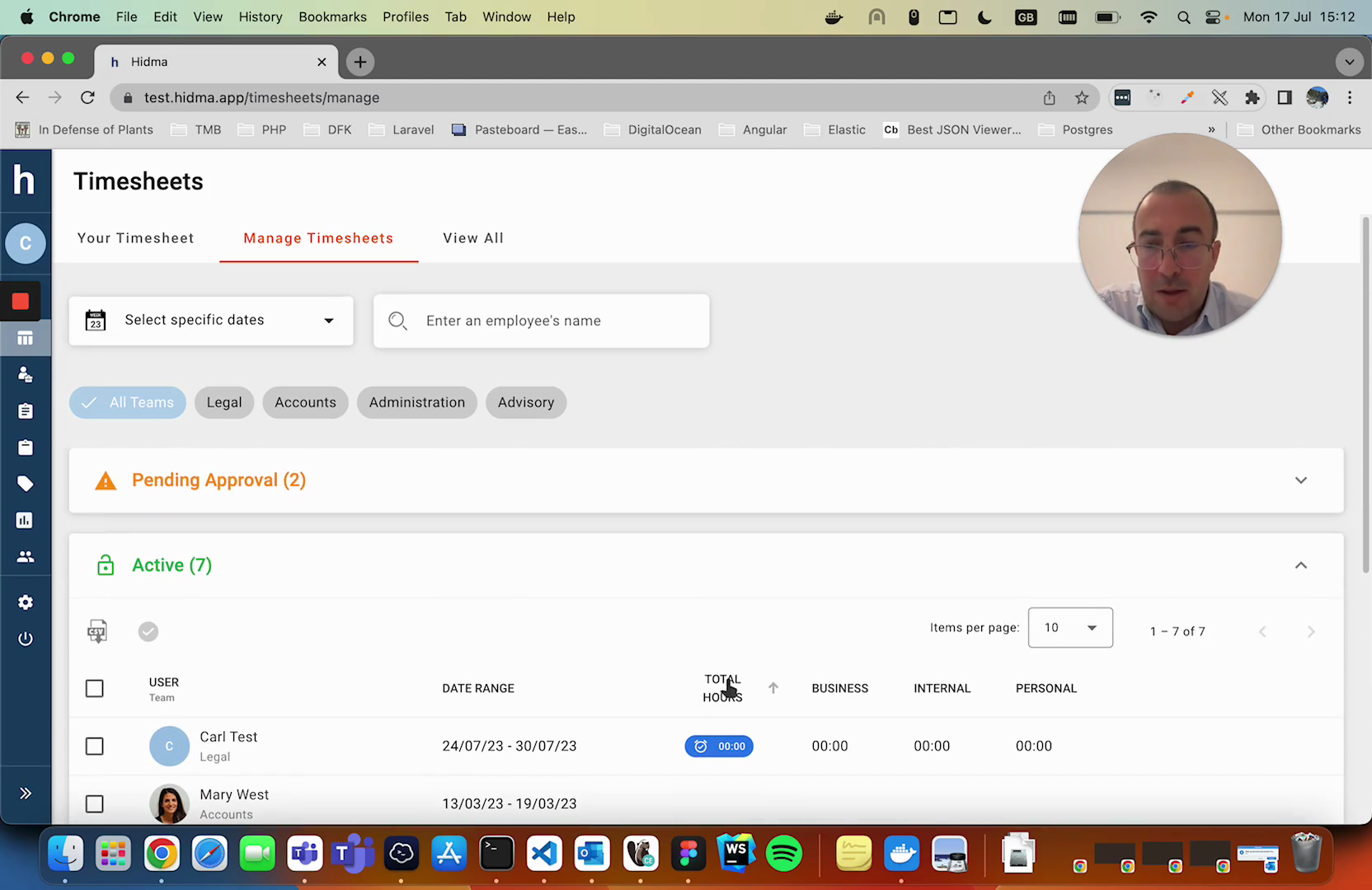
You'll see two sections:
- Pending Approval - Timesheets waiting for you to review
- Active - Currently open timesheets
How to Approve Timesheets
Approving One Timesheet
- Find the timesheet in the "Pending Approval" section
- Click on it to open and review
- Check the hours make sense
- Click "Approve" button
- Done! The person will be notified
Approving Multiple Timesheets
To approve several at once:
- Check the boxes next to each timesheet
- Click "Approve Selected" or the approve button
- All selected timesheets are approved together
This saves time when you have many to review!
Undoing an Approval
After you approve a timesheet, Hidma gives you a 30-second grace period to undo the action. If you tapped the wrong row or hit approve too quickly, just click Undo in the confirmation banner within the window and the timesheet returns to Pending Approval.
Why a 30-second window?
The grace period covers the common "oops" cases — wrong row, double-click, fat finger — without leaving approvals reversible indefinitely. Once 30 seconds pass, the approval is considered final.
After the 30 seconds are up: only users with full timesheet administration rights (Manage All Timesheets at the organisation level) can revert an approved entry. Standard approvers won't see the revert option once the window has closed, so if the wrong timesheet has been approved you'll need to ask an admin to reverse it.
What to Check
Before approving, look at:
- Total hours - Does it look reasonable?
- Which days - Are they working expected days?
- Which projects - Are they on the right projects?
- Any notes - Read any comments they added
Filtering Timesheets
At the top of the page you can filter by:
- Team - See only specific teams (Legal, Accounts, etc.)
- Date range - Look at specific weeks
- Person's name - Search for a specific team member
If Something Looks Wrong
If hours don't look right:
- Don't approve it yet
- Click "Reject" or "Request Changes"
- Add a note explaining what needs fixing
- The person gets notified
- They fix it and resubmit
- You can then approve it
On Mobile
You can approve timesheets from your phone:
One Timesheet:
- Tap the timesheet
- Review it
- Tap "Approve"
Multiple Timesheets:
- Tap the checkboxes
- Tap "Approve Selected"
Tips for Managers
Best Practices
- Review regularly - Don't let them pile up
- Check before billing - Only approved time can be billed
- Give feedback - Let people know if something's unclear
- Be consistent - Approve on the same day each week if possible
Common Questions
Q: What happens after I approve? A: The time becomes "billable" and can be included in client bills.
Q: Can I unapprove a timesheet? A: For 30 seconds after approving, anyone who approved it can click Undo to revert. After the window closes, only users with Manage All Timesheets rights can revert an approved entry.
Q: What if someone forgot to submit? A: You can remind them, or some systems let you see unsubmitted time.
Q: Do I approve every single day? A: No, usually you approve weekly after people submit their week.
What's Next?
After approving time:
- It can be included in bills
- You can view team reports
- Track project progress
Related Topics
- User Roles & Permissions - Complete guide to permission configuration
- Managing Your Timesheets - For users submitting timesheets
Need Help?
Questions about approving timesheets? Check troubleshooting or contact support.