
Appearance
Closing Hours
Allocate unbilled hours and charges to existing bills—either automatically when closing projects, or manually when closing off time against finalized bills.
Overview
Hidma offers several ways to manage and close off unbilled hours:
- Flexible allocation management - Adjust time or charges on any bill row at any stage of the billing lifecycle
- Auto-allocation on project closure - Automatically allocate all unbilled hours when closing a project
- Manual allocation to finalized bills - Allocate specific hours to a bill that has already been paid
All approaches ensure work is properly accounted for, keeping your WIP (work-in-progress) accurate and maintaining clear audit trails for project profitability.
Auto-Allocate Unbilled Hours on Project Closure
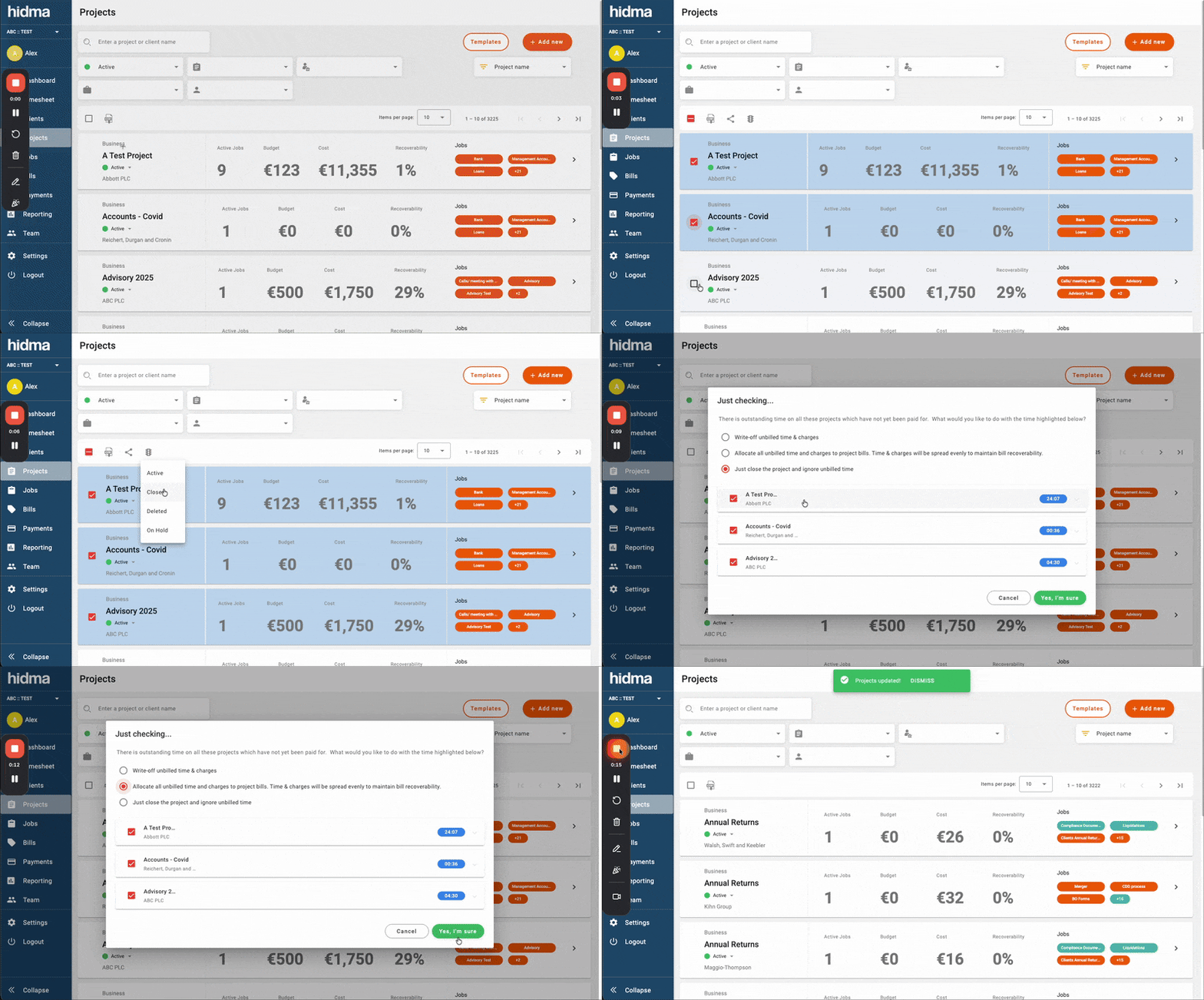
When closing a project, you have the option to automatically allocate any unbilled hours and charges to existing bills created for that project.
What This Option Does
When you enable auto-allocation during project closure:
- Allocates and closes all unbilled time across all bills associated with the project
- Allocates all unbilled charges to bills
- Normalizes recoverability across all bills
- Proportionally adjusts charge-out rates for all individuals involved in the project
This ensures that all work performed on the project is properly billed and closed off, with rates adjusted proportionally to maintain accurate recoverability metrics.
What Gets Allocated
Important Note
Charges that do not affect a project's cost or recoverability will not be allocated or closed using this option. Only charges that affect cost and recoverability (such as Project Opening Cost) will be included.
Included:
- All unbilled time entries
- Charges that affect project cost
- Charges that affect recoverability
- Project Opening Costs
Excluded:
- Charges that don't affect cost or recoverability
- Already allocated hours
- Already closed items
How to Use Auto-Allocation
Step 1: Navigate to Project
- Go to your Projects list
- Find the project you want to close
- Open the project details
Step 2: Close Project
- Change the project status to Closed or Completed
- A dialog will appear with auto-allocation options
Step 3: Choose Auto-Allocation
- Review the unbilled hours and charges displayed
- Check the box to "Allocate unbilled hours to existing bills"
- Confirm the action
- Hidma will process the allocation
Step 4: Verify Results
- Review the bills associated with the project
- Verify that unbilled hours have been allocated
- Check that recoverability has been normalized
- Confirm charge-out rates are proportionally adjusted
Benefits of Auto-Allocation
Time Savings Instead of manually allocating hours to multiple bills, the system does it automatically in seconds.
Accuracy Proportional allocation ensures fair distribution across bills and maintains accurate recoverability metrics.
Completeness All unbilled work gets captured and allocated, preventing revenue leakage.
Consistency Automated allocation follows consistent rules, reducing human error and ensuring standardized processing.
Managing Time & Charge Allocations on Bill Rows
You can adjust time or charges allocated to a bill row at any stage of the billing lifecycle—from draft to fully settled—without needing to delete and recreate rows.
Watch Alex walk through the new allocation workflow.
How It Works
Click the Time Icon on any bill row to manage all allocations instantly. This gives you a flexible way to adjust what's allocated to each row regardless of the bill's current status.
Pro Tip
For bills that are already generated, you can still use the existing "Allocate Hours" functionality (described below) for precision adjustments.
When to Use This Feature
- You need to move hours between bill rows on a draft bill
- A generated bill needs allocation adjustments before sending
- A partially paid or fully settled bill requires reallocation for accurate reporting
- You want to quickly reassign time or charges without recreating rows
Allocating Hours to Finalized Bills
Sometimes you need to close off unbilled hours against a bill that has already been sent, paid, or otherwise finalized. This is different from project closure—it's about associating remaining unbilled time with a specific bill without changing what the client was charged.
When to Use This Feature
Common scenarios:
- A bill has been sent and paid, but team members logged additional hours afterward
- You want to close off remaining unbilled hours without creating a new bill
- The project has been completed and you need to account for all hours worked
- Hours need to be associated with a settled bill for accurate project profitability reporting
How It Works
When you open a bill that has been settled (paid), you'll see a notification:
"Changes cannot be made to this Bill as it has been paid. You can allocate jobs if needed."
This means while you can't change what was billed to the client, you can still allocate unbilled hours to the bill for record-keeping purposes.
Step-by-Step Guide
Step 1: Open the Settled Bill
- Go to Bills in the main navigation
- Scroll to the Settled Bills section
- Click on the bill you want to allocate hours to
Step 2: Click Allocate Hours
- Click the Allocate Hours button in the notification banner
- The Available Jobs dialog will open
Step 3: Select Bill Row and Hours
- Choose a bill row from the dropdown—this is the line item the hours will be associated with
- Review the summary showing:
- Amount Charged to Client - what was actually billed
- Total cost of hours selected - the cost of hours being allocated
- Total charge of hours selected - the charge value of hours being allocated
- Select jobs from the list to allocate
- For each job, you can:
- Expand to see individual user breakdowns
- Enter specific hours to allocate (partial allocation)
- Remove users/jobs you don't want to include
Step 4: Confirm Allocation
- Review your selections
- Click Allocate Jobs to the bill
- The hours will be marked as "Closed against Bill"
Replace Charge Option
When allocating hours, you may see a checkbox:
"Replace this charge with the following selected jobs once the bill is saved."
This option is useful when:
- You have a fixed-fee line item (like "Project deposit") that represents estimated work
- You want to replace it with actual time entries for accurate tracking
- You need to show the true hours worked while keeping the billed amount unchanged
Understanding Hour Statuses
After allocation, hours will have one of these statuses in reports:
| Status | Meaning |
|---|---|
| Unbilled | Hours not yet billed or allocated |
| Billed | Hours included on an active/sent bill |
| Closed against Bill | Hours allocated to a finalized bill |
| Write off | Hours written off as non-recoverable |
The Closed against Bill status indicates that hours have been associated with a settled bill. These hours:
- Count toward project profitability calculations
- Are removed from work-in-progress (WIP) reports
- Maintain their connection to the bill for audit purposes
- Don't change what the client was charged
Rate Calculations
When you allocate hours to a finalized bill, Hidma calculates the effective rate. You may see a tooltip:
"Charge is based on this user's current default rate since the user had no default rate configured when these hours were recorded."
This helps you understand how the charge value was determined, which affects recoverability metrics.
Reversing Write-Offs
If you close a project and write off hours, you can later reverse this decision when reopening the project.
See Project Status - Reversing Write-Offs for details on how to restore written-off hours.
Best Practices
Tips for Closing Hours
Review Before Closing Before closing a project, review all unbilled hours and charges to ensure accuracy. It's easier to fix issues before auto-allocation than after.
Check Bill Distribution If the project has multiple bills, understand how hours will be distributed before confirming allocation.
Communicate with Team Let team members know when you're closing a project so they can log any final time entries first.
Document Adjustments If you need to make manual adjustments after auto-allocation, document why for future reference.
Verify Recoverability After allocation, check that project recoverability metrics are accurate and make sense.
Common Scenarios
Scenario: Single Bill Project
Situation: Project has one bill with unbilled hours remaining.
Solution: Close the project with auto-allocation enabled. All unbilled hours will be allocated to that single bill, and recoverability will be calculated for the complete project.
Scenario: Multiple Bills
Situation: Project has three bills at different stages, with unbilled hours throughout the project.
Solution: Auto-allocation will distribute unbilled hours proportionally across all bills, normalizing recoverability and adjusting charge-out rates to maintain accurate project metrics.
Scenario: Mixed Charges
Situation: Project has unbilled hours plus various charges, some affecting cost and some not.
Solution: Auto-allocation will include hours and cost-affecting charges, while ignoring charges that don't impact project cost or recoverability.
Scenario: Hours After Bill Payment
Situation: A bill was sent and paid, but team members continued to log time on the project afterward. You don't want to create a new bill but need to account for these hours.
Solution: Open the settled bill, click "Allocate Hours," and allocate the unbilled hours to an existing bill row. The hours will be marked as "Closed against Bill" without changing the amount the client paid.
Scenario: Fixed Fee with Actual Hours
Situation: You billed a fixed fee (e.g., "Project deposit - €500") but want to track the actual hours worked for profitability analysis.
Solution: When allocating hours to the finalized bill, use the "Replace this charge with the following selected jobs" option. This associates the actual time entries with the fixed-fee line item, giving you accurate cost tracking while maintaining the original bill amount.
Related Topics
- Project Status - Managing project lifecycle
- Creating Bills - How to create bills
- Write-Offs - Managing write-offs
- Billable Items - Understanding what can be billed
Need Help?
For questions about closing hours or auto-allocation, contact [email protected].