
Appearance
Project Templates
Streamline project creation by defining reusable templates for recurring engagement types.
Overview
Project templates in Hidma save significant time when you repeatedly create similar projects. Rather than configuring each project from scratch - selecting jobs, assigning teams, setting descriptions - you define a template once that captures the standard structure for that type of engagement. When you need to start a new project of that type, select the template and Hidma pre-populates all the configuration, leaving you to just customize the client-specific details.
Templates are particularly valuable for firms with standardized service offerings. If you deliver monthly bookkeeping services, annual tax returns, quarterly compliance audits, or any other recurring engagement type, templates ensure consistent project structure while dramatically reducing setup time. What might take five minutes to configure manually takes fifteen seconds with a template.
When to Use Templates
Recurring Service Offerings
Professional services firms often deliver the same types of engagements repeatedly. An accounting firm might prepare dozens of corporate tax returns each year - each one is a distinct project for a different client, but they all follow the same workflow. Creating a "Corporate Tax Return" template that includes all standard jobs (document collection, data entry, preparation, review, client meetings) means each new tax return project starts with the right structure already in place.
Similarly, if you provide monthly bookkeeping for multiple clients, a "Monthly Bookkeeping" template pre-configures the recurring jobs (reconciliation, journal entries, financial statements, client review) so each new bookkeeping project is instantly ready for time tracking.
Standardized Engagement Structures
Even when engagements aren't identical, certain types of work follow predictable patterns. Audit engagements typically have planning, fieldwork, review, and reporting phases. Consulting projects often follow discovery, analysis, recommendations, and implementation. Creating templates for these standard structures ensures consistency across similar engagements while allowing flexibility to adjust for specific client situations.
Templates also help with quality control - when every audit follows the template structure, you're less likely to accidentally omit a critical phase or required job type. Standardization through templates improves both efficiency and consistency.
Team-Specific or Practice Area Projects
Different practice areas or teams within your firm might have their own standard project structures. The tax team's projects look different from the audit team's projects, which differ from advisory projects. Creating templates specific to each practice area ensures that when teams create projects, they start with structures appropriate for their work rather than generic configurations.
You can restrict templates to specific teams, so the tax team only sees tax-related templates, the audit team sees audit templates, and so on. This restriction reduces clutter and prevents teams from accidentally using inappropriate templates for their work.
Creating Project Templates
Basic Template Setup
Navigate to Settings → Project Templates (or wherever your instance locates this feature), and click "Add New" to create a template.
Name the Template descriptively to make its purpose immediately clear - "Corporate Tax Return," "Monthly Bookkeeping - Small Business," "Quarterly Audit Engagement," "Estate Planning Services." The name appears when users select templates during project creation, so clarity matters. Vague names like "Template 1" or "Standard Project" don't communicate what the template provides.
Add a Description explaining what this template is for and when to use it. Perhaps "Use for all corporate tax return engagements - includes standard job types and workflow phases." These descriptions help team members select the right template for their situation, particularly when you have many templates.
Choose Template Type - typically "Business" for client-facing projects versus "Internal" for internal firm projects. This classification helps organize templates and may affect how they appear in selection interfaces.
Select Associated Jobs that should be available on projects created from this template. This is the template's core value - pre-defining which types of work (jobs) are relevant for this engagement type. Perhaps a tax return template includes jobs for Document Collection, Data Entry, Preparation, Review, and Client Meeting, but excludes jobs related to audit fieldwork or advisory consulting. Projects created from the template start with exactly these jobs available, eliminating the need to select them individually.
Assign to Teams (Optional) if this template should only be visible to specific teams. Perhaps the Tax Team template should only appear for tax team members, while the Audit Team template is restricted to auditors. Team restrictions ensure people see relevant templates without clutter from other practice areas.
Configure Default Settings like standard descriptions, typical budget ranges, or other attributes that usually apply to this project type. While users can adjust these during project creation, sensible defaults reduce the configuration needed for each new project.
Set Default Organization (Multi-Organization Setups) - For firms operating multiple organizations or entities, you can now assign a default organization to each project template:
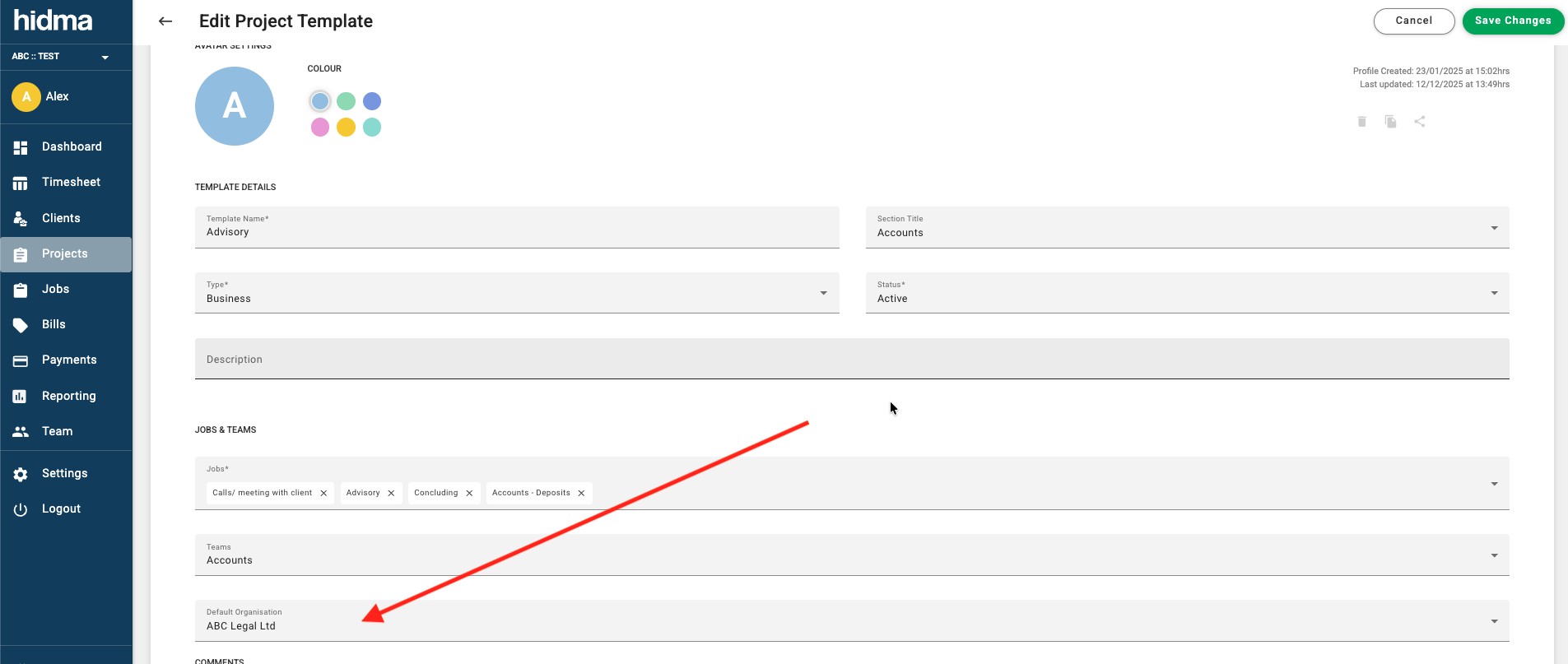
This streamlines billing by automatically selecting the default organization whenever a new bill is created for a project linked to that template. For example, if your "Tax Returns - Entity A" template has Entity A set as the default organization, every bill created for projects using this template will default to Entity A, reducing manual selection and preventing billing errors.
To configure this:
- Go to Projects → Project Templates
- Edit the relevant template
- Update the Default Organisation field
- Save the template
Save the Template and it immediately becomes available when creating new projects. The template appears in template selection menus, ready to speed up project creation.
What a Template Can Pre-Set
Project templates have been extended so that any field attributable to a project can be pre-set on the template - not just jobs and teams. A template is now close to a complete project definition, with only the client-specific details left to fill in.
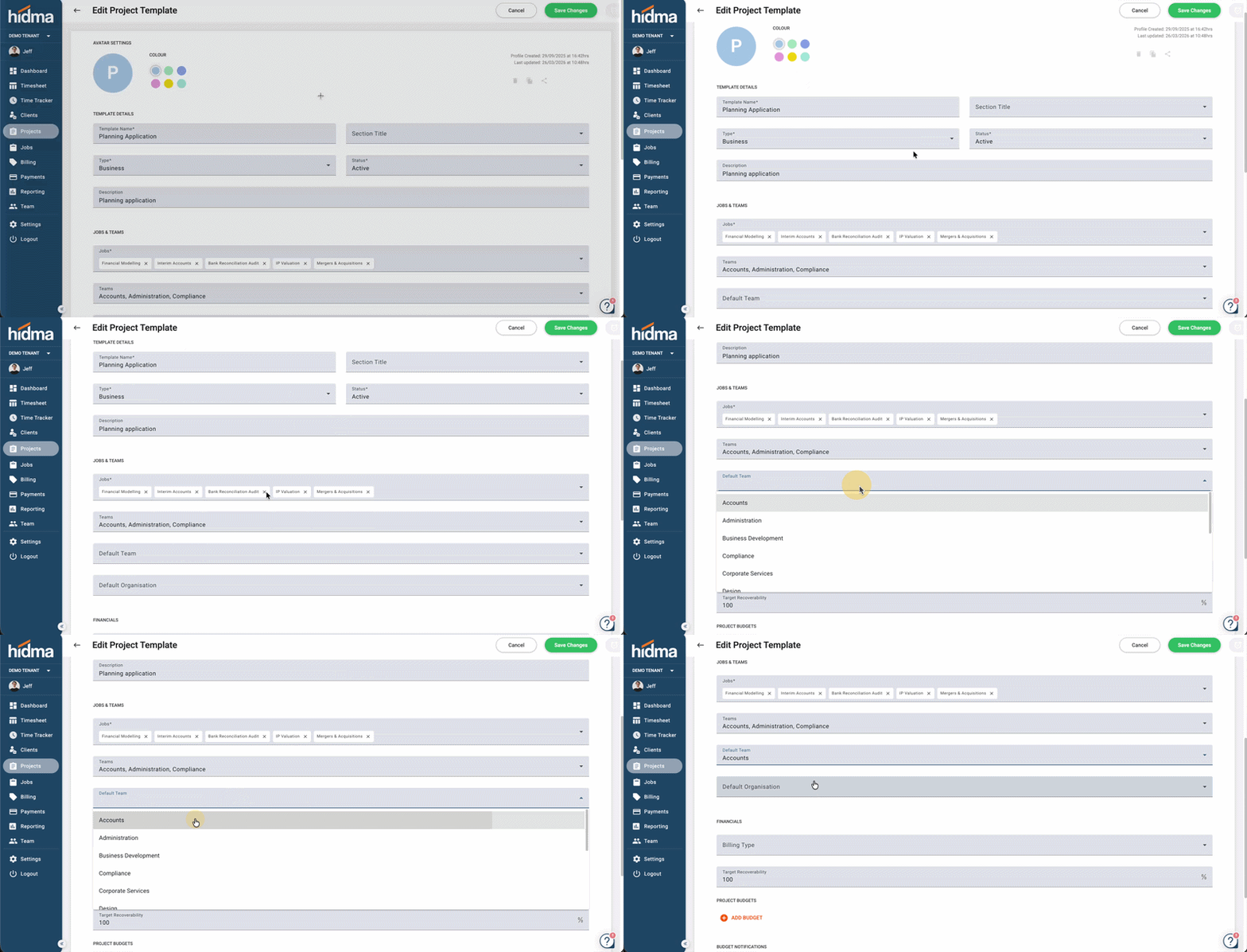
The Edit Project Template screen groups these into sections:
Template Details - template name, type, status, and description.
Jobs & Teams
- Jobs - the jobs available on projects created from this template
- Teams - the teams the template applies to
- Default Team - the team automatically assigned to new projects from this template. This is the assignment that previously had to be made by hand on every project
- Default Organisation - the organisation pre-selected when bills are raised for these projects (see Set Default Organization above)
Financials
- Billing Type - pre-set Manual, Automatic, or your own custom value (learn about billing types)
- Target Recoverability - the recoverability percentage the project should be measured against
Project Budgets - define budgets on the template itself, so every project created from it starts with the right cost, time, or chargeable budget already in place (learn about project budgets).
Budget Notifications - pre-configure the notification triggers and thresholds, so budget alerts fire from day one without anyone remembering to set them up (learn about budget notifications).
Pre-set the things people forget
The fields most worth putting on a template are the ones most often skipped during project creation - default team, budgets, and budget notification triggers. A budget that's set every time is the one that actually catches an overrun.
Coming soon
A future release will let you add bills, charges, and recurring bills directly within project templates. Until then, you can define those at the point of project creation - see Bills, Recurring Bills & Charges at Project Creation.
Organizing Templates
As you create multiple templates, organization becomes important for usability:
Use Consistent Naming Conventions so templates sort logically and their purpose is immediately clear. Perhaps prefix templates with practice area ("Tax - Corporate Return," "Tax - Individual Return," "Audit - Financial Statement"), or use descriptive hierarchical names. Consistency makes the template list scannable and helps users find what they need quickly.
Create Template Categories (if your instance supports them) to group related templates. Perhaps a "Tax Services" category containing all tax-related templates, an "Audit Services" category for audit templates, and an "Advisory Services" category for consulting templates. Categories reduce the need to scroll through long template lists when you know which category you need.
Retire Outdated Templates rather than deleting them. Service offerings evolve, regulatory requirements change, and firm practices develop. When a template becomes outdated, mark it inactive rather than deleting it - this preserves historical records of projects created from that template while removing it from active selection lists.
Using Templates
Creating Projects from Templates
When starting a new project, instead of creating from scratch, choose "Create from Template" or select a template during the project creation process.
Select the Appropriate Template from the list. The template name and description help you identify which one matches your current need. Perhaps you're starting a new corporate tax return, so you select the "Corporate Tax Return" template.
Review Pre-Populated Configuration - the template fills in jobs, team assignments, descriptions, and other configured attributes. Check that these defaults make sense for this specific project. Most of the time they will, but specific situations might warrant adjustment.
Customize for the Specific Client - add the client, set the project name (perhaps "Acme Corp - 2024 Tax Return"), adjust the budget for this specific engagement's scope, and modify any template defaults that don't fit this particular situation. The template provided the structure; you're adding the client-specific customization.
Add or Remove Elements as needed. Templates provide defaults, not restrictions. If this particular tax return requires additional jobs not in the template, add them. If certain template jobs aren't relevant for this client, remove them. Templates are starting points that you refine for each situation.
Save the Project and it's ready for use, with all the template structure in place but customized for this specific client engagement. The time saved versus configuring from scratch compounds across dozens or hundreds of projects.
Copying Template IDs
Some advanced workflows involve copying a template's unique identifier for use in automation, API integrations, or bulk operations. Each template has an ID that uniquely identifies it in the system. If you need to reference a template programmatically or build automation that creates projects from specific templates, you'll need this ID.
Access the template's details, and look for a "Copy ID" button or similar functionality. The ID is typically a number or alphanumeric string that uniquely identifies this specific template. Copy it and use it in your automation scripts or API calls to programmatically create projects from this template.
Best Practices
Template Management Tips
Start with Your Most Common Engagements Don't try to create templates for every possible project type immediately. Start with the 3-5 most common engagement types you deliver repeatedly. These high-frequency templates deliver immediate time savings and help you learn what makes templates useful. Once you've mastered basic templates, expand to less frequent project types.
Include Only Standard Jobs Templates should include jobs that apply to most engagements of that type. Don't include highly specialized jobs that only occasionally apply - users can add those during project creation when needed. Overloaded templates with too many jobs create clutter and defeat the simplification purpose. Focus on the 70-80% of jobs that consistently apply.
Document When to Use Each Template Use the template description field generously to explain when this template applies, what it includes, and any assumptions it makes. Good documentation helps team members select the right template and understand what they're getting. "For standard corporate tax returns up to 50 pages - includes all typical jobs but excludes international tax jobs" tells users exactly when this template fits.
Review and Update Templates Regularly Service delivery evolves - you refine processes, add new service components, or change how you structure work. Set a calendar reminder to review templates annually, checking whether they still reflect current practice. Update templates to match current workflows, retire templates for discontinued services, and create new templates for emerging service lines.
Get Feedback from Template Users The people creating projects from templates will quickly discover if templates are helpful or problematic. Solicit feedback: Do the templates include the right jobs? Are descriptions clear? Are defaults appropriate? User feedback drives template improvements that make them genuinely useful rather than theoretically organized.
Consider Team-Specific vs. Firm-Wide Templates Some templates benefit from being firm-wide (everyone can use them), while others work better restricted to specific teams. General templates like "Client Meeting" or "Administrative" might be firm-wide. Specialized templates like "Estate Tax Return with Trust Planning" might be restricted to the estate planning team. Balance accessibility with clutter - make templates available where they're useful without overwhelming unrelated teams with irrelevant options.
Common Scenarios
Scenario: Monthly Recurring Services
Situation: Providing monthly bookkeeping services to 30 small business clients, each needing similar work.
Solution: Create a "Monthly Bookkeeping - Small Business" template including standard jobs: Bank Reconciliation, Accounts Payable, Accounts Receivable, Journal Entries, Financial Statements, Client Review. When onboarding a new bookkeeping client, create their monthly project from the template - all jobs pre-configured, standard budget applied, typical team members assigned. Customize only the client name and any client-specific variations. Repeat monthly for each client using the same template.
Scenario: Annual Tax Season
Situation: Preparing 100+ tax returns during tax season, with returns following predictable patterns based on complexity.
Solution: Create multiple templates: "Individual Tax Return - Simple," "Individual Tax Return - Complex," "Corporate Tax Return - S-Corp," "Corporate Tax Return - C-Corp." Each template includes jobs appropriate for that return type. During tax season, quickly spin up projects from appropriate templates as returns come in. The template structure ensures consistency across all returns while saving hours of project setup time.
Scenario: Standardized Audit Engagements
Situation: Audit practice delivers financial statement audits following a standard methodology across all clients.
Solution: Create an "Annual Financial Statement Audit" template including all standard phases: Planning, Internal Control Assessment, Substantive Testing, Subsequent Events Review, Report Drafting, Partner Review. Every audit project starts from this template, ensuring no phases are overlooked and maintaining consistent structure across the practice. Adjust budgets and timelines during project creation based on client size and complexity, but the fundamental structure remains standard.
Related Topics
- Creating Projects - Project management
- Recurring Projects - Apply a template to a project that regenerates itself on a schedule
- Bills, Recurring Bills & Charges at Project Creation - Add billing that templates can't yet carry
- Project Budgets - The budgets a template can pre-set
- Budget Notifications - The triggers a template can pre-set
- Project Sharing - Team access
- Job Configuration - Defining job types
Need Help?
Project templates dramatically speed up repetitive project creation. Start with your most common engagement types and expand from there.