
Appearance
Copying Timesheet Rows
Save time by copying recurring timesheet entries from one week or day to another, perfect for repeating work patterns.
🎥 Video Tutorial
Watch the Video
Video: Hidma - Copying timesheet rows from one week to the other.mp4 Duration: 21 seconds Topics Covered: Selecting rows, choosing destination dates, copying entries
What You'll Learn
- How to copy timesheet entries to another week or day
- When copying saves you time
- How to select multiple rows at once
- How to choose destination dates using the calendar picker
Why Copy Timesheet Rows?
Copying timesheet rows is a huge time-saver for anyone with recurring work patterns, eliminating the tedious task of recreating the same project rows from scratch every single week.
If you work on the same projects consistently - perhaps you have three recurring clients whose work you handle every week - copying last week's timesheet forward means you instantly have all those project rows set up with their job types and typical hour distributions. Instead of spending five minutes each Monday adding projects, selecting jobs, and entering baseline hours, you spend five seconds copying and then just adjust for any variations in the current week.
Regular schedules benefit tremendously from copying. When you work the same pattern of tasks week after week - maybe consultations on Mondays and Tuesdays, research on Wednesdays, report writing on Thursdays and Fridays - copying preserves that entire structure. Your timesheet for next week starts as an exact replica of this week, ready for you to tweak as needed rather than rebuild from nothing.
Starting a new week becomes effortless with copying. At the end of your current week, or even on Thursday or Friday when you know your pattern won't change, copy your entries forward to next week. When Monday arrives, your timesheet is already populated with your typical projects and hour allocations, letting you dive into actual work instead of administrative setup.
Part-time workers with consistent schedules particularly appreciate copying. If you work Mondays, Wednesdays, and Fridays on the same two projects for the same number of hours each week, copying ensures perfect consistency - the same structure appears every week without you having to remember which days you work or how many hours you typically log.
Even for less predictable schedules, copying individual days can be valuable. Maybe Monday went exceptionally well with a good balance of billable client work and internal tasks. You can copy just Monday's entries to Wednesday or Friday, replicating that productive pattern for another day while adjusting as the week actually unfolds.
Before You Start
Before you can copy timesheet rows, you need a few things in place. Make sure you're viewing the "Your Timesheet" page (not the "Manage Timesheets" view which is for managers overseeing others' time). You need existing timesheet entries to copy - empty timesheets have nothing to replicate. And you should know your destination - which future week or specific day you want to copy these entries to. If you're unsure about the destination, take a moment to check your calendar or project schedule so you're copying to the right time period.
Step-by-Step Instructions
Step 1: Navigate to Your Timesheet
- Click Timesheet in the left sidebar
- Make sure you're on "Your Timesheet" tab (not "Manage Timesheets")
- Use the date selector to navigate to the week you want to copy FROM
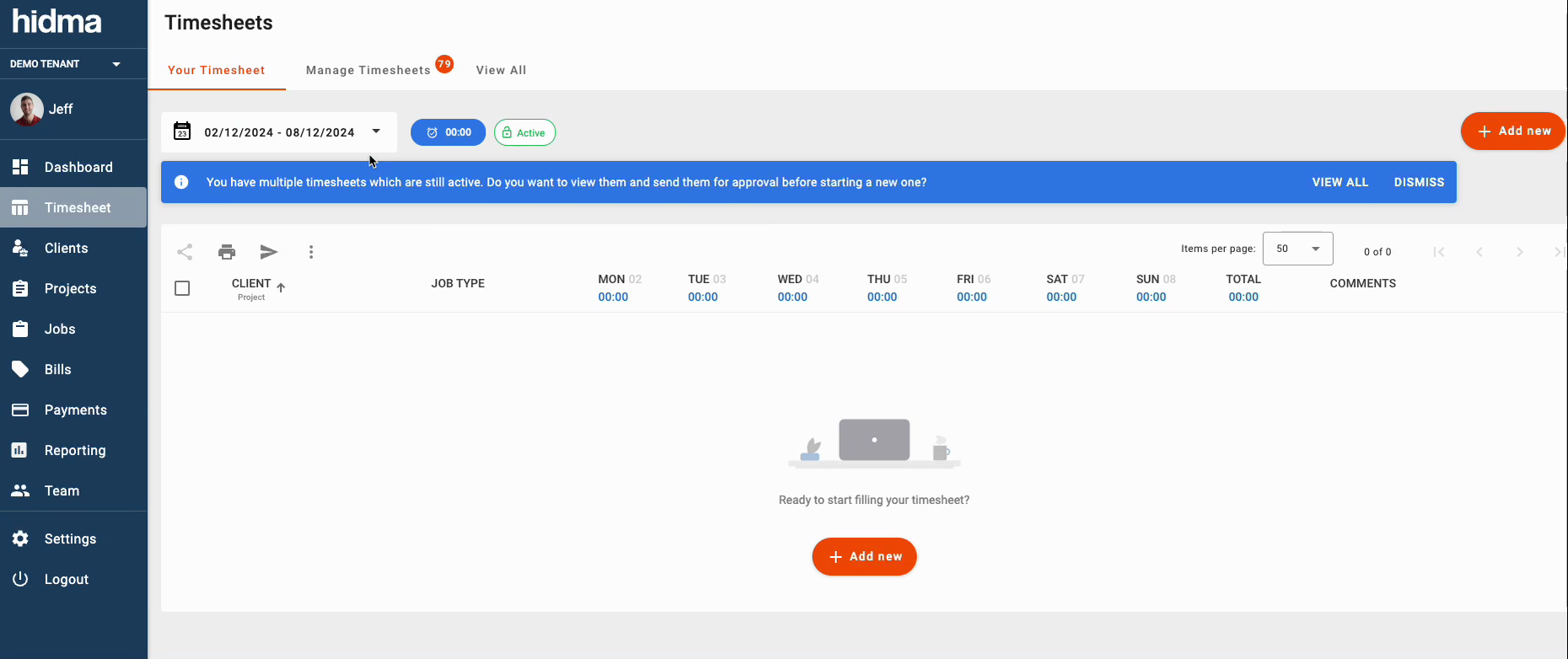
You'll see your timesheet in a table format:
- Rows = Projects/jobs
- Columns = Days of the week
- Cells = Hours worked
Step 2: Select Rows to Copy
To select a single row:
- Click the checkbox on the left side of the row
To select multiple rows:
- Click checkboxes for each row you want to copy
- All selected rows will be highlighted
In the screenshot above, you can see rows for:
- "Abbott, Durgan and Ullr..." (Review)
- "Internal" (Invoicing)
- Additional rows are available
Pro Tip
You can select all visible rows quickly by using keyboard shortcuts (if available) or clicking each checkbox.
Step 3: Open the Copy Function
Once you have rows selected:
- Look for the copy icon in the toolbar above the timesheet table
- It looks like two overlapping pages or sheets
- Click the copy icon
Alternatively:
- Some interfaces show a "Copy" button when rows are selected
- Right-click menu may also offer "Copy entries"
Step 4: Choose Destination Date
The "Copy Entries" dialog opens:
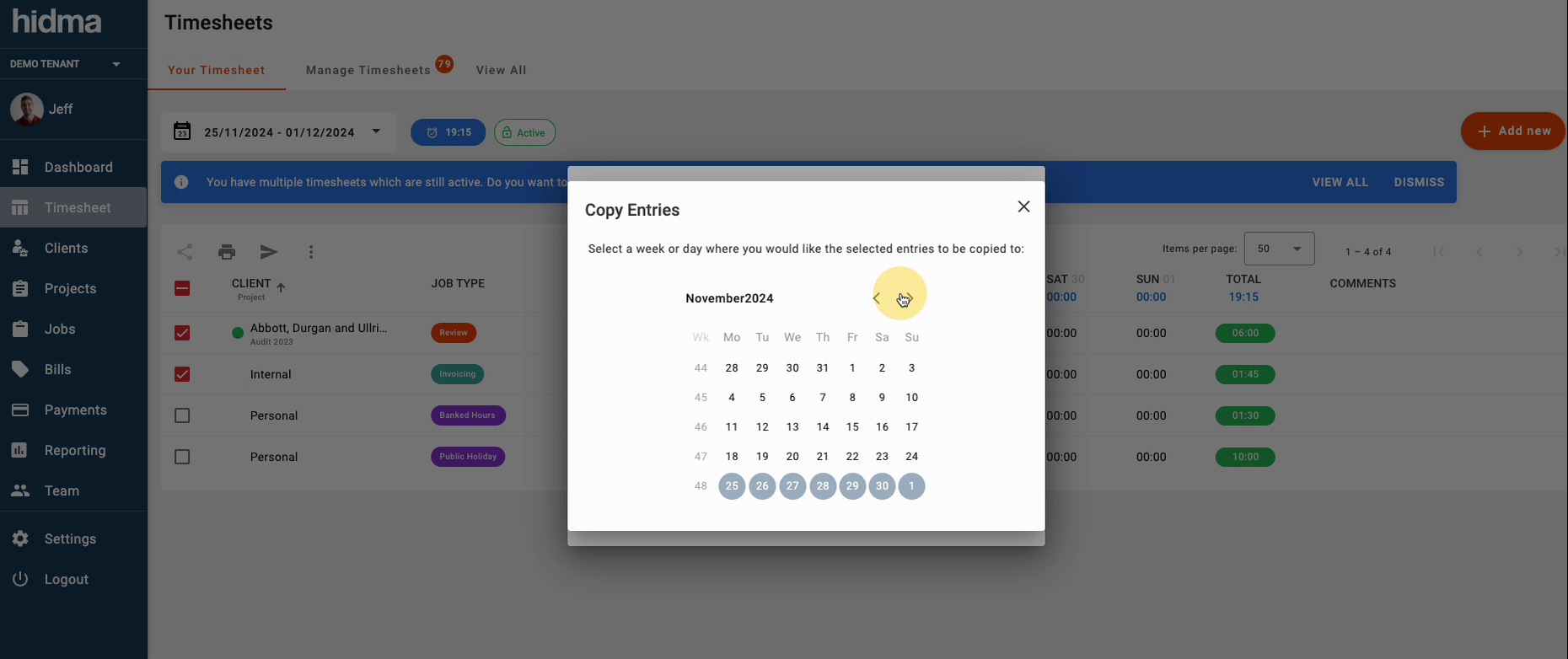
The dialog shows:
- Title: "Copy Entries"
- Instructions: "Select a week or day where you would like the selected entries to be copied to:"
- Calendar picker showing the current month
Using the calendar:
Navigate to the right month
- Use arrow buttons (< >) to move between months
- Current week may be highlighted
Select your destination
- Click a specific day to copy to that single day
- Click a week number (on the left) to copy to that entire week
- Selected dates will be highlighted in blue/gray
Week numbers (44, 45, 46, 47, 48) help you identify weeks
Example in screenshot:
- Calendar showing November 2024
- Week 48 highlighted (days 25-30, 1)
- Multiple weeks shown for easy selection
Step 5: Confirm the Copy
- Review your selection - Make sure you picked the right destination
- Click outside the calendar or click "Copy" (if there's a confirm button)
- The dialog closes
Step 6: See Confirmation
A success message appears:
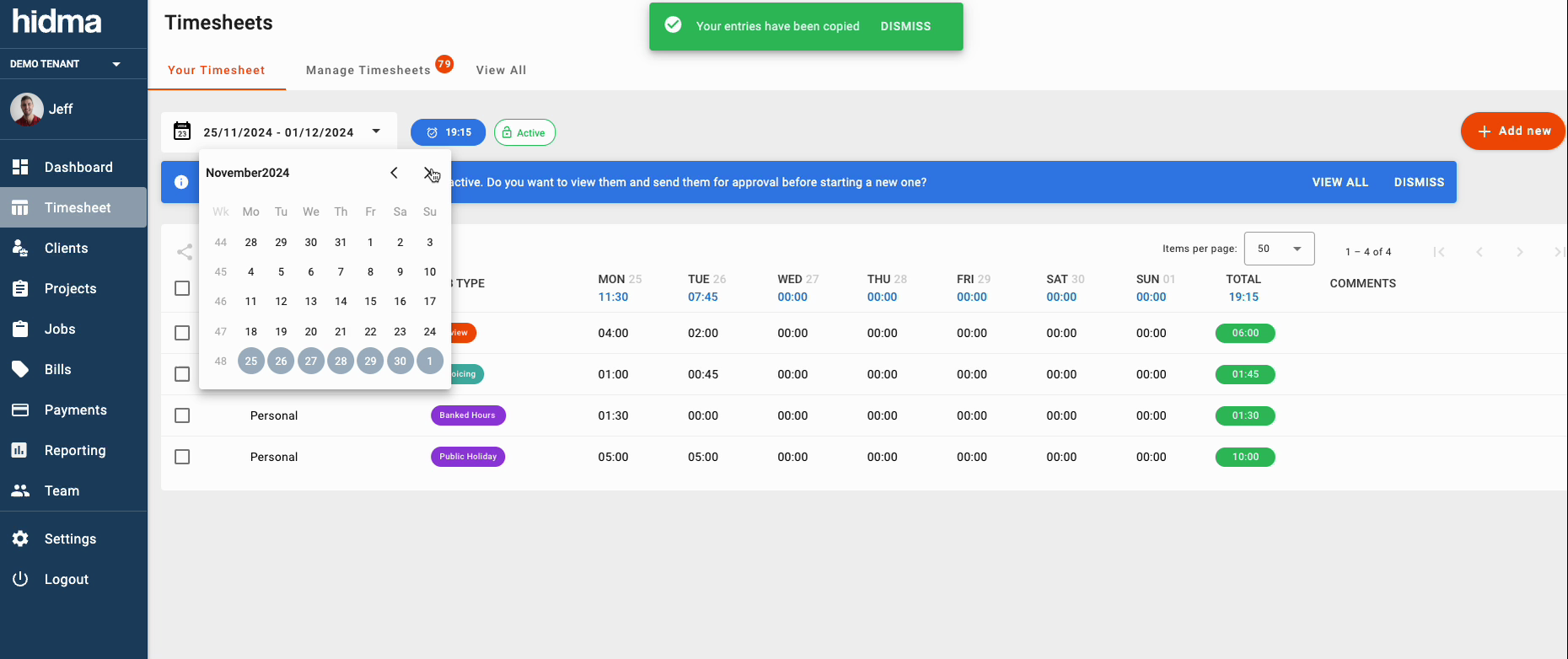
You'll see a green banner:
- "✓ Your entries have been copied"
- "DISMISS" button to close the message
The system has now:
- Copied your selected rows
- Placed them in the destination week/day
- Retained the project/job associations
- Kept the same hour amounts from the source
Step 7: Navigate to View Copied Entries
To see the newly copied entries:
- Change your week selector to the destination week
- You should see the copied rows with the same hours
- The hours are now editable - adjust as needed for the new week
Understanding What Gets Copied
When you copy timesheet rows, Hidma copies:
| Copied | Not Copied |
|---|---|
| ✅ Project/Client association | ❌ Comments/notes (usually) |
| ✅ Job type | ❌ Approval status |
| ✅ Hour amounts per day | ❌ Timestamps |
| ✅ Row structure | ❌ Submitted/locked status |
Important:
- Copied entries are draft/new entries in the destination week
- You can edit them before submitting
- They don't affect the original entries
Common Scenarios
Scenario 1: Weekly Recurring Work
Situation: You work on the same 3 projects every Monday-Thursday, same hours each week.
How to copy:
- At end of week, select all project rows from current week
- Open copy dialog
- Select next week (click the week number or first day)
- Confirm
- Next week's timesheet is pre-filled!
Scenario 2: Copy One Productive Day to Multiple Days
Situation: Monday went great, you want to repeat that pattern on Wednesday and Friday.
How to copy:
- View Monday in your timesheet
- Select the rows you worked on Monday
- Copy to Wednesday
- Repeat process to copy to Friday
Scenario 3: Template for a New Month
Situation: You have a standard monthly pattern and want to set up a new month quickly.
How to copy:
- Find a "typical" week from last month
- Select all rows
- Copy to first week of new month
- Repeat for subsequent weeks, adjusting as needed
Scenario 4: Copy From a Previous Period
Situation: You took a vacation and want to resume your previous work pattern.
How to copy:
- Navigate back to the last week before vacation
- Select your typical work rows
- Copy forward to current week
- Edit as necessary for current tasks
Tips & Best Practices
Pro Tips
Start Fresh Each Week Make copying from last week a standard part of your Friday afternoon routine. At the end of each week, take thirty seconds to copy your current week's entries forward to next week. This gives you a pre-populated starting point when you arrive Monday morning, letting you jump straight into work rather than spending the first part of your day on timesheet setup. You'll still adjust hours throughout the week as you actually work, but the administrative overhead of creating project rows, selecting jobs, and remembering what you typically work on has been eliminated.
Don't Over-Copy Be selective about which rows you copy - only include projects and jobs you're confident you'll work on again in the destination period. Copying everything indiscriminately, including one-off projects or completed work, clutters your timesheet with irrelevant rows that you'll need to clean up later. It's perfectly fine to copy a larger set of rows and then delete the ones that turn out to be unnecessary, but starting with thoughtful selection saves cleanup time. An overly crowded timesheet makes it harder to find the projects you're actually working on and increases the chance of logging time to the wrong line.
Review After Copying Never treat copied entries as final - they're starting points that need your review and adjustment. After copying, navigate to the destination week and look through what got created. Adjust the hour amounts to reflect your actual plans for the period rather than blindly accepting last week's numbers. Update job types if the nature of the work has changed - perhaps you were doing "Research" last week but you'll be doing "Client Meetings" this week. Add comments or notes where appropriate. This review step takes just a minute but ensures your timesheet accurately represents your plans rather than being a stale replica of the past.
Use as a Template Think of copied entries as a draft or template, not a commitment or prescription. The hours you see after copying represent what happened last week, which may or may not match what you'll do this week. Feel free to change absolutely anything - adjust hours up or down, switch job types, modify descriptions, or delete entire rows if they're no longer relevant. The copying feature exists purely to save you data entry time by preserving structure and common patterns. Once the copy is complete, those entries belong to the destination week and should be modified to reflect that week's reality.
Copy Before End of Week Don't wait until Monday morning to copy last week's timesheet - do it before you finish on Thursday or Friday. By late in the week you know your work pattern and can confidently copy forward, but Monday mornings are often hectic with meetings, urgent client requests, and planning for the week. Having your timesheet pre-populated before the weekend means you arrive Monday with one less administrative task competing for your attention. This small habit shift of copying forward on Friday afternoon rather than Monday morning removes friction from the start of your week.
Be Careful
Check Destination Date
- Double-check you're copying to the right week
- Calendar shows week numbers to help
- Easy to click wrong week by accident
Don't Copy Over Existing Entries
- If destination already has entries, copying may duplicate
- Review the destination week first
- Delete old entries if starting fresh
Approval Status Resets
- Copied entries are new/draft entries
- They need to be approved again like any new entry
- Original entries' approval status doesn't transfer
Public Holidays
- Copying to a week with holidays may not make sense
- Adjust copied hours for holiday days
Common Questions
Q: Can I copy to multiple weeks at once? A: No, you select one destination (a week or day) at a time. To copy to multiple weeks, repeat the copy process for each week.
Q: What happens if I copy to a week that already has entries? A: The copied entries are added as new rows. Existing entries aren't overwritten. You may end up with duplicate rows that you'll need to merge or delete.
Q: Can I copy entries from someone else's timesheet? A: No, you can only copy your own timesheet entries. Managers with access to "Manage Timesheets" still can't copy between users.
Q: Do copied entries need to be approved again? A: Yes, copied entries are new entries in the destination week and follow the normal approval workflow.
Q: Can I copy only certain days, not the whole row? A: When you copy a row, it copies the entire week's structure. You can then edit or delete specific days in the destination.
Q: What if I accidentally copy to the wrong week? A: Navigate to that week and delete the incorrectly copied rows. Or edit them if they're close to what you need.
Q: Does copying affect billing? A: No, copying is just about data entry. Billing happens when timesheets are approved and converted to bills.
Q: Can I undo a copy? A: There's no "undo" button, but you can manually delete the copied entries in the destination week.
Troubleshooting
Problem: Copy Icon Doesn't Appear
Cause: No rows are selected
Solution: Click the checkbox for at least one row, then the copy icon should appear in the toolbar.
Problem: Calendar Doesn't Show the Week I Need
Cause: You need to navigate to a different month
Solution: Use the arrow buttons (< >) in the calendar header to move forward or backward through months.
Problem: "Your entries have been copied" but I Don't See Them
Cause: You're still viewing the source week, not the destination
Solution: Change your week selector to navigate to the destination week. The copied entries are there.
Problem: Copied Entries Show Zero Hours
Cause: Some configurations may copy structure only, not hour values
Solution: This is likely intentional. Fill in the actual hours you plan to work this week.
Problem: Can't Select Multiple Rows
Cause: Checkboxes aren't working properly
Solution:
- Refresh the page
- Try selecting one row at a time
- Check browser compatibility (use Chrome, Firefox, or Safari)
Related Topics
Timesheet Management
- Creating Time Entries - How to add time to your timesheet
- Managing Timesheets - Edit, delete, and organize entries
- Submitting for Approval - Send timesheet for review
Other Productivity Features
- Non-Billable Hours - Track internal time
- Mobile Time Entry - Use Hidma on the go
For Managers
- Approving Timesheets - Review and approve team time
What's Next?
After copying your timesheet rows:
- Review the copied entries - Navigate to destination week
- Adjust hours as needed for the current period
- Add new rows if you're working on additional projects this week
- Delete unused rows if copied projects aren't relevant
- Submit for approval when the week is complete
Need More Help?
- Watch the video tutorial (21 seconds) to see copying in action
- Practice copying between test weeks first
- Ask your manager about team norms for timesheet copying