
Appearance
Project Status
Understand and manage the different states a project can be in.
Project Statuses
Out of the box, a project can be in one of three statuses:
Active
- Work is currently happening
- Team members can track time
- Shows in active project lists
On Hold
- Temporarily paused
- No active work right now
- Might resume later
Closed
- Project is finished
- Time tracking stops
- Kept for records
Custom statuses
Active, On Hold, and Closed are the built-in statuses. If your organization needs additional statuses, Hidma can configure custom ones for your tenant — contact [email protected].
Changing Project Status
The quickest way to change a project's status is to click its status indicator — the small coloured dot and status label (with a dropdown chevron) that appears anywhere a project is shown:
- On each project card in the Projects list and client dashboards
- On the project dashboard itself
- In lists that show projects, such as the Billing → Ready for billing view
To change the status:
- Find the project's status indicator (the coloured dot + status label).
- Click the indicator — hovering shows a tooltip such as "Project is currently Active. Change the status by clicking here."
- Select the new status from the dropdown.
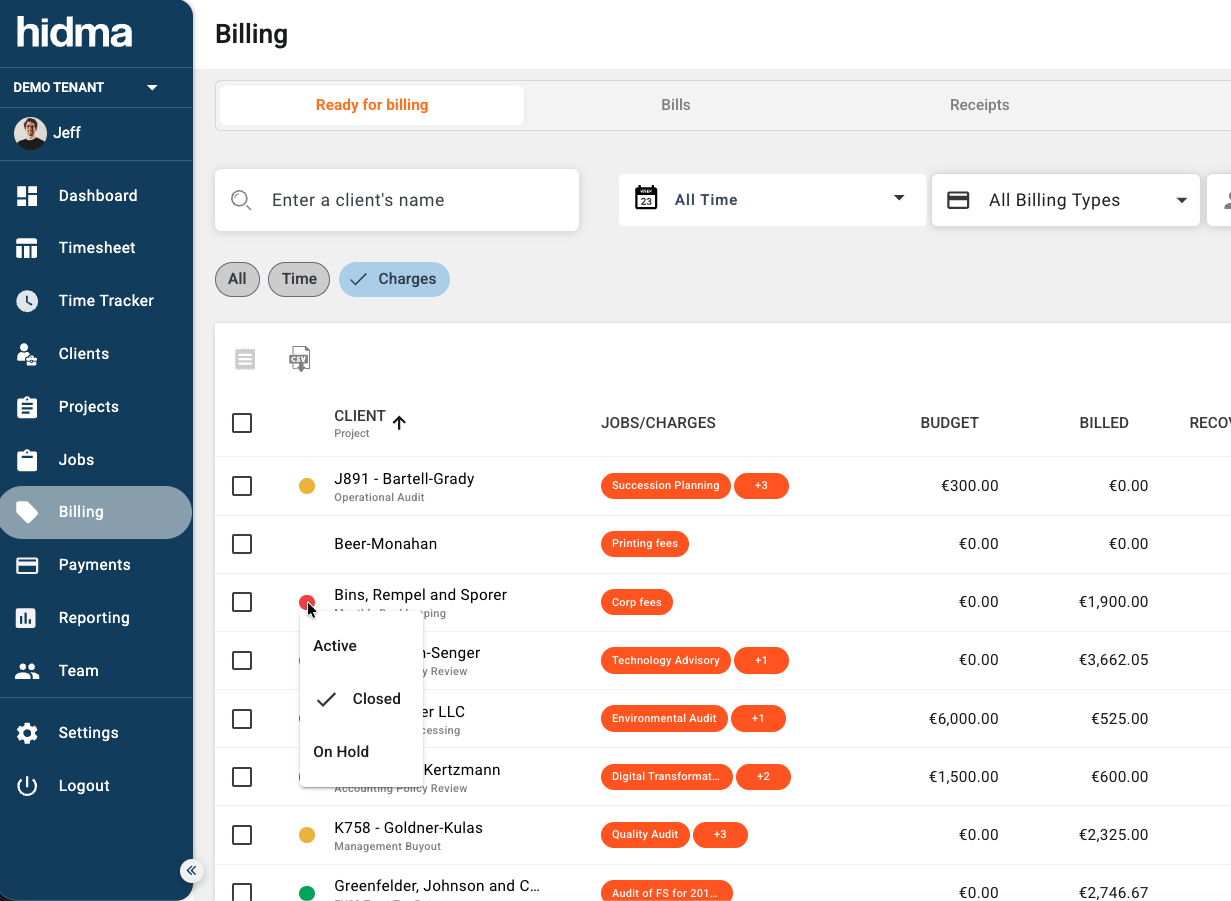
The change is saved immediately — there's no separate Save step.
Activating (or reactivating) a project
To activate a project — for example after it's been closed or put on hold — click its status indicator and choose Active. This is the same action as "reopening" a closed project (see Reopening Projects below for what happens to written-off hours). To activate the projects for a particular client, open that client's dashboard and change the status on each project card, or use the status indicator wherever those projects appear.
Closing Projects
When closing a project, you have the option to automatically allocate any unbilled hours and charges to existing bills.
Auto-Allocate Unbilled Hours
When you close a project, you'll be prompted with an option to automatically allocate unbilled time and charges:
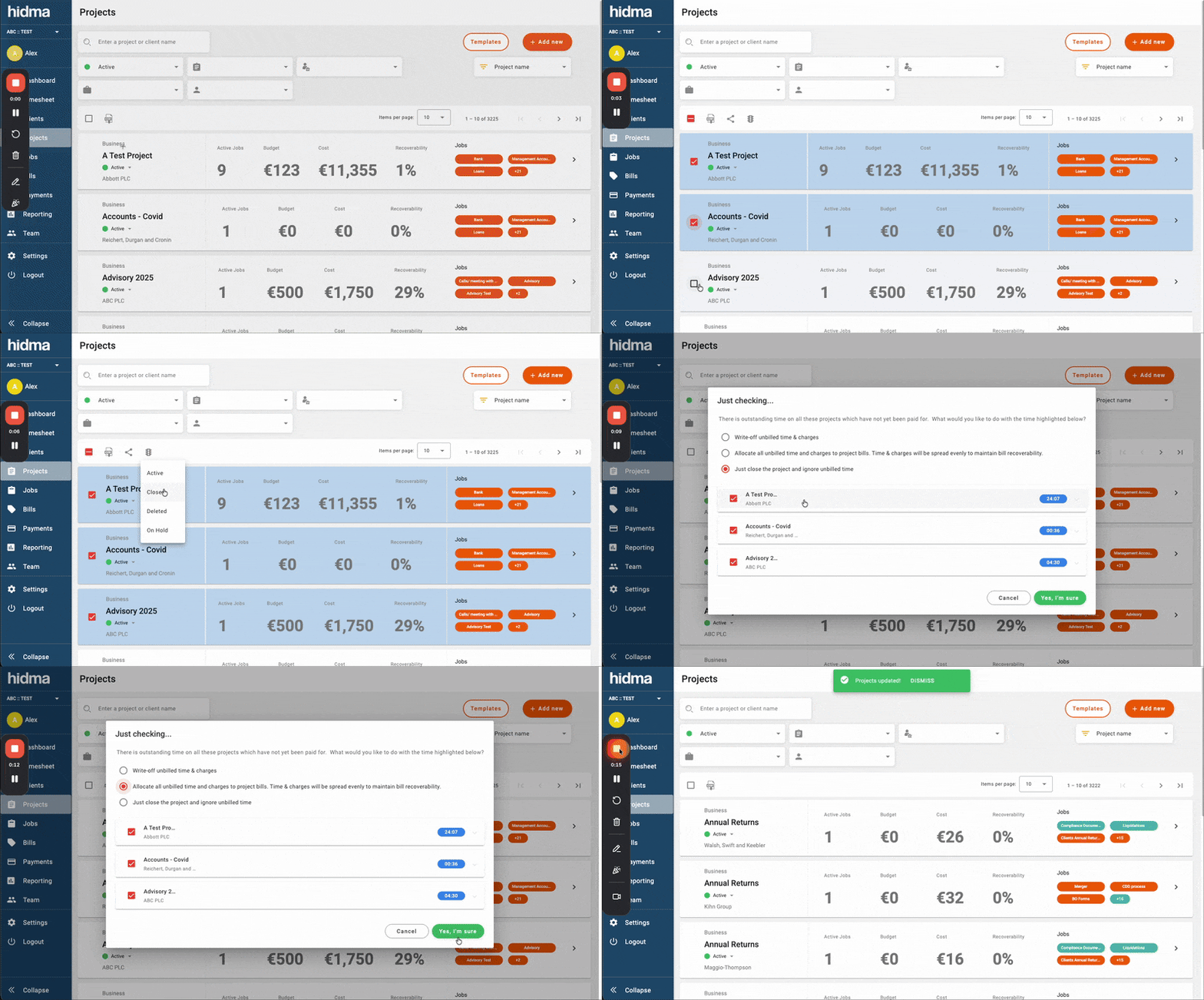
What happens when you enable this option:
- Allocates and closes all unbilled time across all bills associated with the project
- Allocates all unbilled charges to bills
- Normalizes recoverability across all bills
- Proportionally adjusts charge-out rates for all individuals involved in the project
Important Note
Charges that do not affect a project's cost or recoverability will not be allocated or closed using this option. Only charges that affect cost and recoverability (such as Project Opening Cost) will be included.
Closing a Project from the Billing Page
You don't have to come back to the project to close it. While viewing or editing a bill, open the More Options menu (⋮) and choose Close off projects related to this bill to close every in-scope project on that bill in place. The same checks described above still run and are confirmed first. Learn more
Reopening Projects
If you close a project and later change your mind, you can reopen it and optionally reverse any write-offs.
Reversing Write-Offs
When reopening a project, you'll be prompted to confirm whether you want to reverse any written-off hours:
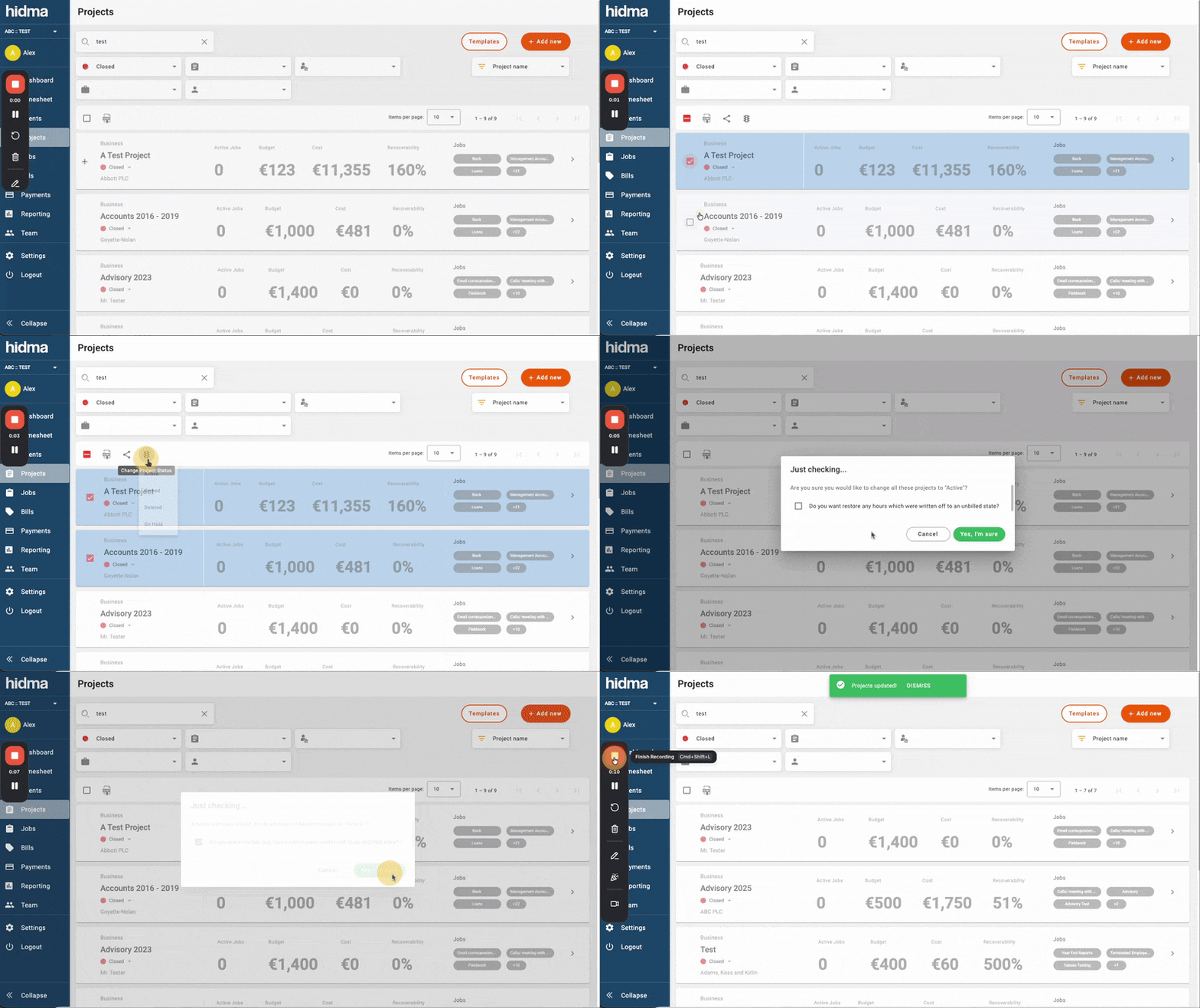
What happens when you reverse write-offs:
- All written-off hours are reversed
- Hours are reinstated as unbilled
- You can now allocate these hours to bills or manage them as needed
Flexibility
This feature gives you complete flexibility to change your mind about project closures without losing track of work that was written off.
Why Status Matters
- Keeps project lists clean
- Helps with reporting
- Shows what needs attention
- Prevents time tracking to finished projects
- Manages billing and hour allocation efficiently