
Appearance
Time Tracker
Track your time live with a timer that follows you everywhere in the app. Start a timer with one click, keep working across any page, and have the tracked time flow straight into your timesheet when you stop.
🎥 Video Tutorial
A walkthrough of the Time Tracker - starting and stopping timers, favourites, rounding rules, and the per-user preferences.
Overview
The Time Tracker is a live timer for capturing time as you work, rather than typing hours into a grid after the fact. It is globally visible - once you start a timer, a widget stays pinned in the top-right corner of every page on both desktop and mobile, so you always know a timer is running no matter where you navigate.
When you stop a timer, the tracked time flows directly into your timesheet as a normal entry, complete with the project, job, comment, and billable status you set.
You'll find the dedicated Time Tracker page in the left sidebar (between Timesheet and Clients), but you can start and stop timers from the header widget on any page.
Starting a Timer
You don't need to decide anything upfront to start tracking:
- Open the Time Tracker page from the sidebar, or use the timer widget in the top-right corner of any page.
- Press Start. The timer begins counting immediately.
While a timer is running you'll see:
- The running timer in the header widget on every page
- A pulsating orange icon in the browser tab as a reminder that a timer is active
You can fill in the details - project, job, a comment, and billable status - at any point while the timer runs or before you stop it. This means you can start capturing time the moment you begin working and sort out the categorisation later.
Stopping, Pausing, and Cancelling
At any time you can Pause, Stop, or Cancel a running timer.
A project and a job are required to stop
To stop a timer (and write it to your timesheet) you must first select a project and a job. If you try to stop a timer without them - for example when an auto-stop fires - the timer is auto-paused instead of stopped, so no time is lost. Choose a project and job, then stop it.
When you stop a timer, two things happen:
- The tracked entry is registered on the Time Tracker page under the current day.
- The same time - with its comment - appears on your timesheet against the chosen project and job.
You can add a comment and toggle billable / non-billable either from the header widget or from the Time Tracker page.
Favourite Timers
If you regularly track the same work, save it as a favourite so you can launch a scoped timer in one click.
- On the Time Tracker page, find the Favourite Projects section.
- Click the + button and choose a project and job combination.
- Add as many favourites as you like.
To start tracking a favourite, just click it - a timer is created instantly with that project and job already filled in, and the time starts accumulating.
Tracking Internal Tasks
Timers aren't just for client work - you can track internal, non-client tasks with them too.
- Open the project dropdown on the timer and select Internal
- Choose the specific job you want to track (for example, Bank Reconciliation, Asset Management, or another internal job)
- Press Start
The running timer is tagged Internal, and when you stop it the entry flows into your timesheet against the internal job just like any other tracked time.
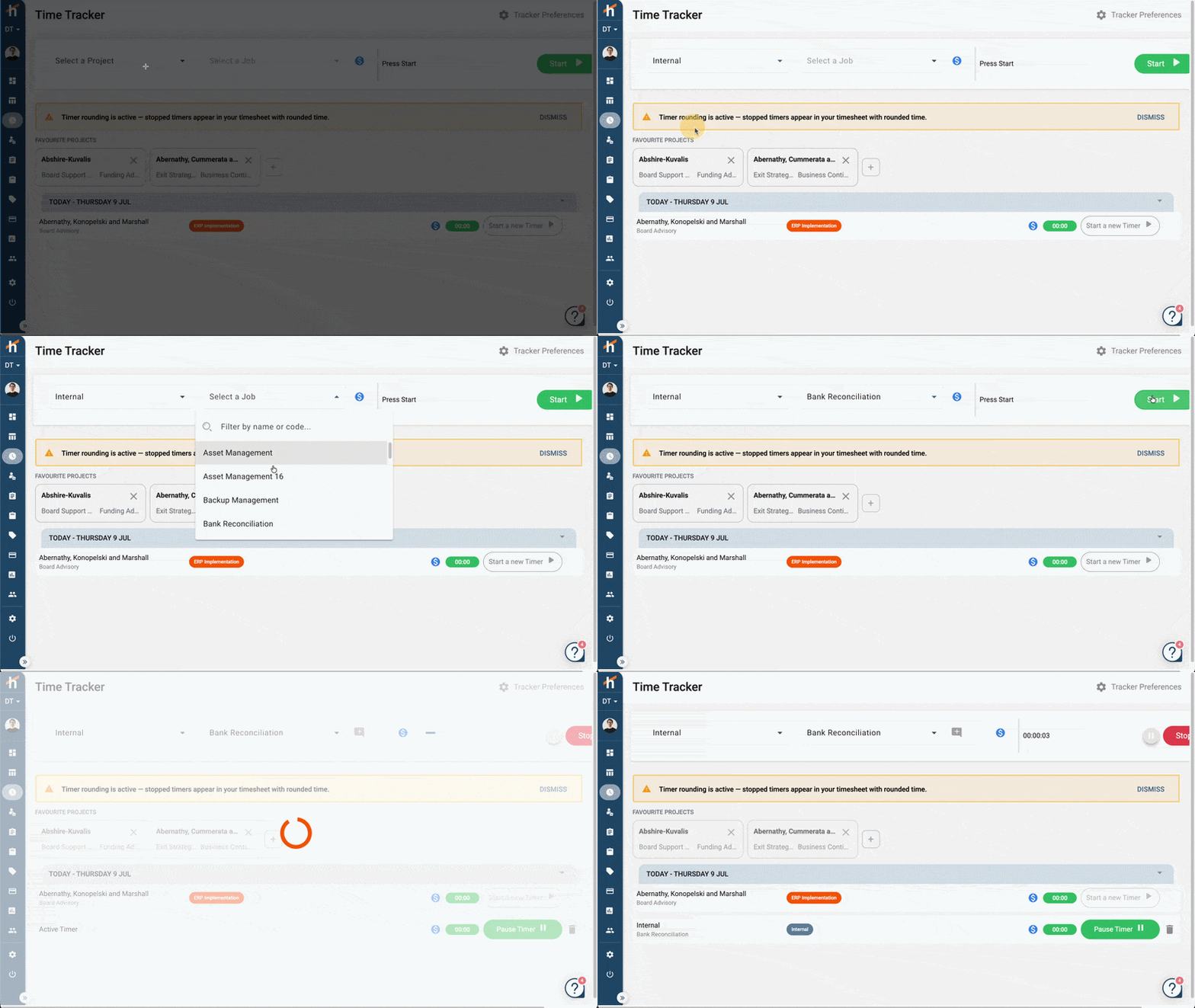
Internal favourites
Internal task tracking is fully supported by Favourite Timers too - save an Internal project and job as a favourite to launch it in one click.
Re-starting and the Weekly View
The Time Tracker page shows timers from the current week. Once you submit your timesheet and move to the next week, you start with a fresh set of timers.
If you've stopped a timer but need to track more time against the same project and job, click Start a new Timer on that row to relaunch it with the same settings.
Stop your timers before submitting
You can't submit a timesheet while a timer is still running. Stop any active timers first, then submit.
Per-User Preferences
Each user can tailor their own timer experience from Tracker Preferences (the gear link on the Time Tracker page):
- Show timer in header - show or hide the running timer in the top header on every page.
- Auto-stop after a maximum duration - automatically stop a timer once your total tracked time reaches a threshold you set (for example, 8 hours), so a forgotten timer doesn't run for hours or days.
How auto-stop counts paused time
If a timer is paused and later resumed, the auto-stop duration starts counting again from when it resumes. Note also that auto-stop can only pause (not fully stop) a timer that has no project and job selected, because a project and job are required to stop.
Use Reset to defaults to return your preferences to the standard settings.
Mobile
The Time Tracker works the same way on your phone. A timer icon at the top of the screen represents the active timer - tap it to expand the full controls (start, pause, stop, add details), then slide it back down while your timer keeps running in the background.
Administrator Settings
Administrators control the feature and organisation-wide rounding rules under Settings ➔ Configuration ➔ Time Tracker Settings:
- Time Tracker Widget - enable or disable the entire time-tracking feature for your organisation.
- Time Rounding - automatically round tracked time to the nearest interval when a timer is stopped. Choose the Direction (Up or Down) and the Interval in minutes (for example, 10 minutes).
When rounding is active, stopped timers appear in the timesheet with the rounded time, and a banner reminds users that "Timer rounding is active - stopped timers appear in your timesheet with rounded time." For example, with rounding set to Up / 10 minutes, a timer stopped after a few seconds is logged as 10 minutes.
Rounding applies to everyone
Time rounding is an organisation-wide setting, so it affects every user's tracked time. Agree on a rounding policy before enabling it.
Related Topics
- Timesheets Overview - Where tracked time lands
- Creating Time Entries - Manual time entry
- Billable vs Non-Billable Hours - Categorising time
- Approving Timesheets - Manager approval workflow
Need Help?
Questions about the Time Tracker? Visit our FAQ or contact [email protected].