
Appearance
Managing Your Timesheets
Learn how to view, edit, and submit your time entries for approval.
🎥 Video Tutorial
Watch the Video
Your Timesheet Page
When you click Timesheets in the sidebar, you'll see three tabs:
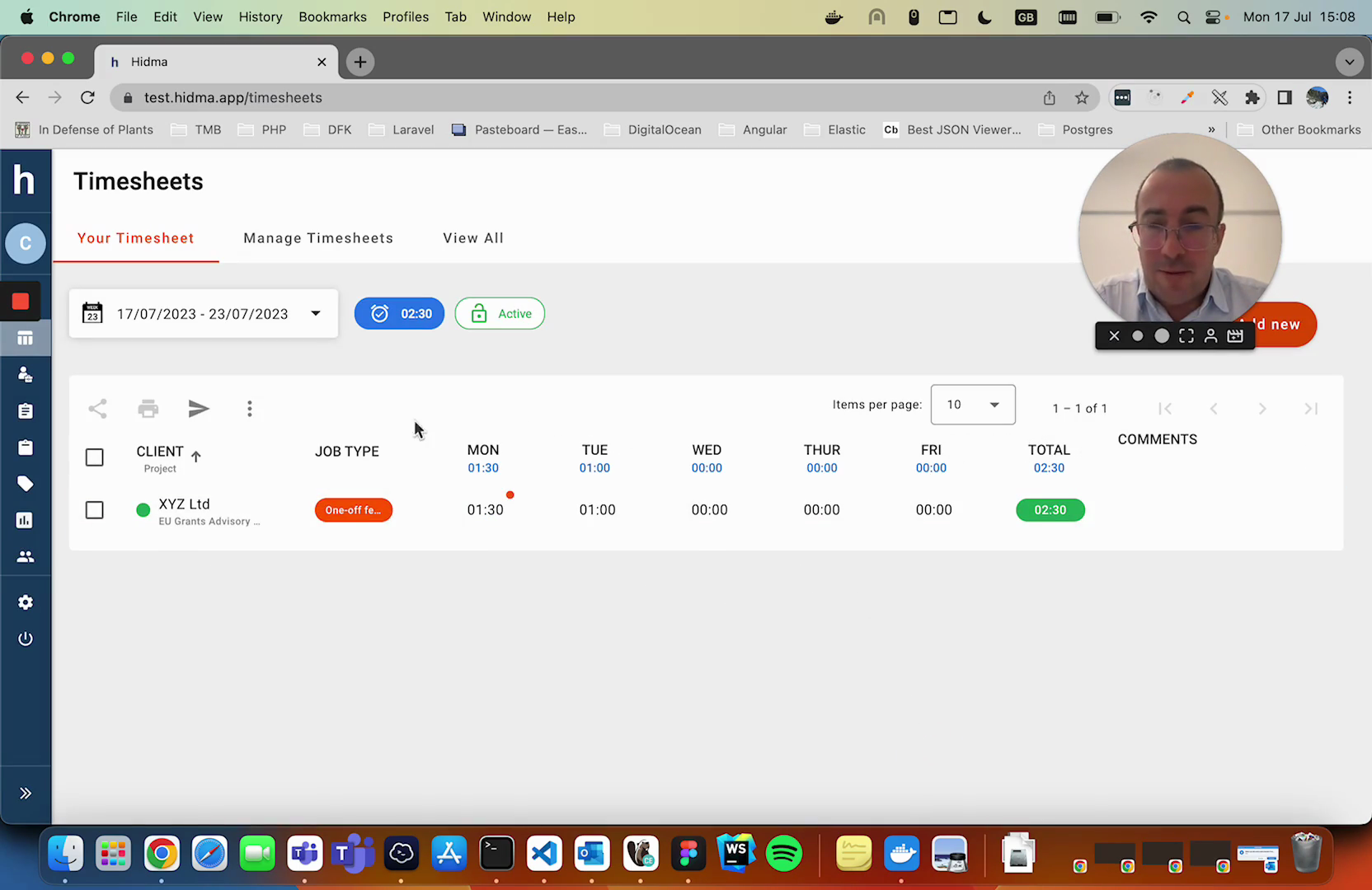
- Your Timesheet - Your own time entries
- Manage Timesheets - Review your team's time (requires timesheet management rights)
- View All - See everyone's time (requires View All Timesheets right)
Which Timesheets Can You See?
What appears in the Manage Timesheets tab depends on your permissions:
| Your Rights | Whose Timesheets You See |
|---|---|
| Manage Team Member Timesheets | Team members without timesheet management rights |
| Manage All Team Timesheets | All team members except Directors |
| Manage All Timesheets | All users including Directors |
Director Protection
Users with the Director role have protected timesheets. Only users with organization-wide timesheet rights (View All Timesheets or Manage All Timesheets) can see their time entries.
Viewing Your Time
The Weekly View
Your timesheet shows a week at a time with:
- Rows for each client/project/job combination
- Columns for each day (Monday through Friday)
- Hours entered in each cell
- Total column showing total hours per row
At the top you'll see:
- Date range - Which week you're viewing
- Total hours worked - e.g., "02:30" means 2 hours 30 minutes
- Status - "Active" means you can edit it
Changing Weeks
Click the date picker at the top to see a different week.
Use the arrow buttons to go forward or backward one week.
Editing Time Entries
To Change Hours
- Click on the hours in any cell
- Type the new amount
- Press Enter or click outside the cell
- The total updates automatically
To Delete a Row
Click the trash icon (🗑️) next to the row.
On Mobile
Swipe left on a time entry to reveal the delete option.
Copying from Last Week
If you do similar work each week:
- Look for "Copy from Previous Week" option
- Select which entries to copy
- Click to copy them to this week
- Adjust hours if needed
Keyboard Hotkeys
Your weekly timesheet supports a set of hotkeys so you can enter and edit time without touching the mouse. These are especially useful for people logging lots of time entries.
Annotated walkthrough of the timesheet keyboard shortcuts.
| Key | Action |
|---|---|
↑ ↓ ← → | Move between cells on the grid |
A | Open the Add New Row popup |
E | Edit the first row |
Tip
The arrow keys move the active (highlighted) row up and down through the list, and step left/right between days within the current row. Combine them with A to add rows and E to jump straight into editing - it's noticeably faster than clicking each cell.
This saves time instead of entering the same jobs every week!
Submitting for Approval
Once your week is complete:
- Review all your entries
- Make sure hours are correct
- Click "Submit" or "Submit for Approval"
- Your manager will be notified
After submitting:
- You can't edit the timesheet (usually)
- It shows as "Pending Approval"
- You'll be notified when it's approved or if changes are needed
If You Need to Make Changes
Before Submitting: Just edit the hours directly - no problem!
After Submitting:
- Contact your manager
- They can send it back for changes
- Make your edits
- Resubmit
Tips
Time-Saving Hints
- Enter time daily - Don't wait until Friday!
- Copy recurring work - Use the copy feature for regular tasks
- Add notes - Help your manager understand what you did
- Submit on time - Don't hold up billing
Common Questions
Q: How do I know if my timesheet was approved? A: You'll see the status change to "Approved" and may get an email notification.
Q: Can I edit an approved timesheet? A: Usually no. Ask your manager if you need to make changes.
Q: What if I forget to submit? A: Submit as soon as you remember. Your manager may send a reminder.
Q: Do I need to enter exactly 8 hours per day? A: Enter the actual hours you worked. Some days might be more, some less.