
Appearance
Copying & Duplicating Bills
Quickly produce a new bill by duplicating an existing one, preserving rows, amounts, tax rates, descriptions, and document theme.
🎥 Video Tutorial
A short walkthrough of both ways to copy a bill, and how to associate new time or charges to the copied rows.
Overview
Copying a bill creates a new bill with the same rows, descriptions, tax rates, revenue accounts, and amounts as the source bill, but without any of the allocated time. If the source bill carries charges, Hidma asks whether to recreate them or copy the line items only. Once the copy exists you can tweak the wording, change the target project, adjust amounts, and attach fresh time or charges to each row before generating the bill.
This is the fastest way to issue a repeat bill that is similar - but not identical - to something you already sent. Classic use cases are one-off retainer top-ups, follow-up advisory invoices that mirror a prior engagement, or spinning up the same bill on a different project.
Hidma exposes two routes to copy a bill so you can start from whichever screen you are already on.
Method 1: Copy From Inside an Existing Bill
Use this when you already have the source bill open.
- Open the bill you want to duplicate (from Bills, the client, or the project)
- In the top toolbar of the bill, click Create a copy (tooltip: "Create a copy of this bill")
- Hidma opens a new Create a Bill screen pre-populated with the source bill's rows on the right-hand preview panel
- Review and adjust:
- Change the organisation, currency, or document theme if needed
- Edit row titles, descriptions, tax rates, and amounts directly on the preview
- Switch to a different project tab, or click + Add Project to include additional projects
- Associate time or charges to any row (see Attaching Time to Copied Rows)
- Click Generate Bill when ready
The copied bill is saved as a new bill - the source bill is untouched.
Method 2: Copy From the Billing Page
Use this when you are starting from the Billing list and know which bill you want to base the new one on.
- Navigate to Billing
- Click the + Add New button in the top right
- Select Copy a Bill (or the Create a copy option on the menu)
- In the Select a Project panel on the right:
- Select a project (Optional) - filter the list of bills by project, or leave empty to search across all projects (e.g. "Accounting Policy Review - Bartoletti LLC")
- Select a bill (Required) - choose the bill to copy from the filtered list. Each bill shows its code and total (e.g.
S071C9 · DEF Corporate Serv · €0.00) - and associate to a project - pick the project the new bill should belong to (can be the same as the source, or a different one)
- Click Continue
Hidma opens the same Create a Bill editor as Method 1, pre-populated with the source bill's rows but associated to the project you just picked.
Copying a Bill That Has Charges
If the bill you're copying has charges attached to it, Hidma asks what you want to happen to them rather than deciding for you.
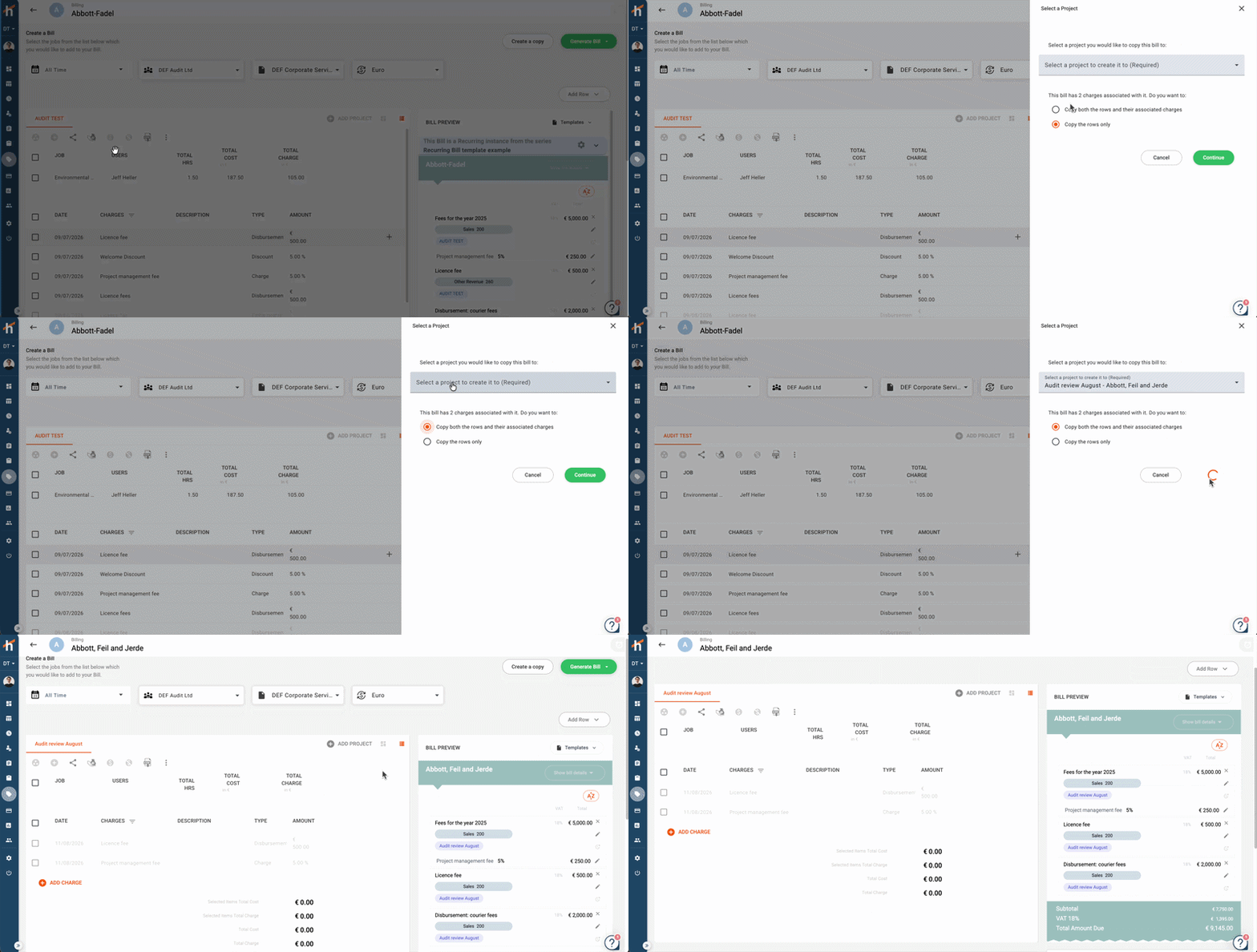
On the Select a Project panel, underneath the project selection, you'll see a note such as "This bill has 2 charges associated with it. Do you want to:" with two options:
| Option | What happens |
|---|---|
| Copy both the rows and their associated charges | The rows are copied and the charges are recreated on the target project, then attached to the copied rows. Use this when the new bill genuinely re-levies the same charges |
| Copy the rows only | Only the line items are copied. The charge rows come across as plain rows with no underlying charge records created. Use this when you want the same invoice wording without duplicating the charges themselves |
Choose an option and click Continue.
Recreating charges creates real records
Copy both the rows and their associated charges doesn't just copy text - it creates new charges on the target project. Those charges then affect that project's cost and recoverability figures. If you only want the invoice to read the same, choose Copy the rows only.
Attaching Time to Copied Rows
A copied row carries the description, tax rate, revenue account, and amount from the source - but it is not yet linked to any hours or charges. To allocate time to a copied row:
- In the editor, click the time / allocator icon on the row you want to attach hours to
- The Assigning time to a bill Row dialog opens. Choose:
- Expand to show grouped time entries per employee (summary view)
- Expand to show all individual time entries (detailed view)
- Pick the job the hours should come from (e.g. "Business Continuity Planning", "Turnaround Advisory")
- Enter the number of hours to close off on this row (e.g.
5.61of5.61available), or cherry-pick individual entries - Click Save changes
The charged amount on the row does not have to match the cost of the allocated hours - this is how a copied retainer row can still absorb actual project time without changing what the client is charged.
You can also attach charges to copied rows using the same allocator, and you can add brand-new rows with Add Row if the new bill needs to include items the source did not.
What Does and Does Not Get Copied
Copied from the source bill:
Row titles, descriptions, and notes
Tax rates and revenue accounts
Amounts and totals
Document theme (unless you change it)
Organisation and currency (unless you change them)
Charges, if you chose to recreate them (see Copying a Bill That Has Charges)
Not copied:
- Allocated time entries (you attach these fresh)
- Charges, if you chose Copy the rows only
- Bill number and bill date (the new bill gets its own)
- Payments, receipts, and write-offs from the source
- Xero links - the new bill needs its own Xero push if you want it mirrored there
Common Scenarios
Scenario: Repeat Retainer for a New Quarter
Situation: Last quarter's retainer invoice is exactly what you want to send for this quarter, with the same wording and amount.
Solution: Open last quarter's bill, click Create a copy, update the description to reference the new quarter, and generate. No need to rebuild the rows from scratch.
TIP
If the pattern is truly recurring, set it up as a Recurring Bill instead - Hidma will handle the generation automatically each period.
Scenario: Same Bill Structure on a Different Project
Situation: You issued an advisory bill to a client on Project A; you now need the same structure on Project B.
Solution: From the Billing page, click + Add New → Copy a Bill, pick Project A's bill as the source, choose Project B in and associate to a project, and generate. Attach Project B's hours to the rows in the editor.
Scenario: Duplicate a Generated Recurring Bill Instance
Situation: A generated instance of a Recurring Bill needs to be reissued, for example to a second sub-project.
Solution: Open the generated instance, click Create a copy, switch the project association if needed, and generate. The copy is independent of the Recurring Bill Setup, so future generations are unaffected.
Scenario: Duplicate a Recurring Bill Setup
Situation: You want a new recurring bill that closely matches one you've already configured for another client.
Solution: Open the Recurring Bill Setup from the Recurring Bills chip on the Billing page and click the copy button in the top right corner - the same copy action described on this page, applied to the setup itself. Re-point the copy at the new client or project and adjust the schedule before saving. Learn more
Related Topics
- Creating Bills - Standard bill creation workflow
- Recurring Bills - Automate periodic bills, and duplicate an existing recurring setup
- Managing Time & Charge Allocations - Allocator controls explained
- Grouping Bill Items - Combine multiple jobs onto a single row
Need Help?
If the Create a copy button isn't visible on your bill or the Copy a Bill option doesn't appear on the + Add New menu, ask your administrator to review your billing permissions.