
Appearance
QuickBooks Integration
Connect hidma to QuickBooks Online and keep your clients, bills and payments in step between the two systems, without entering anything twice.
Beta
The QuickBooks integration is new and is being switched on for firms gradually. If you would like it on your account now, get in touch with support and we will enable it for you.
🎥 Video Tutorials
The full walkthrough is split into three short parts. Watch them in order:
- QuickBooks integration part 1: connect hidma and match your records
- QuickBooks integration part 2: payments, default items and settings
- QuickBooks integration part 3: bills and payments day to day
Overview
The QuickBooks integration works in the same way as the Xero integration. Once connected:
- Clients created in either system appear in the other
- Bills you generate in hidma are created as invoices in QuickBooks
- Payments, credit notes, write-offs and prepayments recorded in QuickBooks come back to hidma, and the other way round
You can link one hidma organisation to one QuickBooks company. If you run several companies in hidma, each one can be linked to its own QuickBooks company.
Before you start
Use a team email address for the connection. When you connect, you sign in to QuickBooks and that login is tied to the connection. Use a shared address such as finance@yourfirm.com or admin@yourfirm.com rather than someone's personal login. If that person later leaves, the connection keeps working.
Connecting to QuickBooks
- Go to Settings and click Integrations.
- Click the QuickBooks logo, then Connect to QuickBooks.
- Sign in to QuickBooks if you are not already signed in on this browser.
- Choose the QuickBooks company to connect and click Connect.
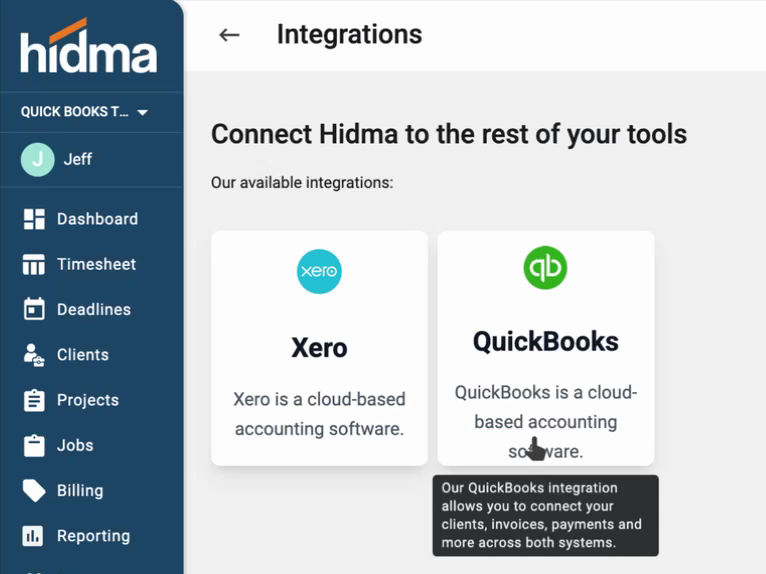
You are then taken to the set-up wizard, which has three steps: tenant settings, mapping settings and other settings.
Step 1: Tenant settings
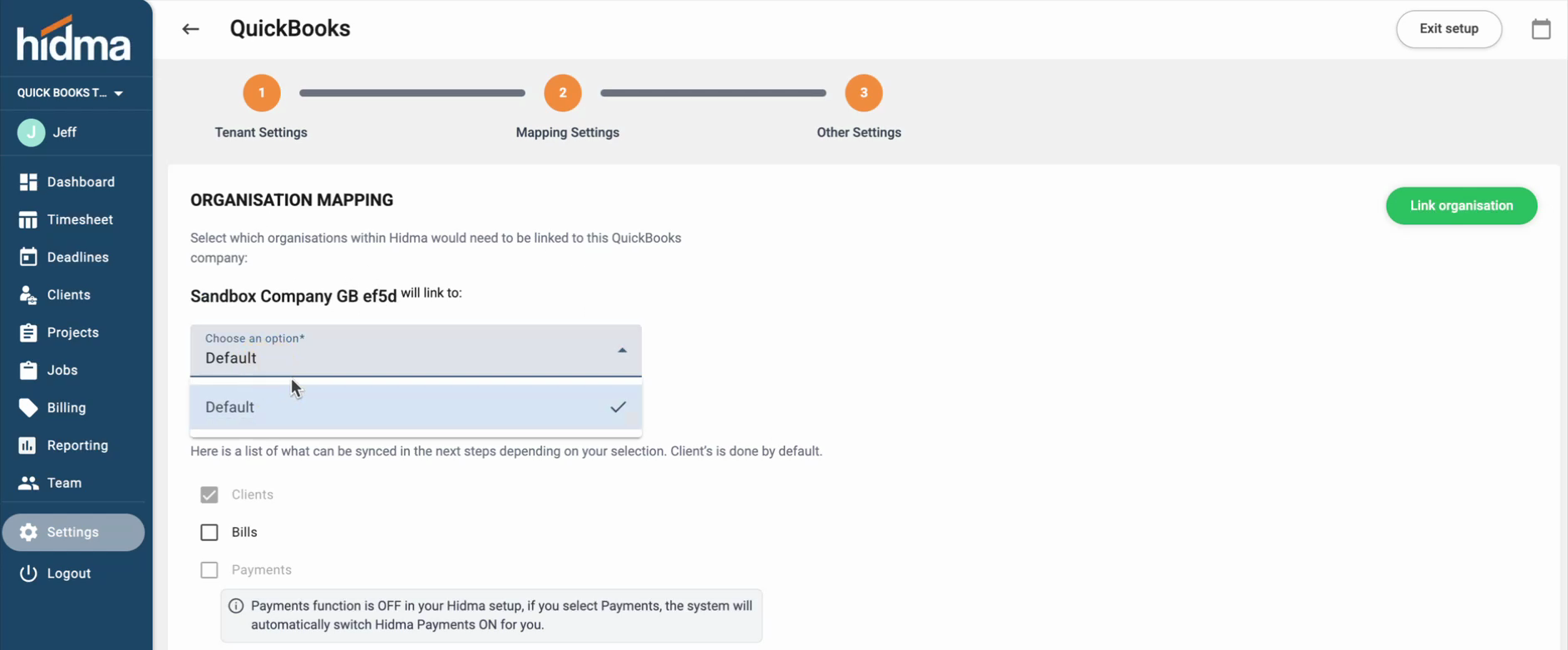
Choose which hidma organisation links to this QuickBooks company, then choose what to keep in step:
| Option | What it does |
|---|---|
| Clients | Always on. Clients are kept in step between the two systems. |
| Bills | Bills created in hidma are sent to QuickBooks. |
| Payments | Payments are kept in step both ways. If payments are not yet switched on in hidma, this turns them on for you. |
We recommend keeping everything in step, so you get the full picture inside hidma.
Step 2: Mapping settings
hidma now compares the records in both systems and suggests how they match. This can take a little while if you have a lot of clients.
Clients
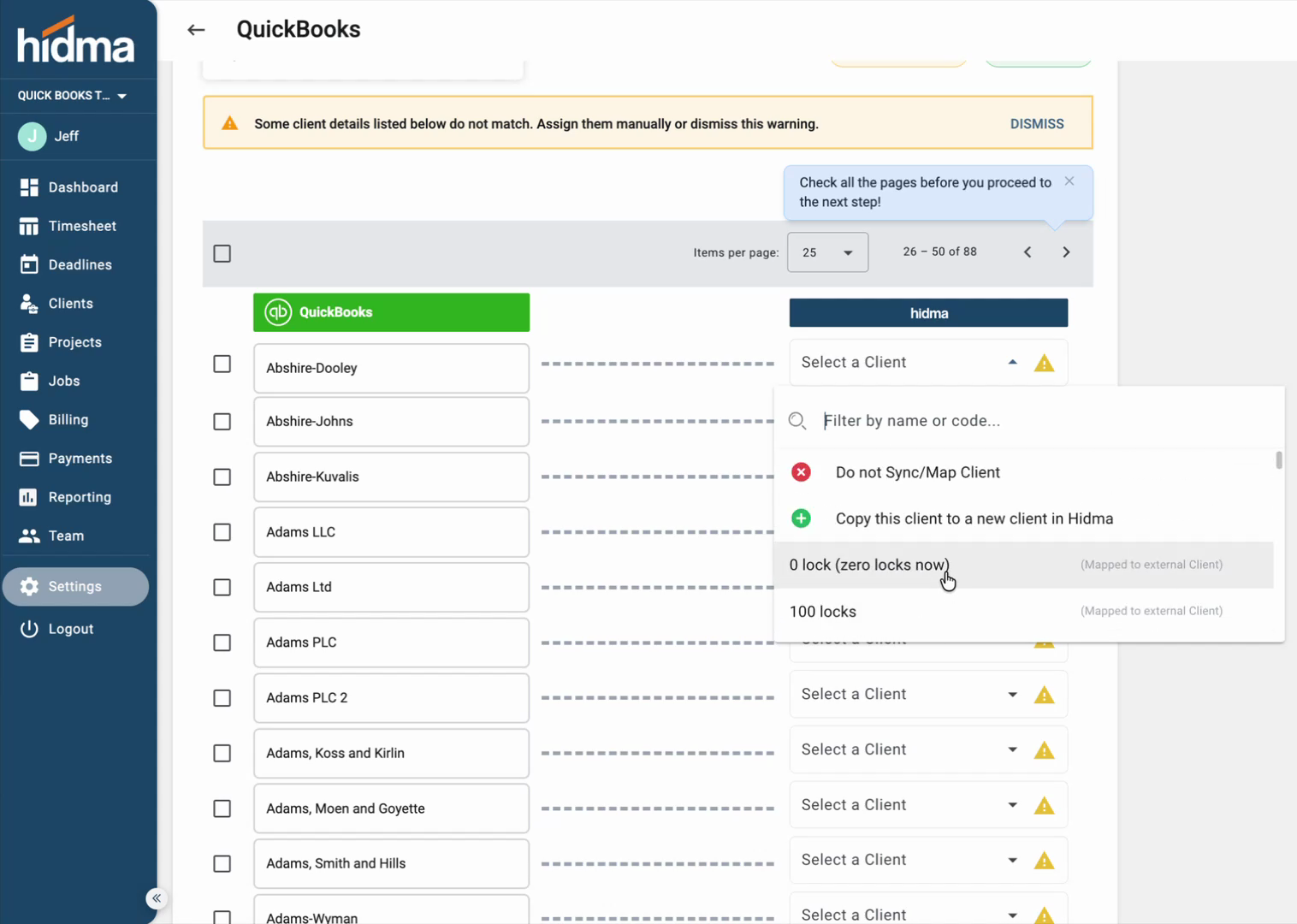
You see two lists: clients in QuickBooks on the left, and the hidma client each one matches on the right.
- Where the names match, hidma selects the hidma client for you.
- Where the names differ slightly, click the box on the right and pick the right client.
- For clients that only exist in QuickBooks, tick them and choose Copy selected clients to new clients in hidma.
- For clients you do not want linked, for example archived ones, choose Do not sync or map.
Work through every page of the list before you press Next. This is a one-off job.
Next, hidma shows the clients that exist in hidma but not in QuickBooks. You can copy them to QuickBooks, or leave them unlinked.
Tax rates and currencies
QuickBooks usually has more tax rates than hidma. Copy the ones you need to hidma, and link any that already exist in both, for example your standard VAT rate, so they are not created twice. Do the same for currencies.
Keep the two systems alike
The closer the two systems match, the fewer problems you will have later. Map your clients, tax rates and currencies fully rather than skipping any.
Where payments are recorded
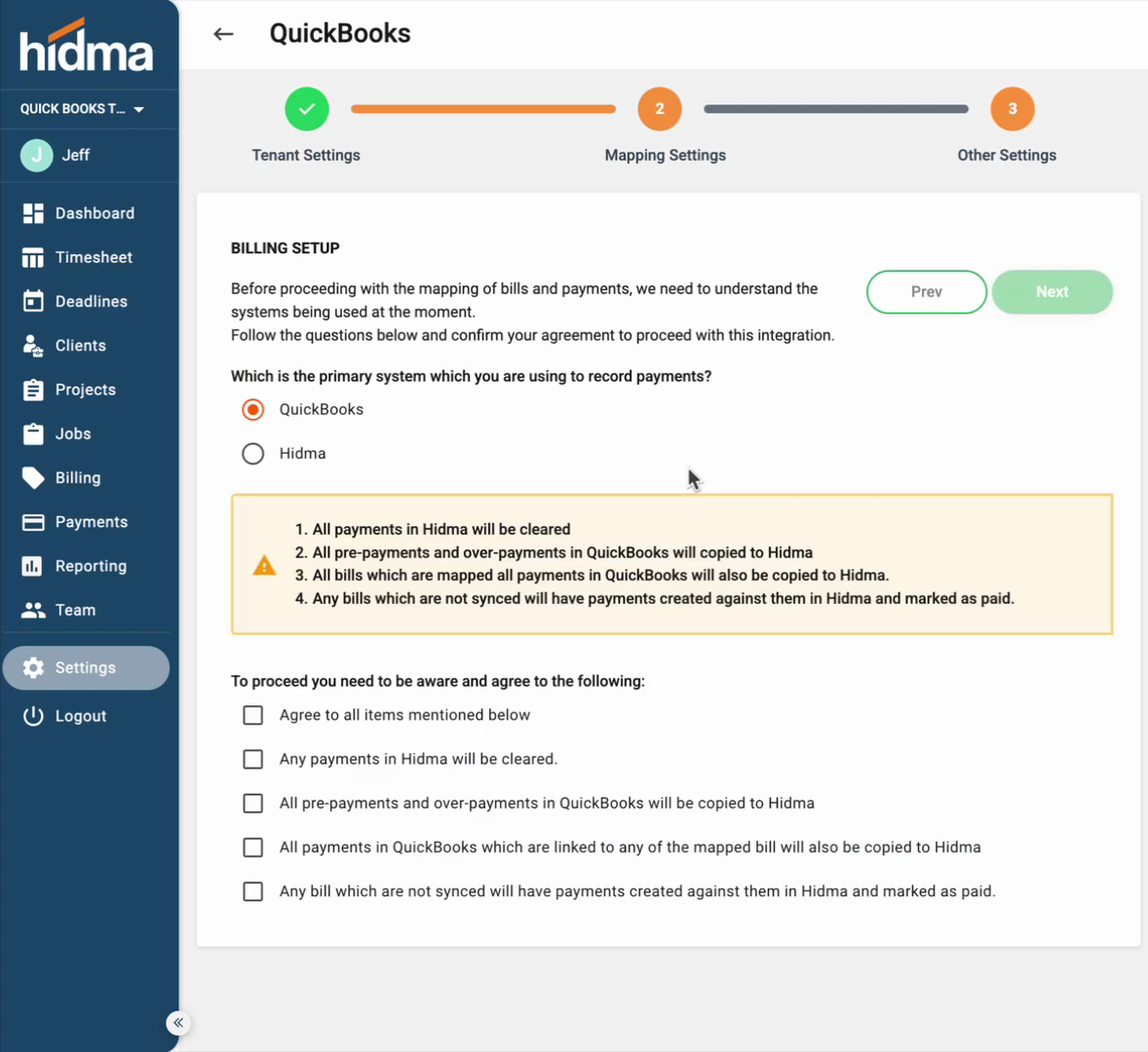
Choose which system has been your main record of payments so far:
- QuickBooks: any payments already in hidma are cleared, and prepayments, overpayments and payments on linked bills are copied from QuickBooks to hidma. Bills that exist in hidma but are not linked to a QuickBooks invoice are treated as paid.
- hidma: hidma's payment records are kept.
Read the conditions shown on screen, tick to confirm, and press Next.
Bank accounts
Link each bank account in QuickBooks to one in hidma, or copy them across in either direction. hidma has a default bank account you can use if you only have one.
Step 3: Other settings
QuickBooks uses items (products and services) rather than account codes. Choose the defaults hidma uses when it sends a bill:
- Default revenue item: the item each bill line is tagged with unless an exception says otherwise, for example General services
- Default payment account: usually your main bank account
- Write-offs: the item or account that write-offs are posted to
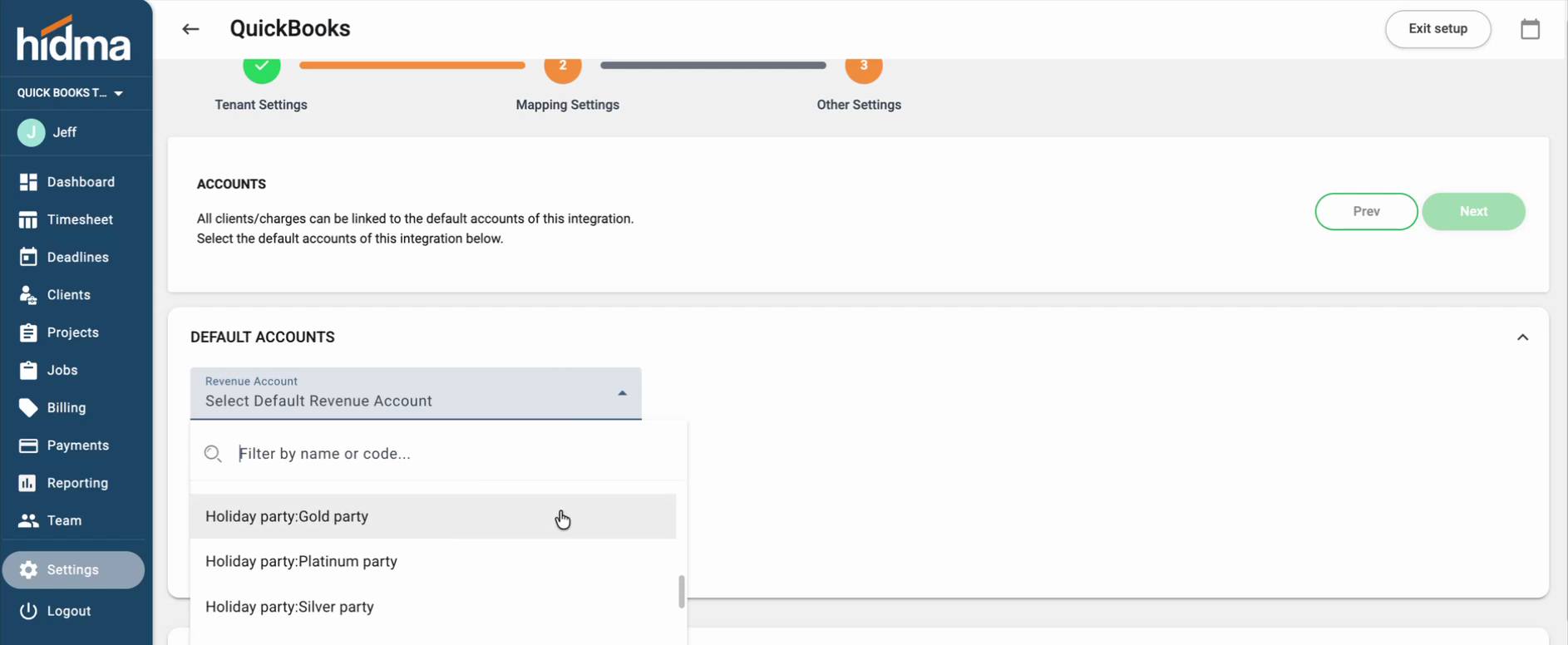
You can also add exceptions, so that particular charges, clients, projects, templates, services or teams are tagged with a different item.
Existing bills
Finally, hidma lists any paid and unpaid bills in QuickBooks and asks what to do with them. We recommend linking any unpaid bills, so you have a clear view of what each client owes in both systems. Bills that have long been settled can usually be ignored; new bills start flowing between the two systems from this point on.
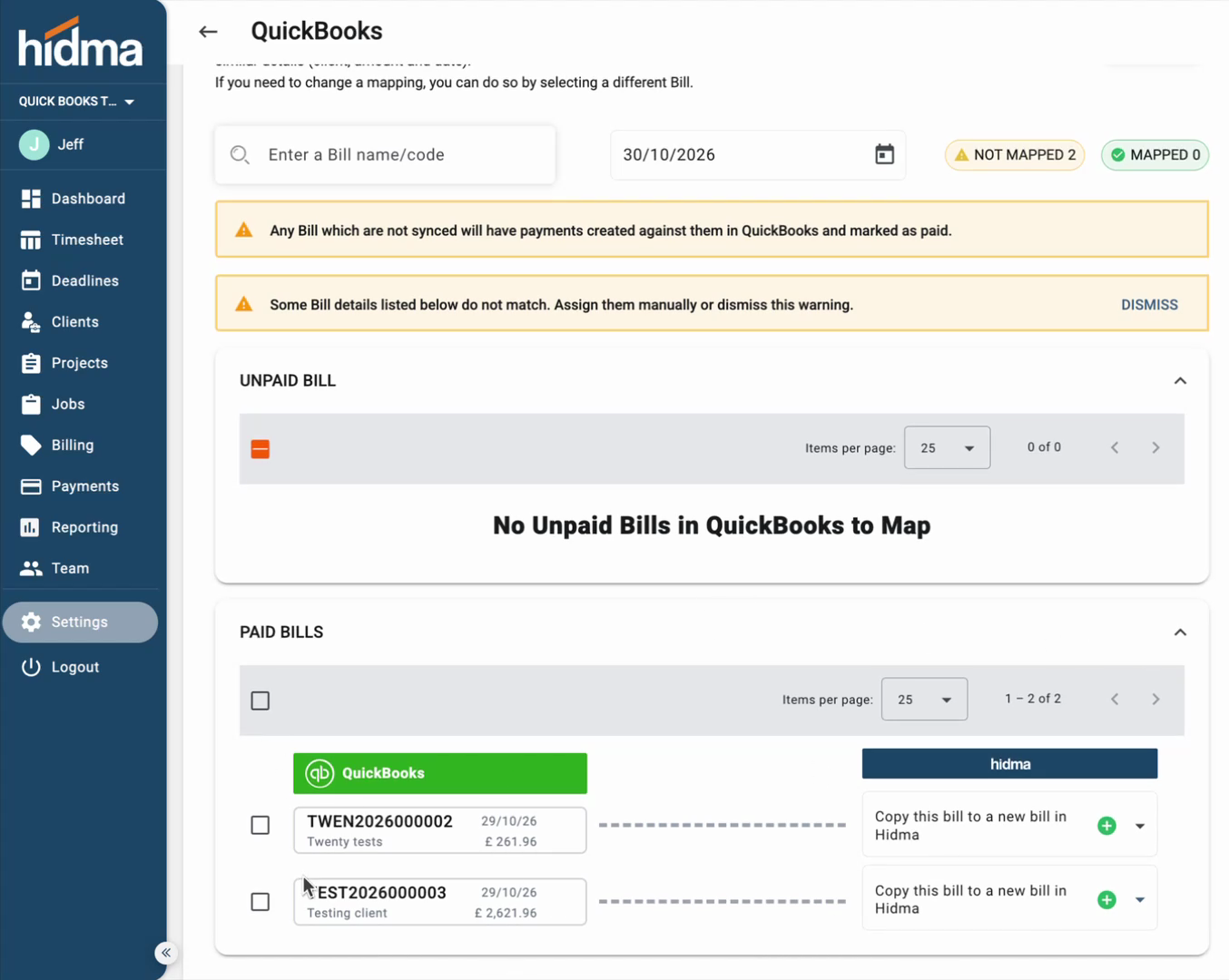
Press Finish. The first sync takes a few seconds on a new account and longer if there is a lot of history.
The QuickBooks page
Once connected, the QuickBooks page in Settings → Integrations shows each hidma organisation and the QuickBooks company it is linked to. From here you can:
- Add another connection for a second company. If the organisation does not exist in hidma yet, you can create it while you link it.
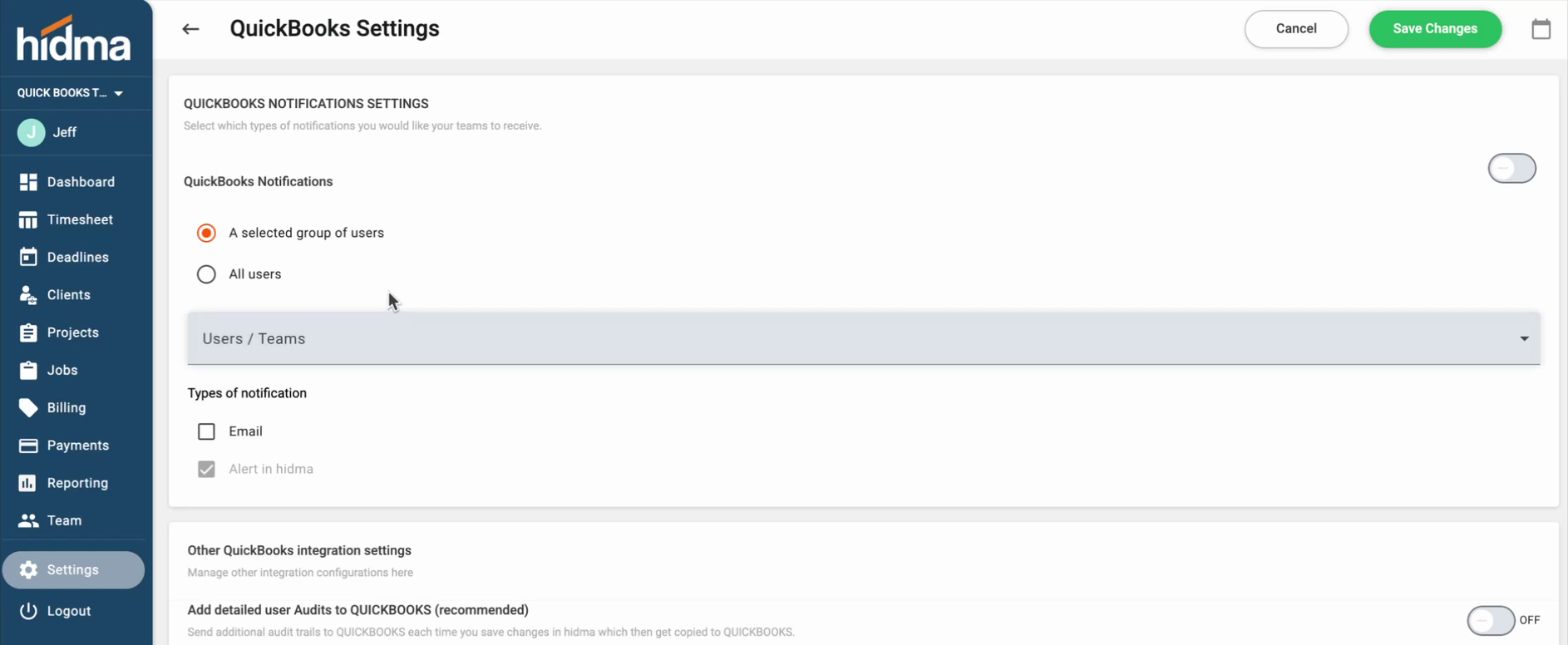
- Daily summary: choose who receives a daily summary of what has moved between the two systems, as an alert in hidma or by email.
- Detailed audit trail: record extra detail in QuickBooks each time something is sent across.
- Time on bills: when a bill in hidma shows the time behind each line, send that detail to QuickBooks too. This switch allows it; each bill still needs to be set to show its time.
Day to day
Clients
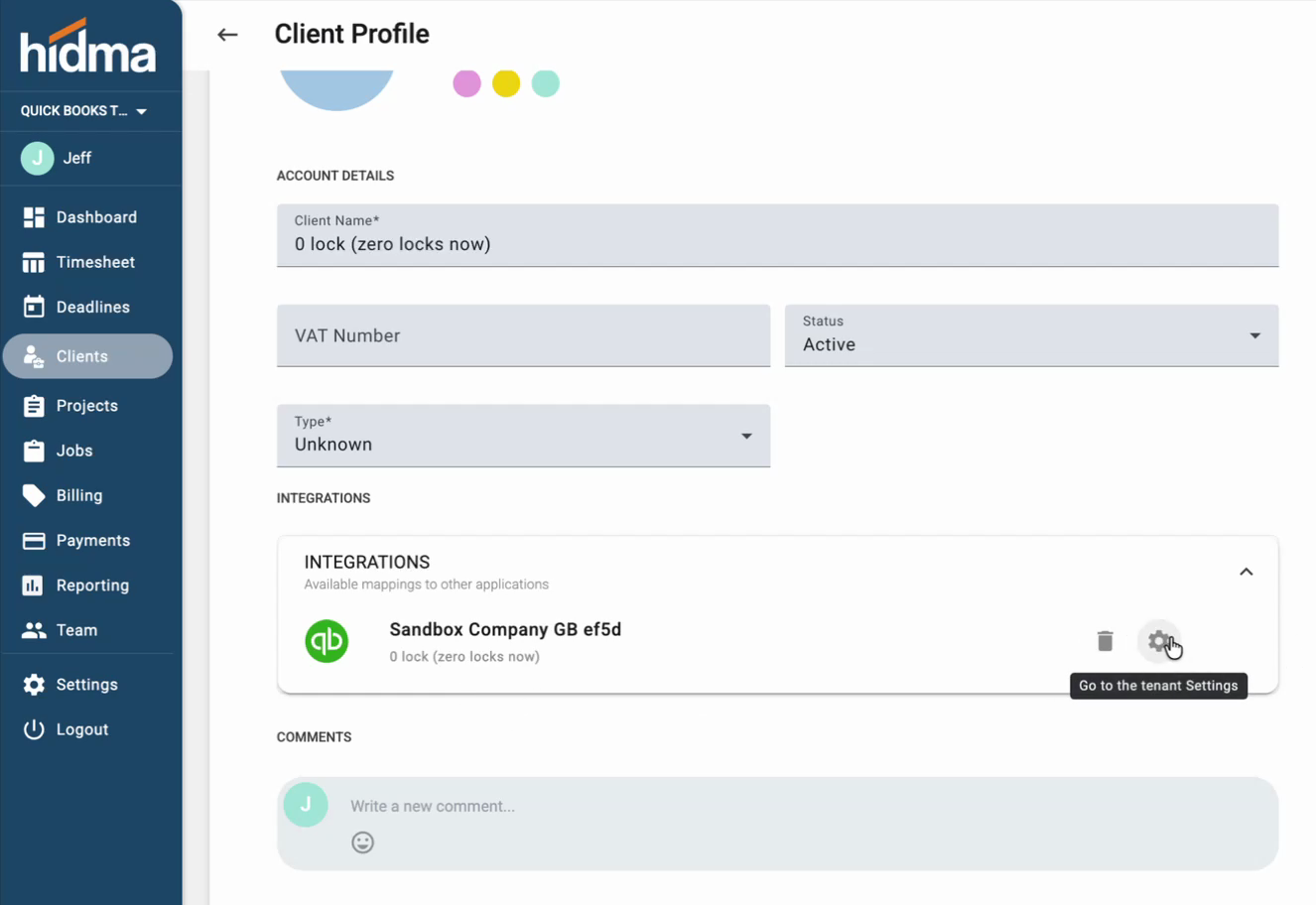
Open a client in hidma and you will see it is linked to QuickBooks, and which QuickBooks customer it is linked to. From there you can change or remove the link. A client created in hidma appears in QuickBooks within moments, and a customer created in QuickBooks appears in hidma.
Bills
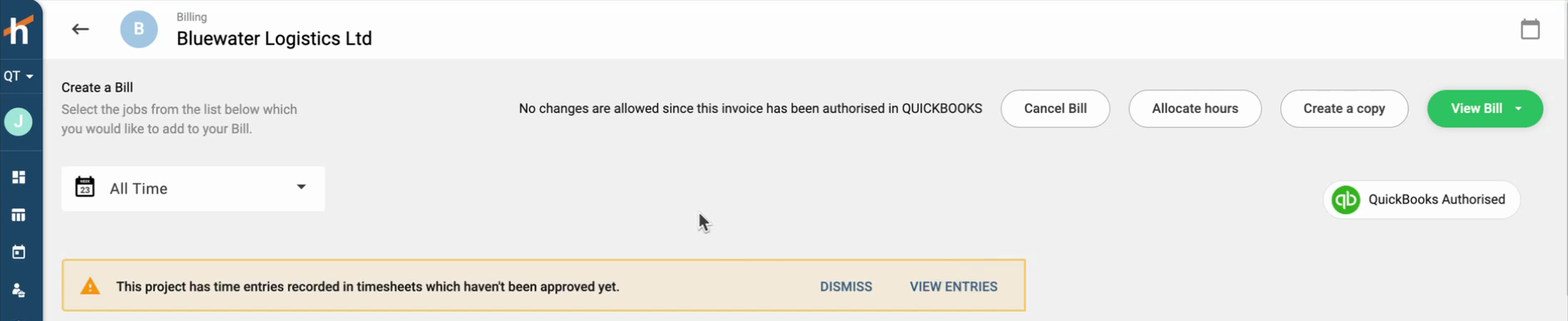
Create a bill in hidma as usual and generate it. The invoice is created in QuickBooks straight away, with the description and the item each line was tagged with.
Check the bill before you generate it
Unlike Xero, QuickBooks has no draft or awaiting-approval stage: an invoice is final the moment it arrives. Make sure the bill looks right before you generate it, because once it is in QuickBooks it can only be voided or deleted, not changed.
Payments
Record a payment against the invoice in QuickBooks and hidma picks it up shortly afterwards: the bill is marked as paid and the payment appears on the Payments page. Credit notes, write-offs and prepayments work the same way, in both directions, and show up in your revenue reports.