
Appearance
Managing Projects
Work with an existing project from its Projects Dashboard - review disbursements, and keep supporting documents in the project's File Repository.
The Projects Dashboard
Open a project to reach its dashboard, where you can see its details, disbursements, and attached files alongside the project's statistics and budgets.
File Repository
Every project has a File Repository for storing supporting documents - exported reports, client paperwork, bill CSVs, and anything else that belongs with the project.
- Add files by dragging and dropping them onto the repository, or using Select a File
- Each file shows the uploader, File Name, Description, Date, and Size
- Use the row actions to open, download, or delete a file
Cleaner File Tables
You can now hide the file descriptions in the file table for a cleaner, easier-to-scan layout. Click the hide description (eye) icon above the table to collapse the Description column so file names stand out; click it again to show descriptions when you need them.
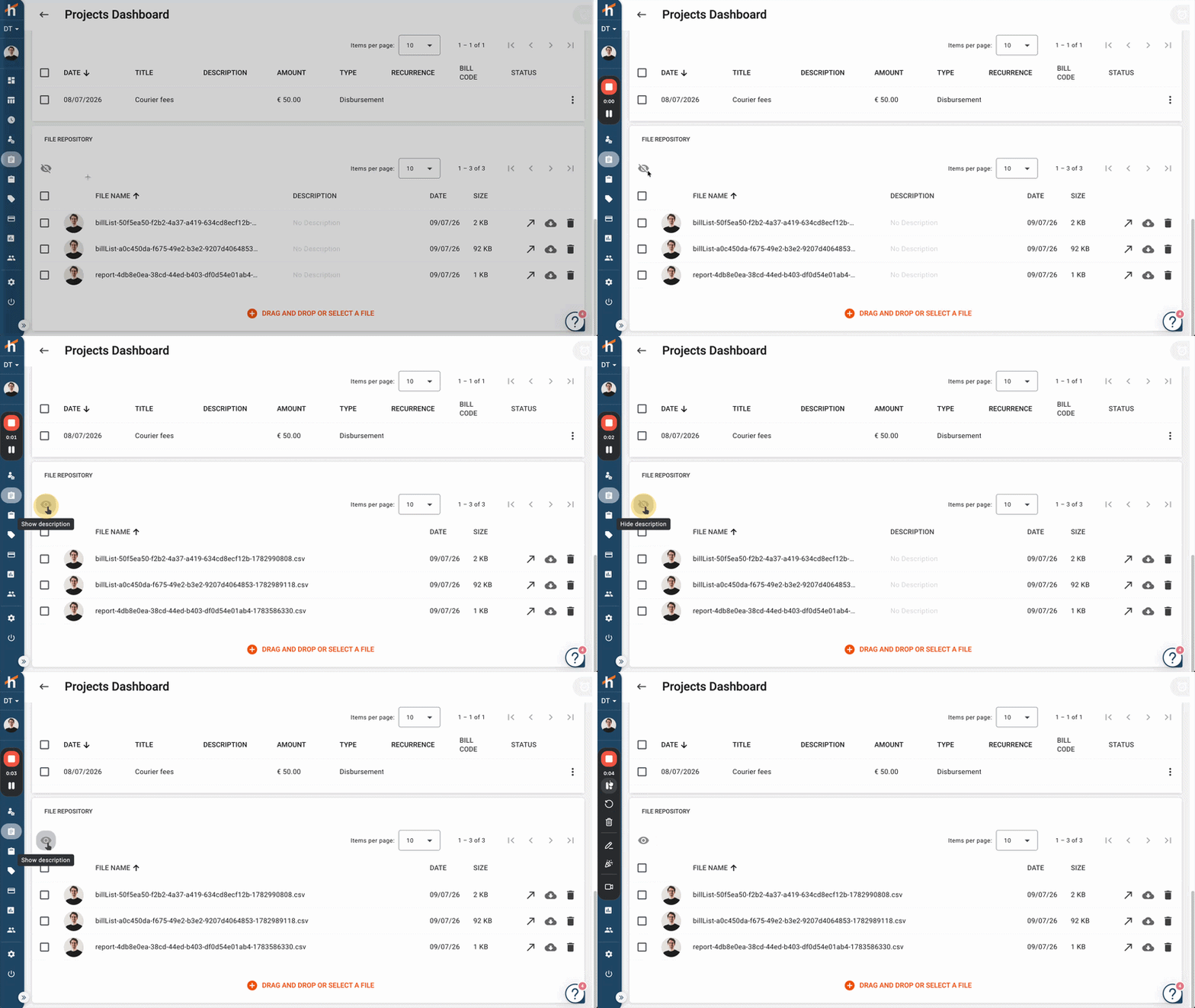
This is purely a display preference - it doesn't change or remove any descriptions, it just controls whether the column is shown.
Copying a Project
An existing project can be duplicated rather than rebuilt, which is the quickest route to a new engagement that closely resembles one you already run.
When copying, you choose which configuration items and settings to clone - so you can bring across the jobs and teams while leaving budgets or billing behind.
The copy flow also converts between project kinds:
- Copy a standard project into a recurring project - for one-off work that turned out to repeat
- Copy a recurring project into a standard project - for a one-off variation on a recurring engagement
See Recurring Projects for how this interacts with schedules.
Copying versus templates
Copying suits "that project again, roughly". If you copy the same project repeatedly, create a project template instead - it's the maintained, shareable version of the same idea.
Clearer Validation Messages
Errors when creating or editing a project are now reported inline, against the specific field that caused them, rather than as a general failure after saving. If a save is rejected, the message names what is wrong and where, so it can be fixed without hunting through the form.
Change History
The project dashboard includes a Change History panel listing every change made to the project - the user, the date and time, the action, its source, and a plain-language description of what changed. See Change History & Activity Logs.
Related Topics
- Change History & Activity Logs - The audit trail on the project dashboard
- Creating Projects - Set up a new project
- Recurring Projects - Schedules, copying, and bulk status changes
- Project Templates - The maintained alternative to repeated copying
- Project Status - Activate, close, and reopen projects
- Tailored Statistics - Customise the project dashboard views
- Project Budgets - Track cost, time, and chargeable budgets
Have questions? Visit our FAQ or contact support@hidma.com