
Appearance
Managing Clients
Keep your client list accurate and up to date by managing each client's status directly from wherever you see them in hidma.
Client Status
Every client has a status that controls whether they appear in your active lists. Out of the box there are three:
Active
- You're currently doing work for this client
- Appears in active client lists, filters, and reports by default
Inactive
- A holding state: you're not working with this client right now, but the relationship isn't over
- Typically used as an intermediate step — a dormant client, or one on the way to being closed
- Hidden from active lists while you decide whether work will resume
Closed
- The relationship or engagement is finished
- Hidden from active lists, with all historical data (bills, time, reports) preserved
- This is hidma's equivalent of archiving a client, and the normal end state for a client you're done with
Custom statuses
Active, Inactive, and Closed are the built-in statuses. If your organization needs additional statuses, hidma can configure custom ones for your tenant — contact support@hidma.com.
Closing replaces deleting
Clients can't be deleted in hidma. When a relationship ends or an engagement finishes, set the client to Closed — it archives them out of your active lists while keeping every bill, time entry, and report intact. See Closing, Archiving, or Deleting a Client below.
Changing a Client's Status
You don't need to open an edit form to change a client's status. The status indicator — the small coloured dot and status label (with a dropdown chevron) — is clickable anywhere a client appears:
- On each client card in the main Clients list
- On the client stats / summary view
- On the client's dashboard
To change the status:
- Find the client's status indicator (the coloured dot + status label, e.g. 🟢 Active).
- Click the indicator — hovering shows a tooltip such as "Change the status by clicking here."
- Select the new status from the dropdown.
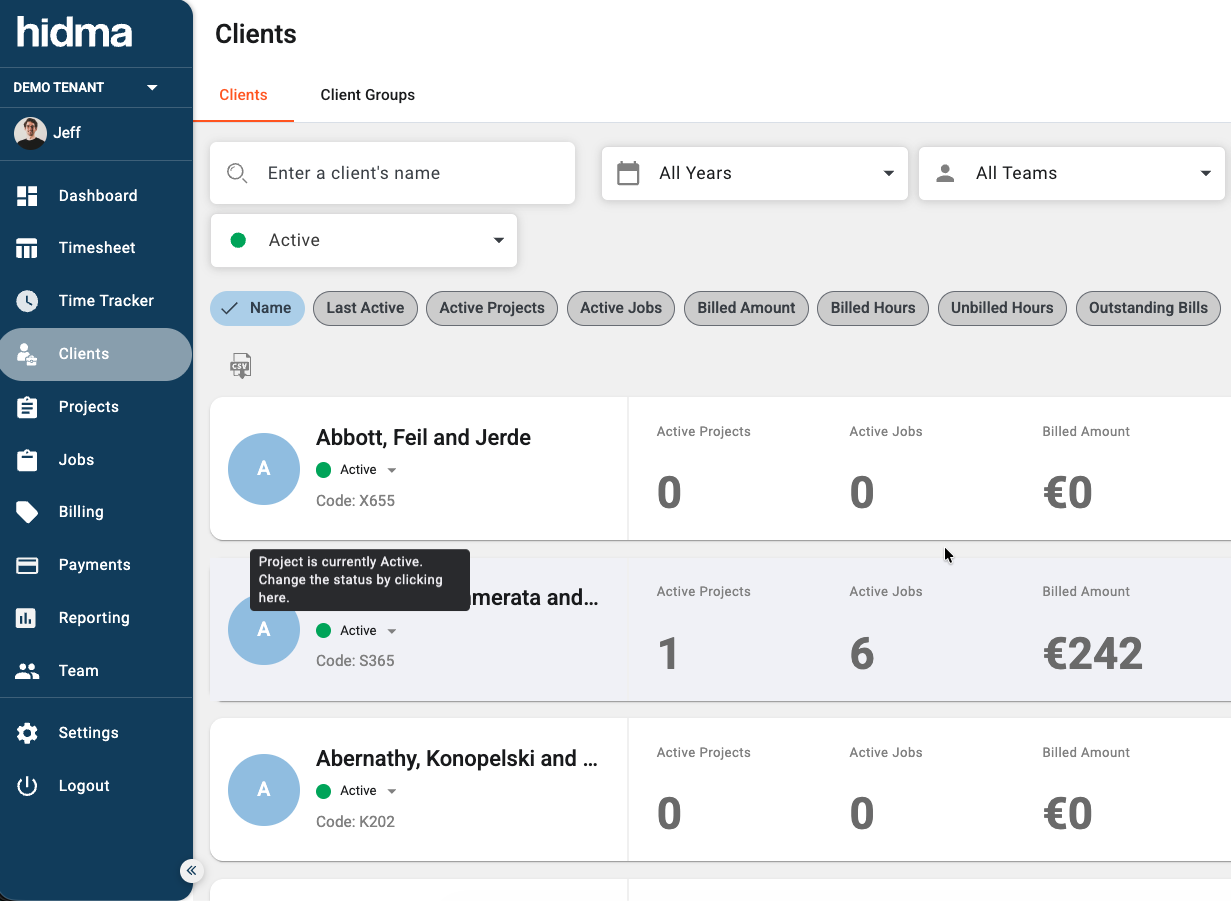
The change is saved immediately — there's no separate Save step. The dot colour updates to reflect the new status.
The status indicator is everywhere
The same clickable indicator appears on project cards and project dashboards too, so you can change a project's status the same way. See Project Status for details.
Filtering by Status
Use the status filter at the top of the Clients list (next to the search box) to switch between Active, Inactive, and Closed clients. This makes it easy to focus on current relationships, or to find a client you set aside earlier so you can bring them back.
Closing, Archiving, or Deleting a Client
Clients cannot be deleted in hidma. Clients sit at the top of your hierarchy — projects, time entries, bills, and payments all hang off them — so removing one would tear holes in your historical reporting, WIP figures, and audit trail. Instead of deleting, you close the client, which is hidma's equivalent of archiving.
Closing a client
- Find the client's status indicator (the coloured dot + status label) on the client card, the stats view, or the client's dashboard.
- Click it and choose Closed.
The client drops out of active lists, filters, and pickers, but every bill, time entry, and report they appear in stays exactly as it was.
If you're not sure the relationship is over — the client has gone quiet, or work may resume next season — use Inactive instead. It takes them out of your active lists in the same way, but signals a pause rather than an ending, and you can move them on to Closed later.
Archive the client in Xero at the same time
If you use the Xero integration, closing a client in hidma offers to archive the matching Xero contact for you, so both systems stay in step.
Reopening a client
Closing is fully reversible. Set the status filter at the top of the Clients list to Closed (or Inactive), find the client, click their status indicator, and choose Active. They return to your active lists with all their history intact.
If a client should never have existed
For a duplicate record, a test client from onboarding, or a client entered against the wrong tenant, close it first so it's out of everyone's way, then email support@hidma.com with the client name and code (see Client & Project Codes) and what went wrong. The team will tell you what can be done with the record — self-service deletion isn't available at the moment.
Avoiding duplicates
If the problem is two records for the same client, close the one you don't want and keep billing against the other. Client codes make duplicates easy to spot — see Client & Project Codes.
Client Contacts
A client record can hold more than one contact — a primary contact plus whoever else needs to be in the loop, such as a finance manager, a bookkeeper, or a second director.
Including Additional Contacts in Email Communications
Each contact on a client carries an Include in Email Communications flag. Switch it on and that contact is copied into emailed invoices and billing correspondence alongside the primary contact.
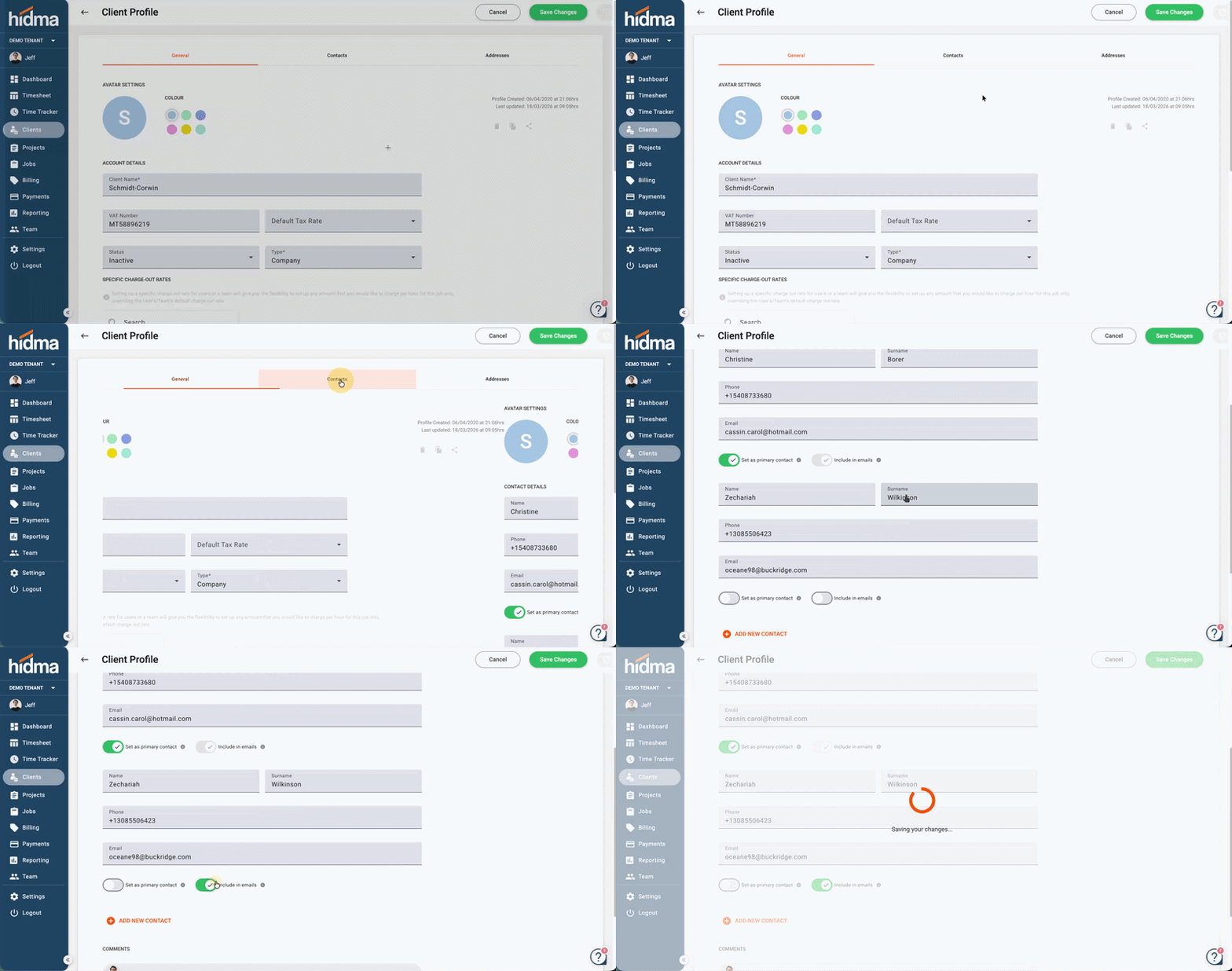
To set it:
- Open the client and go to the Contacts tab
- Find the contact you want to add to billing correspondence
- Switch on Include in Email Communications
- Save Changes
This syncs with Xero
If you use the Xero integration, the flag maps directly onto Xero's own contact settings — so a secondary contact you add here also receives invoices sent from the Xero side. You don't need to set the same thing up twice, and the two systems won't disagree about who gets billed.
This is the right place to handle the common "please copy our accounts department on invoices" request. Adding the person as a contact with the flag switched on is preferable to changing the primary contact, which affects who the client record is addressed to generally.
Recurring Projects on the Client Dashboard
A client's dashboard has a Recurring Projects tab next to Projects, listing the recurrence schedules running for that client.
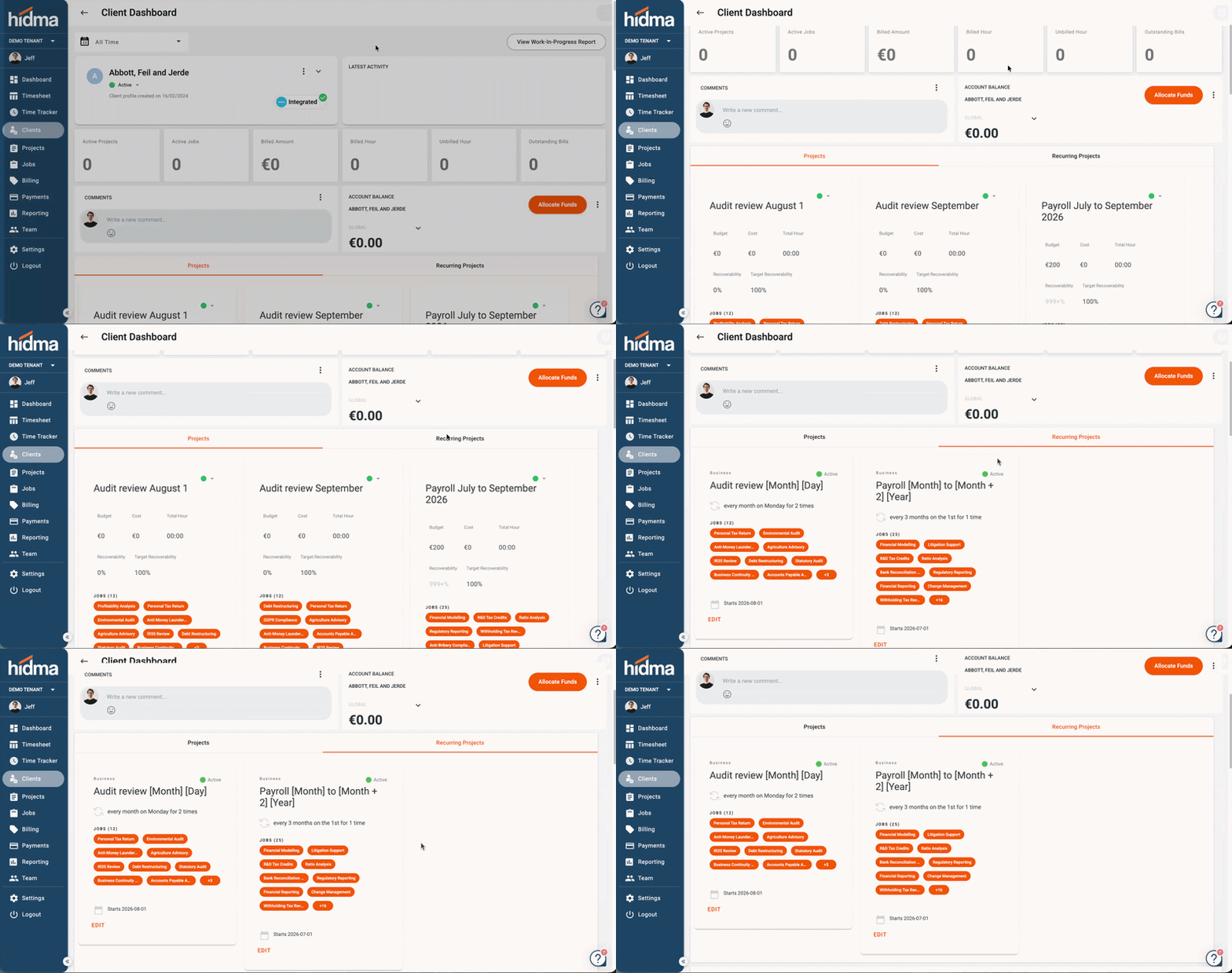
Use it to see at a glance what hidma generates automatically for a client — monthly bookkeeping, quarterly VAT, annual accounts — without filtering the full Projects list. See Recurring Projects.
Change History
Every client dashboard carries a Change History panel showing who changed what on that client, when, and where the change came from - so a query about a changed primary contact or an updated custom field can be settled from the record itself. See Change History & Activity Logs.
Related Topics
- Change History & Activity Logs - The audit trail on client, project, user, and bill records
- Adding Clients
- Recurring Projects — The schedules shown on the client dashboard
- Xero Integration — How contact settings sync to Xero
- Project Status
- FAQ
- Glossary
Have questions? Visit our FAQ or contact support@hidma.com