
Appearance
Deadlines
Keep every deadline in one place, whether it is for a client, a project, a team, one person or the whole firm, and see at a glance what is coming up.
🎥 Video Tutorial
Overview
A deadline in hidma is a date by which something must be done, such as a client's VAT return, a project milestone, or an internal date for a team or for the whole firm. Each deadline has a label, a date, what it is for, and the team responsible for it.
Deadlines are not a to-do list. They record when something is due, so you can see everything coming up across your clients, projects and teams in one list or calendar, and make sure nothing is missed.
The Deadlines page
Open Deadlines from the main menu. You will see all your deadlines, with:
- Filters along the top to show all deadlines, or only client, project, team or global (whole organisation) deadlines
- A search box and a date range
- A choice of List or Calendar view
Adding a deadline
- Click Add Deadline at the top right, or press A on your keyboard.
- Enter a label, for example "VAT Return Submission Q3" or "Year-end review".
- Choose what the deadline is for: a client, a project, a team, a single user, or the whole organisation (Global).
- Choose which ones it applies to. For clients, you can pick all clients, one or more client groups, or individual clients.
- Pick the date.
- Choose the team responsible.
- Click Save deadline.
The new deadline appears in the list with its label, what it is for, the date, whether it repeats, the team and its status.
Deadlines for a group of clients
When you choose several clients (or a client group), hidma creates one deadline for each client and keeps them together as a group. A Bulk badge on each deadline shows how many clients are in the group. Hover over it to see every client in the group and the team responsible for each.
Because the deadlines are grouped, you can change them all at once. When you edit one, hidma asks whether the change should apply to all clients in the group or only that client. If you choose only that client, it leaves the group and keeps its own settings.
Use client groups
If you already sort your clients into client groups, for example "VAT clients", you can pick the whole group instead of choosing clients one by one.
Making deadlines repeat
- Edit the deadline and switch on Recurring.
- Choose how often it repeats, for example every year.
- Choose when the series ends: never, on a set date, or after a number of times.
- Check the dates hidma lists, then click Continue.
- For a group, apply the change to all clients in the group.
Each deadline then shows a Series badge, and next year's deadlines are created for you.
Placeholders in recurring deadline names
A recurring deadline can carry the period it covers in its name, so each occurrence is labelled correctly without you renaming it. Placeholders work the same way as in recurring projects and recurring bills.
- Edit the deadline and set up the recurrence as above.
- Under Deadline Recurrence Title, find the Deadline Name Recurrence Pattern field.
- Click the + icon at the end of the field and pick a placeholder. It is added to the name in square brackets, for example
[Month]. - Click Continue to save.
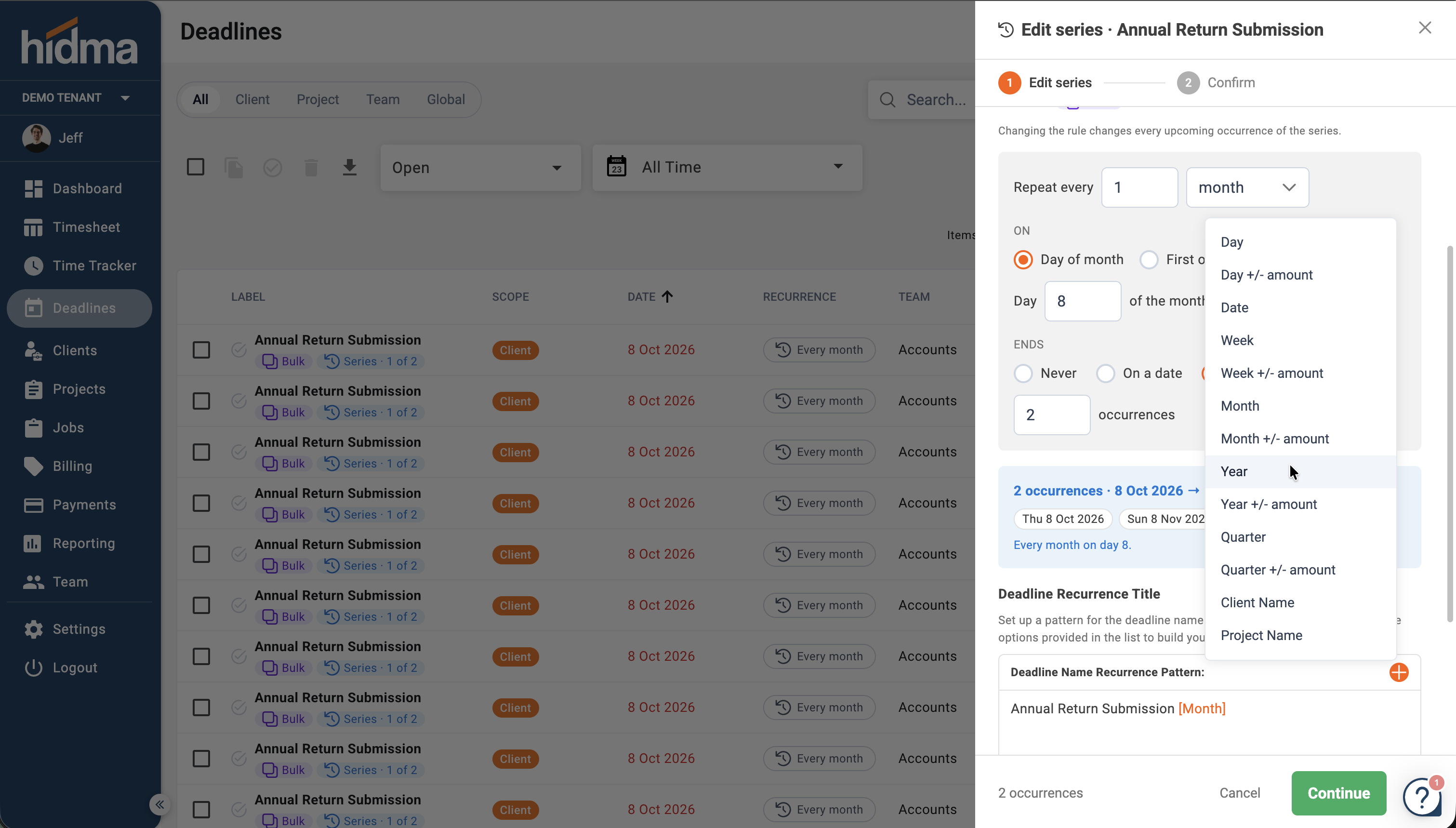
You can choose from:
| Placeholder | What it adds |
|---|---|
| Day, Date, Week, Month, Quarter, Year | That part of the occurrence's date |
| Day +/- amount, Week +/- amount, Month +/- amount, Quarter +/- amount, Year +/- amount | The same, moved forward or back by the number you choose, for example the previous quarter |
| Client Name | The name of the client the deadline is for |
| Project Name | The name of the project the deadline is for |
For example, a quarterly deadline named VAT Return [Quarter] [Year] gives each occurrence the right quarter and year, such as "VAT Return Q3 2026". Because every client in a group uses the same pattern, names stay consistent across all your clients.
Adding a new client to an existing group
When a new client needs the same deadlines as an existing group:
- On the Deadlines page, tick the deadline, or several deadlines if more than one applies.
- Click the Copy button at the top of the list.
- Choose the new client. You can also change the team, or link the deadline to a project.
The new client joins the group, and the number on the Bulk badge goes up.
Where deadlines appear
- Deadlines page, in the list or the calendar
- Client dashboard: a Deadlines panel with Overdue, Upcoming and Done tabs. You can add, complete or waive deadlines from here.
- Project dashboard: the same Deadlines panel for the project's deadlines
- Main dashboard and team dashboard: a summary of open, overdue and upcoming deadlines
Completing and waiving deadlines
Completing: on the Deadlines page, tick the deadlines that are done and click the complete button. You can tick many at once. Their status changes to done.
Waiving: if a deadline no longer needs to be met, for example because the client has left, click the waive button. You can add a reason. The waiver and its reason are kept in the deadline's history.
Reminders
Each user chooses their own reminders. Open your profile, go to Notification Settings, and find Deadlines just below the budget notifications.
- Email: by default you get a weekly email at the start of each week listing upcoming and overdue deadlines. You can change this to a daily email.
- Alert in hidma: choose how far ahead to be alerted, for example deadlines due within the next one, two or three weeks. A number on the deadlines icon at the top of the screen shows deadlines in that period that you have not seen yet. Click it to see them, marked New. The number goes down as you view them.
You can switch either kind of reminder off.