
Appearance
Setting up API access
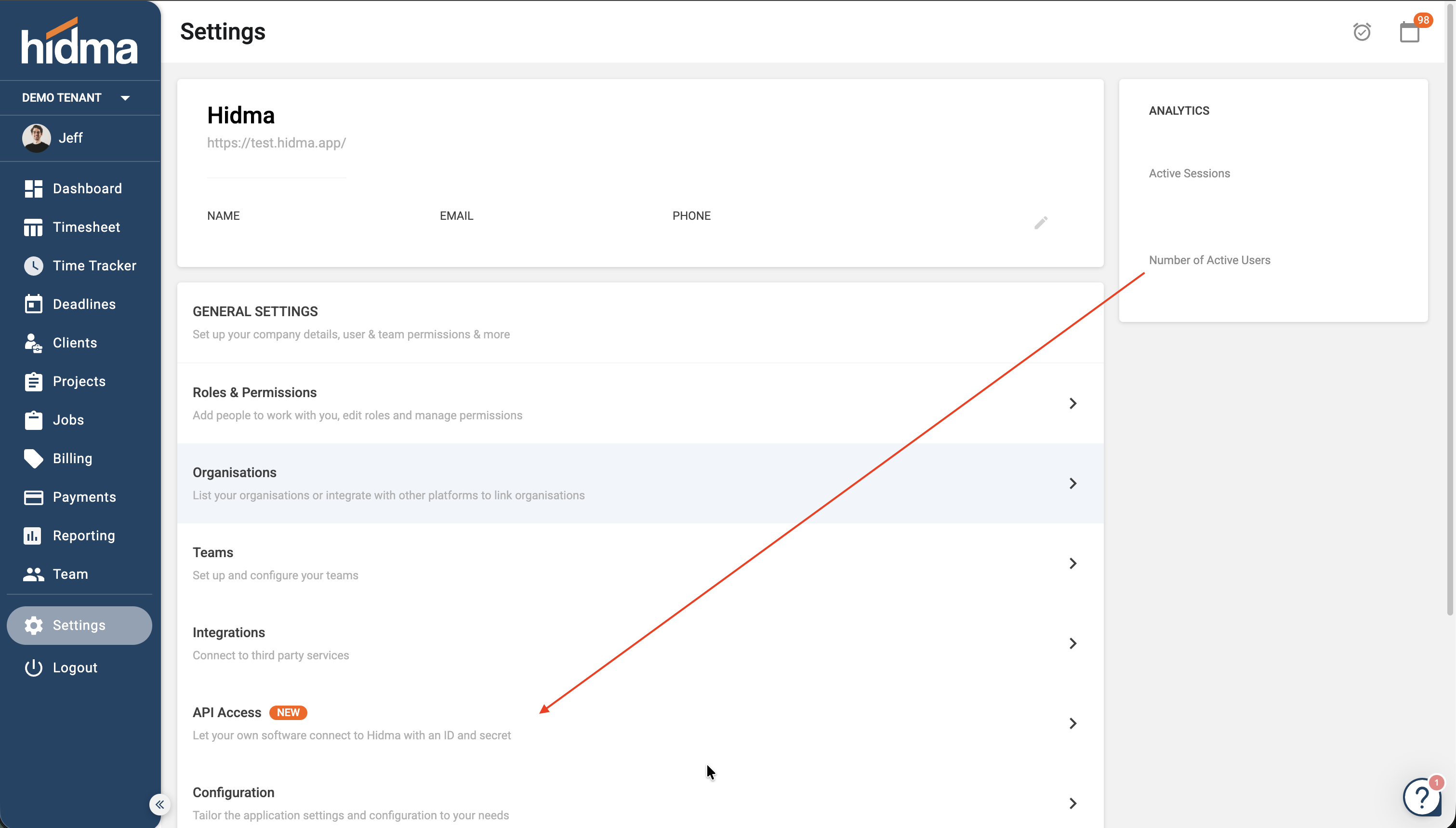
Create and manage the applications that let your own software connect to hidma. Everything here is done from Settings › API Access.
Before you start
- Your firm must be on the Firm plan.
- You need the Manage API Applications permission. If you do not see API Access in Settings, ask your hidma administrator. See User Roles & Permissions.
New to the API? Read the hidma API overview first. The API is in beta. If you would like help with your first integration, contact support@hidma.com.
Create an application
Create one application for each tool you connect. If you connect Power BI and your CRM, make two applications. That way you can switch one off without affecting the other.
- Go to Settings › API Access and click Add new.
- Enter a Name you will recognise later, such as "Power BI reports" or "CRM client sync".
- Optionally add a Description, for example who looks after the tool or what it is for.
- Under What can it access?, choose a level for each area (see below). You must give access to at least one area.
- Click Create.
The new application can use the workspace you are in when you create it. To let it use other workspaces too, see Workspaces below.
Choose what it can access
For each area, pick one of three levels:
| Level | What it means |
|---|---|
| No access | The tool cannot see anything in this area |
| Read only | The tool can look, but cannot add or change anything |
| Read and write | The tool can look, and also add or change records |
The areas you can choose from are Clients, Projects, Jobs, Timesheets and Users. Users can only be Read only: a connected tool can look up your users but cannot add or change them.
Only allow what the tool needs
A reporting tool only needs Read only. A tool that adds new clients needs Read and write on Clients, and nothing else. You can change the access later from the application's page.
| If you want to... | Give it |
|---|---|
| Build reports in Power BI or Excel | Read only on the areas you report on |
| Add new clients from a CRM or onboarding form | Read and write on Clients |
| Send time from another app into timesheets | Read only on Projects, Jobs and Users, Read and write on Timesheets |
Copy the details
As soon as you click Create, hidma shows the details the tool needs to connect:
| Detail | What it is |
|---|---|
| Client ID | Identifies the application. Starts with app_. You can see it again at any time. |
| Client secret | The application's password. A long code that hidma only shows once. |
| Workspace ID | Tells the API which hidma workspace you mean. Sent with every request. |
Click Copy next to each one and store them somewhere safe, such as your firm's password manager. Then tick the box to confirm you have saved the secret and close the window.
The window also has a short How to get a token section. Pass this, and the details, to whoever is connecting the tool.
Save the secret now
The client secret is not shown again. If you lose it, you will need to create a new secret, and anything using the old one will stop working until it is updated.
View your applications
Settings › API Access lists every application with:
- its name and description
- its client ID
- what it can access, for example Read: Clients, Projects · Read and write: Timesheets
- its status, either Active or Turned off
- when it was created
Click Open to see an application's page, where you can make changes.
From this page you can also open the API documentation, the full technical reference for developers.
Change what it can access
- Open the application.
- Change the levels in the access table.
- Save your changes.
Taking access away applies straight away. Giving more access applies the next time the tool gets a new access token, which happens at least once an hour.
To change the name or description, click Edit details.
Workspaces
If your firm uses more than one hidma workspace, you can let one application use several of them.
- Add a workspace: open the application and click Add workspace. Pick the workspace and choose what the application can access there. A workspace can be given the same access as the application or less, never more.
- Copy a workspace ID: each workspace on the application's page has its own ID with a Copy button. The tool sends this ID to say which workspace it means.
- Remove a workspace: click Remove next to it. The tool can no longer use that workspace. You can add it again later.
Removing the last workspace
If you remove the only workspace an application can use, it will not be able to connect anywhere until you add one again.
Turn an application off or on
Turning an application off stops the tool from connecting straight away, without deleting anything. This is useful if a tool is misbehaving, or you are not using it for a while.
Open the application and switch it off. Its status shows Turned off. Switch it back on when you are ready, and it will work again with the same details.
hidma also turns an application off by itself if someone tries the wrong secret 10 times in 5 minutes. This protects your data if someone is guessing. Once the problem is fixed, turn it back on from its page.
Create a new secret
Create a new secret if the current one has been lost, or may have been seen by someone who should not have it.
- Open the application.
- Click Create new secret and confirm.
- Copy the new secret straight away and update the tool that uses it.
The old secret stops working straight away. The client ID stays the same.
Delete an application
When you stop using a tool for good, delete its application.
- Open the application.
- Click Delete application and confirm.
The tool can no longer connect. Records it added or changed in hidma stay as they are. Deleting cannot be undone. If you might need the tool again, turn it off instead.