
Appearance
Microsoft 365 sign-in and user provisioning
Connect hidma to your firm's Microsoft 365 so that staff sign in with the Microsoft account they already use every day, and so that new starters and leavers in Microsoft are added to and removed from hidma without anyone having to do it twice.
There are two parts, and you can use the first without the second:
- Sign-in (Single Sign-On) – staff click Sign in with Microsoft instead of typing a hidma password.
- Provisioning (SCIM, Firm plan) – Microsoft creates users in hidma, keeps their names and emails up to date, and switches them off when they leave.
Who can do this
You need to be an Administrator in hidma, and the person approving the connection needs to be an administrator of your firm's Microsoft 365 (someone who can approve apps for the whole organisation). In most small firms this is the same person, or your IT provider.
Part 1 – Turn on sign-in with Microsoft
Step 1 – Open the Microsoft 365 integration
Go to Settings › Integrations and click the Microsoft 365 card.
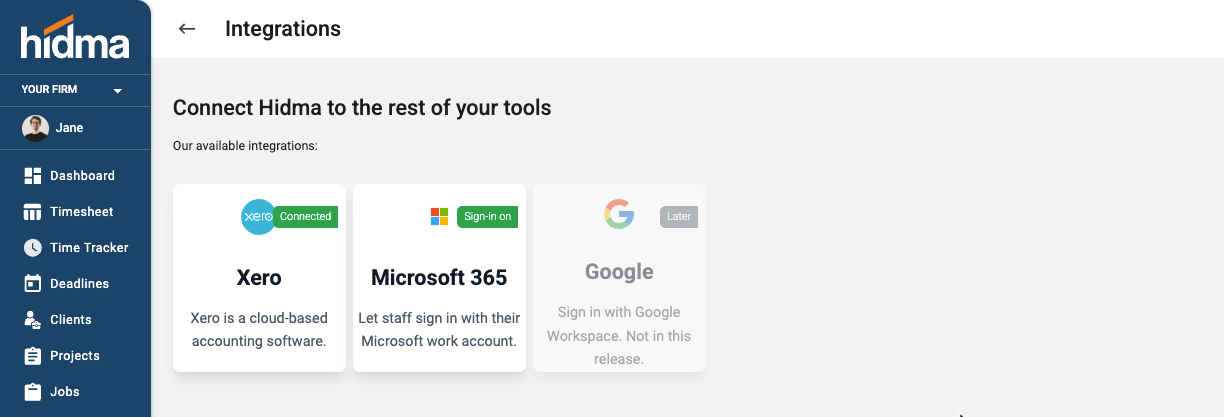
Step 2 – Connect your Microsoft directory
Click Connect Microsoft 365. You are taken to Microsoft to sign in with your work account.
Microsoft then asks you to approve hidma for your organisation. Tick Consent on behalf of your organization and click Accept. This gives hidma permission to check who is signing in, and nothing more. You do not need to create anything in Microsoft yourself; hidma is one ready-made app that every firm connects to in the same way.
Once you are back in hidma, the Overview tab shows the connection as Approved, together with the email domains that belong to your Microsoft directory.
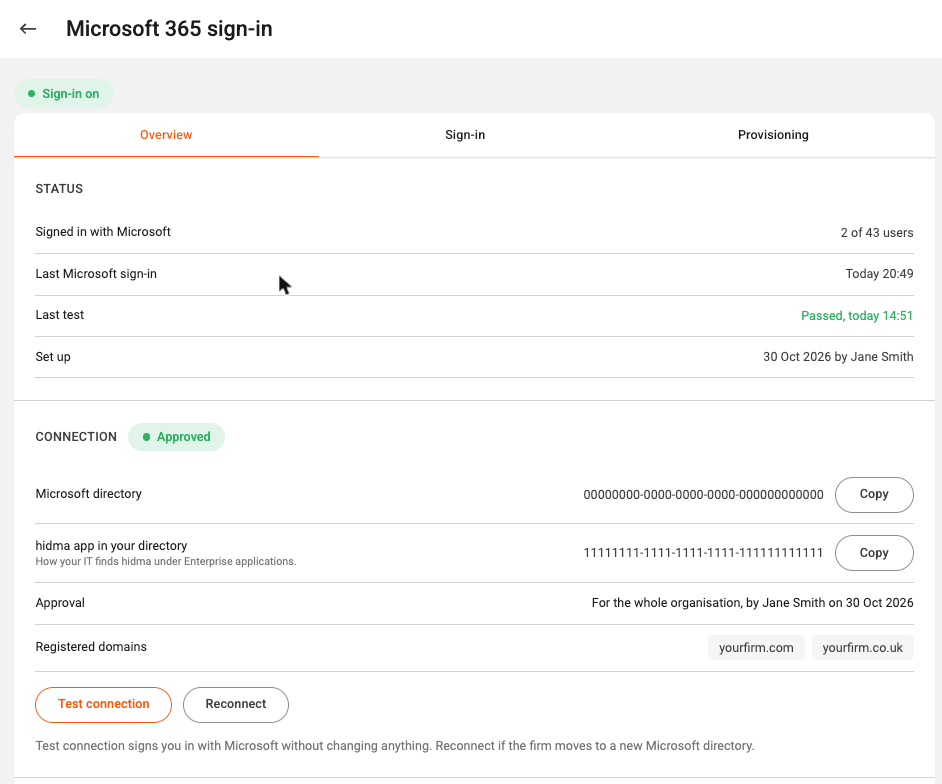
The two long codes on this page are your Microsoft directory and the hidma app inside it. You only need them if your IT provider asks for them; the Copy buttons are there for that.
Step 3 – Test it
Click Test connection. This signs you in with Microsoft once, without changing anything, and the result appears under Last test. If it passes, you are ready to let staff use it.
Step 4 – Choose who still has a password
Open the Sign-in tab. Make sure Allow sign-in with Microsoft is switched on, then pick one of the three options:
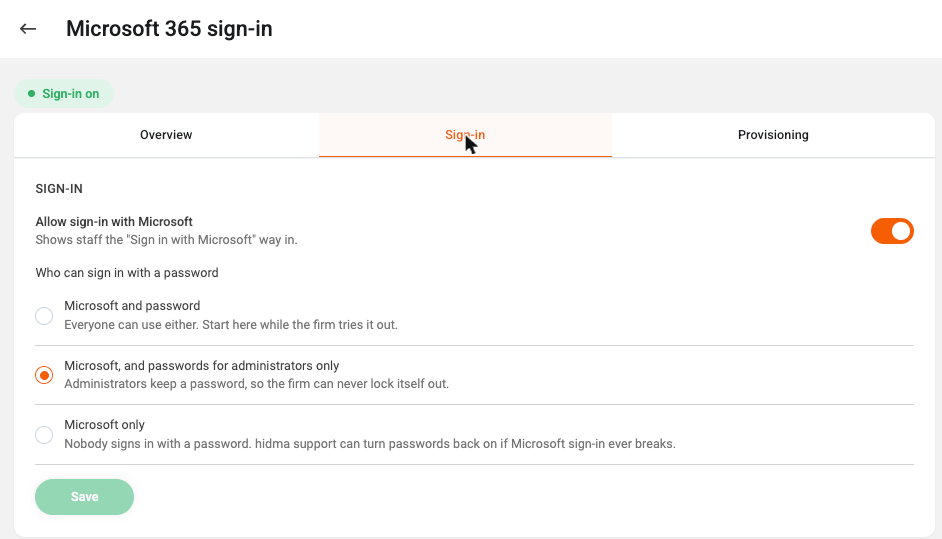
| Option | What it means | When to use it |
|---|---|---|
| Microsoft and password | Everyone can sign in either way. | While the firm tries Microsoft sign-in out. |
| Microsoft, and passwords for administrators only | Staff sign in with Microsoft. Administrators keep a hidma password as well. | The usual choice once everyone is on Microsoft. The firm can never lock itself out. |
| Microsoft only | Nobody uses a hidma password. | Firms whose IT policy requires it. hidma support can turn passwords back on if Microsoft sign-in ever stops working. |
Click Save.
What your staff see
From now on the hidma sign-in page shows a Sign in with Microsoft button. The first time a member of staff uses it, hidma matches their Microsoft account to their hidma user by email address and links the two. After that they are signed straight in.
TIP
Each person still needs a hidma user with the same email address as their Microsoft account. Add them in Team as usual, or let Microsoft do it for you with provisioning (Part 2).
Part 2 – Let Microsoft create and remove users (provisioning)
With provisioning switched on, your Microsoft directory becomes the single place where staff are added and removed. When IT creates a new starter in Microsoft and gives them hidma, the user appears in hidma. When someone leaves and is removed, their hidma user is set to inactive. Their profile and the time they logged are kept.
Microsoft licence needed
Provisioning uses a Microsoft feature that comes with Microsoft Entra ID P1. This is included in Microsoft 365 Business Premium, E3 and E5. If your firm is on Business Basic or Business Standard, sign-in (Part 1) still works, but users have to be added in hidma by hand.
Firm plan
Automatic user provisioning is available on the Firm plan. Sign-in with Microsoft (Part 1) is available on every plan.
Step 1 – Create a token in hidma
Open the Provisioning tab of the Microsoft 365 integration. It shows the two things Microsoft will ask you for: the Tenant URL and a Secret token.
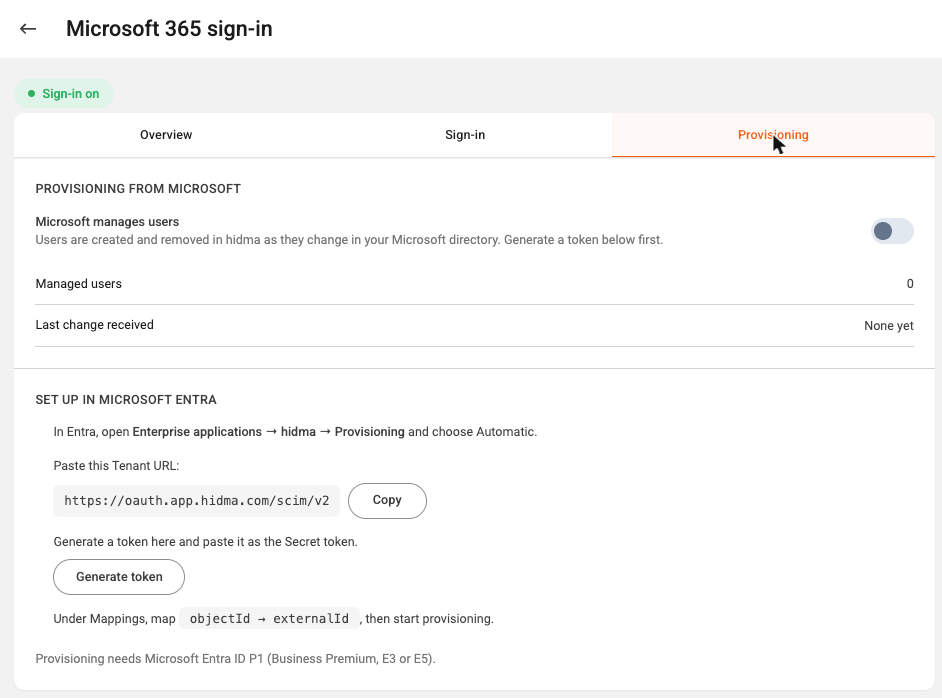
Click Generate token and copy the token somewhere safe for the next few minutes. It is shown once; if you lose it, generate a new one.
Keep the token secret
Treat the token like a password. Anyone who has it, together with the Tenant URL, can create and change users in your hidma account. Do not send it by email or chat.
Step 2 – Set up provisioning in Microsoft Entra
The rest happens in the Microsoft Entra admin centre at entra.microsoft.com. Your IT provider will know these screens well.
- Go to Enterprise applications and open hidma. It appears here as soon as the connection in Part 1 is approved.
- In the left menu click Provisioning, then Get started. If Microsoft says that automatic provisioning is "not supported out of the box", carry on; this message is normal for apps that are not in Microsoft's gallery, and the manual set-up below works.
- Set Provisioning Mode to Automatic.
- Under Admin Credentials, paste the Tenant URL and the Secret token from hidma.
- Click Test Connection. Microsoft should report that the credentials are authorised. Click Save.
- Open Mappings › Provision Microsoft Entra ID Users and check that objectId is mapped to externalId. hidma uses this to recognise the same person later, even if their email address changes. The other default mappings (name, surname, email, active) can stay as they are.
- Go to Users and groups and add the people who should have a hidma account. Only the people assigned here are sent to hidma.
- Back on the Provisioning page, set Provisioning Status to On and click Save. Microsoft's first run can take up to 40 minutes; after that it checks for changes roughly every 40 minutes.
Step 3 – Check it in hidma
Return to the Provisioning tab in hidma. Once Microsoft has sent its first change, Managed users shows how many users Microsoft looks after and Last change received shows when the latest change arrived. The same users appear in Team, ready to be given a role, a team and rates like any new user.
If a user does not appear, open Provisioning › Provisioning logs in Entra: each attempt is listed with a plain reason if it failed. The most common causes are a person who was not assigned under Users and groups, or an email address that already belongs to another hidma user.
Everyday questions
Does a user created by Microsoft cost anything extra? A user created by Microsoft is a hidma user like any other and counts towards your licences in the same way. Users set to inactive do not count.
What happens when someone leaves? Remove them from the hidma app in Entra, or disable or delete their Microsoft account. At Microsoft's next run their hidma user is set to inactive. Nothing they logged is deleted.
Can we stop using Microsoft sign-in? Yes. On the Overview tab click Disconnect Microsoft 365. Microsoft sign-in is switched off and staff sign in with their hidma password again (use Forgot password if they never had one). hidma remembers which accounts were linked, so if you reconnect the same directory later nobody has to link again.
We have moved to a new Microsoft directory. What now? Click Reconnect on the Overview tab and approve hidma again from the new directory. If you use provisioning, generate a new token and set provisioning up again in the new directory.
Our firm has more than one email domain. That is fine. All the domains registered in your Microsoft directory are listed under Registered domains on the Overview tab, and staff on any of them can sign in.