
Appearance
Recurring Projects
Set a project up once and let hidma generate each occurrence automatically, with names and codes that resolve themselves.
🎥 Video Tutorial
A full walkthrough of setting up a recurring project - the recurrence schedule, name and code placeholders, sequential numbering, and what the generated instances look like.
Overview
Recurring Projects let you configure a project once and have hidma create each occurrence on a schedule you define. This removes a large amount of repetitive admin for engagements where most of the setup - jobs, teams, budgets, and even the billing arrangement - stays more or less constant from one period to the next.
Typical candidates are monthly bookkeeping, quarterly management accounts, annual compliance filings, and any other engagement your firm repeats on a predictable cadence. Because you can also define bills, recurring bills, and charges at the point of project creation, a recurring project can carry its entire billing arrangement forward with it - meaning the whole admin side of a predictable engagement runs itself.
Recurrence is available for both single client and multiple client (batch) project creation.
Key Concepts
Recurring Setup (the blueprint)
The Recurring Setup is the project you configure - the schedule, the name and code patterns, the jobs, teams, budgets, and billing. It is not a working project: no time is tracked to it and it accumulates no statistics. It exists purely to tell hidma how to build the real projects.
In the Projects list a Recurring Setup carries a Recurring Setup badge in the top-right of its card, shows the raw pattern as its name (for example Audit review [Month]), and displays the schedule underneath (for example "Repeats every month on Monday for 2 times"). Its statistic tiles are empty.
Instances (the real projects)
Each time the schedule fires, hidma creates an Instance - a normal, fully functional project with its placeholders resolved into real text. Instances carry an Instance badge, and apart from that badge they behave exactly like any project created by hand: time is tracked to them, budgets apply, bills are raised against them.
Each instance also carries its own start date, set to the day that instance is generated. Only the first instance uses the start date you entered on the setup - see The start date is the first instance.
The Recurring Projects filter
The Projects page has filter chips at the top - All, Projects, and Recurring Projects. Click Recurring Projects to see only your recurring setups, separately from the instances they produce.
Setting Up a Recurring Project
Step 1: Start a New Project
- Go to Projects in the left sidebar
- Click + Add new
- On the Adding a New Project dialog choose Single Client (or Multiple Clients for a batch - see Recurring Projects in Bulk)
- Click Next
Step 2: Fill in the Project Details
Complete the usual details in the Project Details section:
- Client - the client the project belongs to
- Project Name - the base name (for example "Audit review"). This becomes the starting point for the name pattern
- Template (Optional) - apply a project template to pre-fill jobs, teams, budgets, and billing type
- Code - only shown if project codes are enabled for your tenant
- Status and Type
Project codes are optional
Manual project codes are a per-tenant setting and are switched off for most firms. If you don't see a Code field, skip every code-related step on this page. If your tenant uses hidma-generated incremented codes, you don't need to specify a code either - hidma assigns them automatically.
Step 3: Set the Recurrence
Scroll to the Date & Recurrence section:
- Start Date - the date the first occurrence is created
- Recurrence - leave as Does not repeat for a normal one-off project, or choose a frequency to make it recur. Choose Custom to fine-tune the schedule
The start date is the first instance
The Start Date is not a warm-up date that recurrence counts from - it is the date of the first generated instance itself. hidma creates that first project on the start date, and every later instance follows on immediately from the recurrence definition.
The same rule applies across the platform: for recurring projects, recurring bills, and recurring charges, the start date produces the first item and the schedule takes over from there. So a monthly recurrence starting 1 March gives you an instance on 1 March, then 1 April, then 1 May - not a first instance on 1 April.
hidma spells this out as you set the schedule: helper text under the recurrence shows the dates the first, second, and third instances will be created, so you can confirm the cadence is what you intended before saving.
Each instance gets its own start date
The start date you enter belongs to the first instance only. Every instance after that is given a start date of the day it is generated.
So a monthly recurrence beginning 1 March produces a project whose start date is 1 March, then one whose start date is 1 April, then one dated 1 May. An instance's start date always reflects when that instance came into existence - it is never inherited from the original setup, and it never stays fixed at the date you first typed in.
This is what makes generated projects behave like projects created by hand on the day the work begins: anything that reads a project's start date - reporting periods, date placeholders in names and codes, ageing - lines up with the period the instance actually covers.
This part is specific to projects. Generated recurring bills and recurring charges carry no start date of their own - there, the start date belongs only to the setup and governs when items are generated. The rule they share with projects is the one above: the start date produces the first item, and the schedule takes over from there.
Custom Recurrence
Selecting Custom opens the Custom recurrence dialog - the same control used for recurring bills and recurring charges:
- Starts - the first run date (Start At)
- Repeat Every - an Interval and a Frequency of Day, Week, Month, or Year
- Ends - Never, On a specific date, or After a set number of occurrences
Once saved, the schedule is summarised in plain English next to an Edit recurrence button - for example "Repeats every month on Monday for 2 times".
Step 4: Define the Name and Code Patterns
As soon as a project is set to recur, two extra fields appear:
- Project Name Recurrence Pattern (required)
- Project Code Recurrence Pattern (only when project codes are enabled)
These patterns are what each generated instance is named and coded from. They are optional in effect - if you leave the pattern as plain text with no placeholders, hidma still generates each instance, but it has to append a number to keep names unique (so "Audit review" is followed by "Audit review 1", and so on). Adding placeholders makes the output deterministic and far more readable.
To insert a placeholder, click the + icon at the end of the field (tooltip: "Add placeholder text") and pick from the list. See Dynamic Placeholders below.
Step 5: Complete the Rest of the Project
Everything below the recurrence section is standard project setup - Jobs & Teams, Project Budgets, Budget Notifications, and Billing. Whatever you configure here is inherited by every generated instance.
The Billing section is where you can attach Add Bill, Add Recurring Bill, and Add Charge items so that each occurrence arrives with its billing already in place. Learn about billing at project creation.
Step 6: Save
Click Save Changes. hidma creates the Recurring Setup and immediately generates the first instance.
Dynamic Placeholders
Placeholders are tokens written in square brackets that hidma resolves at the moment each instance is generated. They work in both the name pattern and the code pattern.
Date Placeholders
Click the + icon and pick from the menu. Each option shows a live example of what it resolves to, and hidma inserts the correct token into the field for you - so there's nothing to memorise.
| Menu option | Resolves to | Example |
|---|---|---|
| Year | The four-digit year | 2026 |
| Year (short) | The two-digit year (inserted as [YY]) | 26 |
| Month | The month number, unpadded (inserted as [Month]) | 7 |
| Month (padded) | The month number, zero-padded | 07 |
| Day | The day of the month | 06 |
TIP
Pick placeholders that match your cadence. A monthly project wants the month in its name; an annual one usually only needs the year. Audit review [Month] generates "Audit review 7", "Audit review 8", and so on.
Sequence Placeholders
Sequences give each generated project an incrementing number and are most useful in project codes. Two forms are supported:
| Form | Meaning |
|---|---|
[Seq:padding] | A sequence padded to padding digits, starting at 1 |
[Seq:padding:startFrom] | A sequence padded to padding digits, starting at startFrom |
[Seq:4] produces 0001 on the first project, 0002 on the second, and so on - four digits wide.
[Seq:4:26] is also four digits wide but starts counting from 26, so the first project gets 0026, the second 0027.
You can use both forms in the same pattern, and combine them with date placeholders.
Worked example. The pattern AUDREV[YY][Seq:4][Seq:4:26] generates the code AUDREV2600010026 for the first project:
| Segment | Comes from | Value |
|---|---|---|
AUDREV | Literal text | AUDREV |
[YY] | Two-digit year (Year (short)) | 26 |
[Seq:4] | Sequence, 4 digits, from 1 | 0001 |
[Seq:4:26] | Sequence, 4 digits, from 26 | 0026 |
Sequence syntax
Use numbers in place of each amount. If you type the words instead of numbers - [Seq:length] or [Seq:padding:startFrom] - the field turns red and hidma shows "Use [Seq:padding] or [Seq:padding:startFrom], with numbers in place of each amount".
Recurring Projects in Bulk
Recurrence also works when creating projects for Multiple Clients. Choose Multiple Clients on the Adding a New Project dialog, select the clients (or All Clients for your whole client base), and configure the recurrence exactly as above. Every selected client gets its own Recurring Setup, each generating its own instances on the schedule.
This is how you roll out something like "monthly management accounts" across an entire client base in a single action. Batches are queued and processed in the background - see Creating Projects in Bulk.
Check a batch before you save it
A recurring batch multiplies in two directions at once - across clients and across occurrences - so a small mistake becomes a large clean-up. Double-check the clients, the schedule, and both patterns before saving, because correcting a batch of recurring projects after the fact takes considerably longer than creating it.
Viewing and Managing Recurring Projects
- Go to Projects
- Click the Recurring Projects chip
From here you can open a Recurring Setup to review or change the schedule, patterns, jobs, teams, budgets, and billing. Edits to the setup apply to future instances - projects that have already been generated keep whatever they were created with, and you edit those individually like any other project.
Billing items are the exception. Bills, recurring bills, and charges can be added to a live recurring project and pushed onto instances that already exist - see Adding or Changing Billing on an Active Recurring Project below.
Recurring Projects on a Client's Dashboard
You no longer have to go via the Projects page to find what a client has on a schedule. A client's dashboard now carries a Recurring Projects tab next to Projects, listing that client's active recurrence schedules in one place.
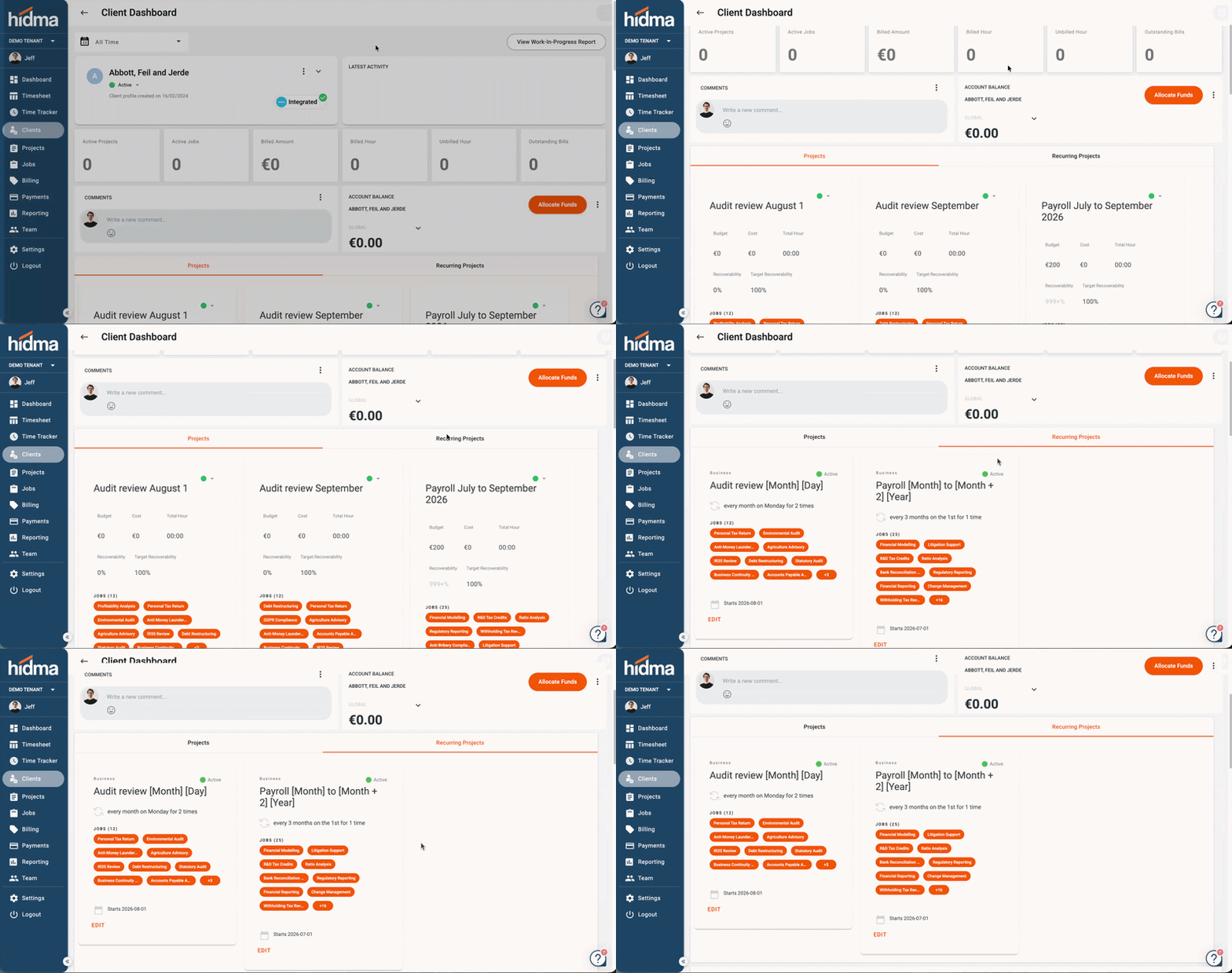
This is the quickest way to answer "what do we run for this client automatically?" without filtering the whole Projects list.
Deactivating Recurring Projects in Bulk
When a schedule should stop - a client leaves, a service line is retired, a compliance cycle ends - you can end several recurring projects at once from the Projects summary page rather than opening each one.
- Go to Projects and click the Recurring Projects chip
- Tick the recurring projects you want to change
- Click the Status icon (the traffic lights) in the toolbar above the list
- Choose Active or Ended
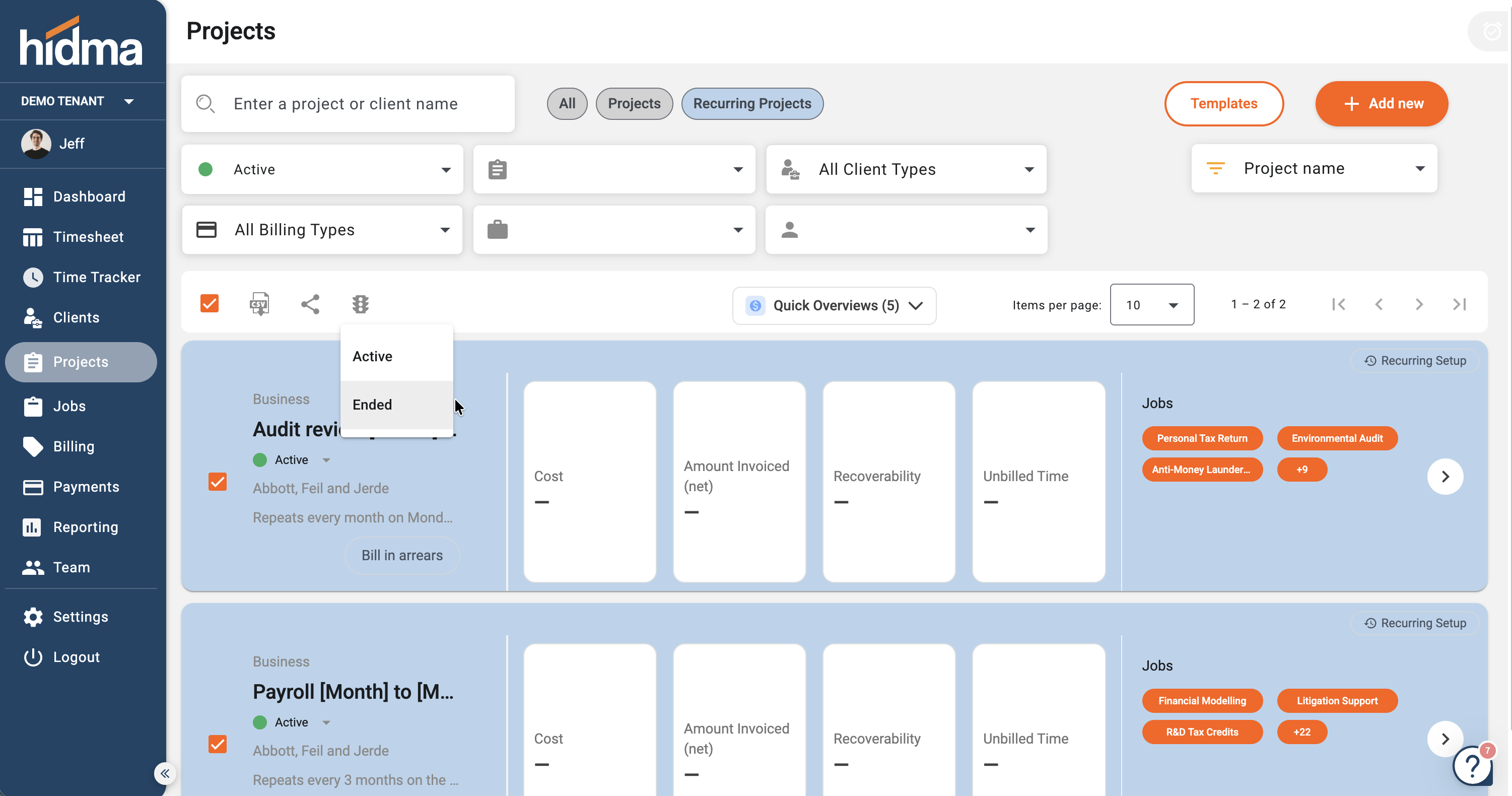
Setting a recurring setup to Ended stops it generating any further instances. Instances it has already produced are untouched - they remain live projects with their time, bills, and history intact.
Ending a schedule is not retrospective
Ended only stops future generation. If you also need to deal with instances that have already been created - closing them, writing off unbilled time - handle those separately. See Project Status.
Deleting a Recurring Project
Recurring projects cannot be deleted in hidma - neither the Recurring Setup nor the instances it has generated. As with clients, deletion would break historical reporting, WIP figures, and the audit trail. Instead:
- Stop the schedule - set the Recurring Setup to Ended, individually or in bulk. No further instances are generated.
- Close the instances you no longer need - set each one to Closed with its status indicator, allocating or writing off any unbilled time as you go. See Project Status.
Ended setups and closed instances drop out of active lists, but their history stays intact and they can be reactivated later.
If a recurring project should never have existed (a duplicate, a test, or a batch saved against the wrong clients), end it, close any instances, then email support@hidma.com with the project names and what went wrong. Self-service deletion isn't available at the moment.
Adding or Changing Billing on an Active Recurring Project
Previously the billing arrangement on a recurring project was effectively fixed once instances started generating. You can now add and modify bills, recurring bills, and charges on a live recurring project, and hidma is explicit about how far each change reaches.
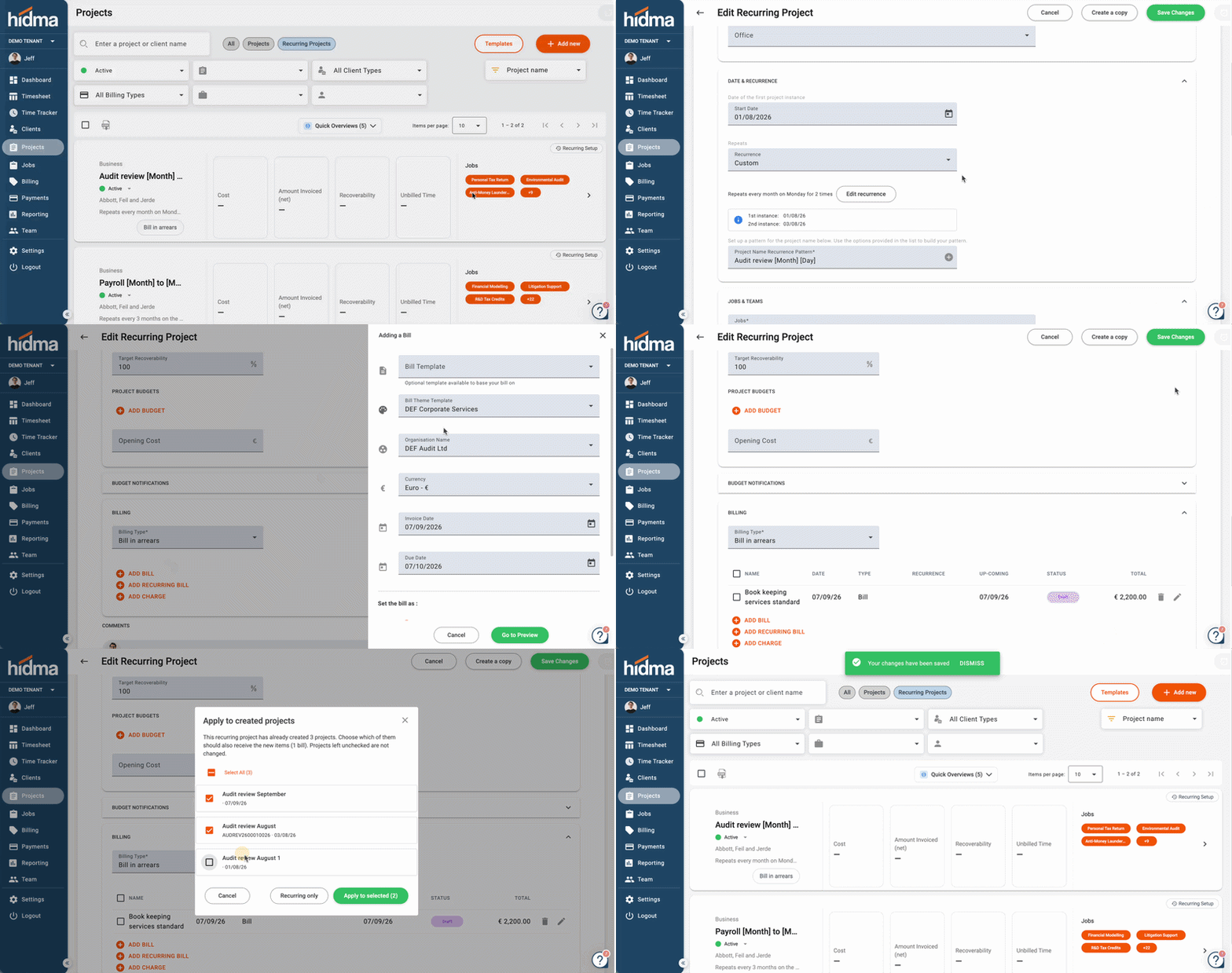
The two cases behave differently, and the difference matters:
| What you do | What it affects |
|---|---|
| Modify an existing bill, recurring bill, or charge | Only future, ungenerated instances. Instances that already exist keep the item exactly as it was when they were created |
| Add a new bill, recurring bill, or charge | Future instances automatically - and hidma prompts you to choose which already-generated instances should also receive it |
So an edit is always forward-only, while an addition gives you the choice. When you add an item, the prompt lists the existing instances and you select the ones that should pick it up - useful when you agree a new charge mid-engagement and it needs to apply to the periods already raised, and equally useful when it shouldn't.
Changing a price on an existing item
Because modifications only reach future instances, editing the amount on an existing recurring bill will not correct instances that have already been generated. Adjust those individually, or - if the change should apply from a clean point - end the current item and add a new one, choosing which existing instances receive it.
Where This Applies
The same behaviour is available whether you reach the billing items through the recurring project's Billing section or through billing at project creation. What changes is only that the recurring project no longer has to be recreated to alter its billing.
Copying Projects and Recurring Projects
Both standard projects and recurring projects can now be duplicated, so a new engagement that closely resembles an existing one doesn't have to be rebuilt from scratch.
When you copy, you choose which configuration items and settings to clone rather than taking the whole record - so you can carry over the jobs and teams but leave the budgets behind, for example.
The copy flow also lets you change the project's kind on the way through:
- Copy a standard project into a recurring project - the usual way to turn a one-off engagement that turned out to be repeat work into a schedule
- Copy a recurring project into a standard project - for a one-off variation on an otherwise recurring engagement
Copying versus templates
Copying is best for "this specific project again, roughly". If you find yourself copying the same project repeatedly, that's a project template waiting to be created - templates are the maintained, shareable version of the same idea.
Change History on Recurring Setups
Recurring setups now keep their own audit trail. Recurring Projects, Recurring Bills, and Project Templates all carry a Change History panel showing who changed the schedule or its configuration, when, and what the change was.
This matters more for recurring records than for one-off ones: a single edit to a schedule silently affects every instance it generates from that point on, so being able to see when a pattern, amount, or cadence moved - and who moved it - is often the only way to explain why instances before and after a date differ.
See Change History & Activity Logs for how to read the log.
Notifications When Instances Are Generated
Because instances appear on a schedule rather than because somebody made them, it's easy to miss one. You can now configure who is told when a new recurring project instance is generated.
Go to Settings ➔ Notifications ➔ Projects ➔ Recurring Projects and set who is notified and by which channel. See Notifications for how organisation-wide rules and personal preferences interact.
Clearer Errors When Creating and Editing
Validation when creating or editing a project now highlights the specific problem inline, next to the field it concerns, rather than reporting a general failure after you save. If a save is rejected, the message names what is wrong and where, so it can be fixed on the spot.
Common Workflows
Workflow: Monthly Bookkeeping for One Client
- + Add new → Single Client → Next
- Client: the bookkeeping client. Project Name:
Monthly bookkeeping - Apply your "Monthly Bookkeeping" project template so jobs, teams, and budgets arrive pre-filled
- Start Date: the 1st of next month. Recurrence: Custom → every 1 Month, ends Never
- Project Name Recurrence Pattern: type
Monthly bookkeeping, then use the + icon to insert Month (padded), a/, and Year - Under Billing, add a recurring bill for the monthly fee
- Save Changes
Each month a new instance appears named "Monthly bookkeeping 09/2026", with its jobs, team, budget, and recurring bill already configured.
Workflow: Annual Compliance Across the Whole Client Base
- + Add new → Multiple Clients → Next
- Select All Clients
- Start Date: the start of your compliance year. Recurrence: every 1 Year, ends Never
- Project Name Recurrence Pattern: type
Annual compliance, then insert Year - Project Code Recurrence Pattern (if codes are enabled): type
COMP, insert Year (short), then type[Seq:5]for a five-digit sequence - Review the client list carefully, then Save Changes
Troubleshooting
Problem: Instances aren't being generated
- Check the Ends condition on the recurrence - it may have completed its set number of occurrences
- Check the Start Date hasn't been set to a future date you've forgotten about
- Confirm the Recurring Setup is still Active - it may have been set to Ended, individually or as part of a bulk status change
- Check the setup's Change History - if the schedule was edited, the log names who changed it and when
Problem: A new charge didn't reach the instances I expected
Adding a bill, recurring bill, or charge prompts you to pick which already-generated instances should also receive it. If the prompt was dismissed, or an instance wasn't selected, that instance won't have the item - the addition still applies to future instances. Add it to the affected instances individually, or see Adding or Changing Billing on an Active Recurring Project.
Problem: I changed an amount but old instances still show the old figure
That is expected. Modifying an existing billing item only affects future, ungenerated instances - already-generated ones keep what they were created with. Correct those instances individually.
Problem: Generated projects are named "Audit review 1", "Audit review 2"
The name pattern contains no placeholders, so hidma is appending a number to keep names unique. Open the Recurring Setup and add a date placeholder to the Project Name Recurrence Pattern. Future instances will use it; already-generated ones keep their existing names.
Problem: The code pattern field is red
The sequence syntax is wrong. Use numbers, not words: [Seq:4] or [Seq:4:26], never [Seq:length].
Problem: I can't see a Code field
Manual project codes aren't enabled for your tenant, or your tenant uses hidma-generated incremented codes. Either way there's nothing to configure - contact support@hidma.com if you want manual codes switched on.
Related Topics
- Creating Projects - The standard project creation flow and bulk creation
- Bills, Recurring Bills & Charges at Project Creation - Attach the billing arrangement up front
- Project Templates - Pre-fill jobs, teams, budgets, and billing type
- Recurring Bills - The same recurrence engine applied to bills
- Recurring Charges - Recurring charges on clients and projects
- Change History & Activity Logs - The audit trail on recurring setups and templates
- Notifications - Alerts when new instances are generated
- Managing Clients - The Recurring Projects tab on a client's dashboard
- Project Status - Ending schedules and closing the instances they produced
- Client & Project Codes - Coding conventions
Need Help?
If you don't see the Date & Recurrence section when creating a project, ask your administrator to review your project permissions.