
Appearance
Finding Your Way Around
Learn where everything is in hidma so you can work confidently.
🎥 Video Tutorial
Watch & Learn
Main Layout
hidma's interface consists of several key areas:
1. Top Navigation Bar
Located at the very top of the screen:
- Company Logo/Name - Click to return to the dashboard
- Search Bar - Quickly find clients, projects, or jobs
- Notifications 🔔 - View alerts and updates
- User Menu 👤 - Access profile, settings, and logout
2. Left Sidebar Navigation
The main menu for accessing different sections:
- Timesheets
- Clients
- Projects
- Jobs
- Bills
- Payments
- Users (if you have permissions)
- Reports
- Settings (administrators only)
Collapsible Menu
Click the hamburger icon (☰) to collapse the sidebar and gain more screen space.
3. Main Content Area
The central workspace where you:
- View tables and lists
- Create and edit records
- View dashboards and reports
- Perform most of your work
4. Action Buttons
Common button types throughout the app:
- Primary buttons (usually blue) - Main actions
- Secondary buttons (outlined) - Alternative actions
- Icon buttons - Quick actions (edit ✏️, delete 🗑️, view 👁️)
- Floating Action Button (FAB) - Quick create button in bottom-right
Working with Lists and Tables
Viewing Lists
Most data is displayed in tables with:
- Search/Filter - Find specific records
- Column Headers - Click to sort
- Row Actions - Buttons on the right of each row
- Bulk Actions - Select multiple rows with checkboxes
- Pagination - Navigate through pages of data
Forms
When creating or editing records:
- Required fields - Marked with an asterisk (*)
- Date pickers - Click calendar icon to select dates
- Autocomplete fields - Start typing to see suggestions
- Dropdowns - Click to see all options
- Save/Cancel buttons - Bottom of form
Pop-up Windows
Sometimes a window pops up for:
- Confirmation dialogs - Confirm destructive actions
- Quick create forms - Add records without leaving page
- Detail views - See more information
Status Indicators
Visual cues throughout the app:
- Color-coded chips - Show status (e.g., approved, pending, rejected)
- Progress bars - Show completion percentage
- Icons - Quick visual indicators
- Badges - Show counts (e.g., notifications)
Dashboard Overview
Your main dashboard typically includes:
Quick Stats Cards
- Total hours this week/month
- Pending timesheets
- Unbilled hours
- Outstanding bills
Recent Activity
- Latest time entries
- Recent bills
- Project updates
- System notifications
Quick Actions
- Add time entry
- Create bill
- View reports
- Access frequently-used features
Customizing Your View
User Preferences
Access via User Menu → Settings:
- Theme - Light or dark mode
- Date Format - Choose your preferred format
- Time Format - 12-hour or 24-hour
- Language - Select your language
- Notifications - Configure alert preferences
Table Customization
Many tables allow you to:
- Show/hide columns - Click column settings icon
- Reorder columns - Drag column headers
- Adjust column width - Drag column borders
- Save views - Save your preferred layout
Keyboard Shortcuts
Speed up your workflow with keyboard shortcuts:
| Shortcut | Action |
|---|---|
Ctrl/Cmd + K | Open search |
Ctrl/Cmd + S | Save form |
Esc | Close dialog |
Alt + N | New entry (context-dependent) |
? | Show all shortcuts |
TIP
Hover over buttons to see available keyboard shortcuts!
Adding items with the A key
On most screens where you can create something, press A to start adding a new one without reaching for the mouse:
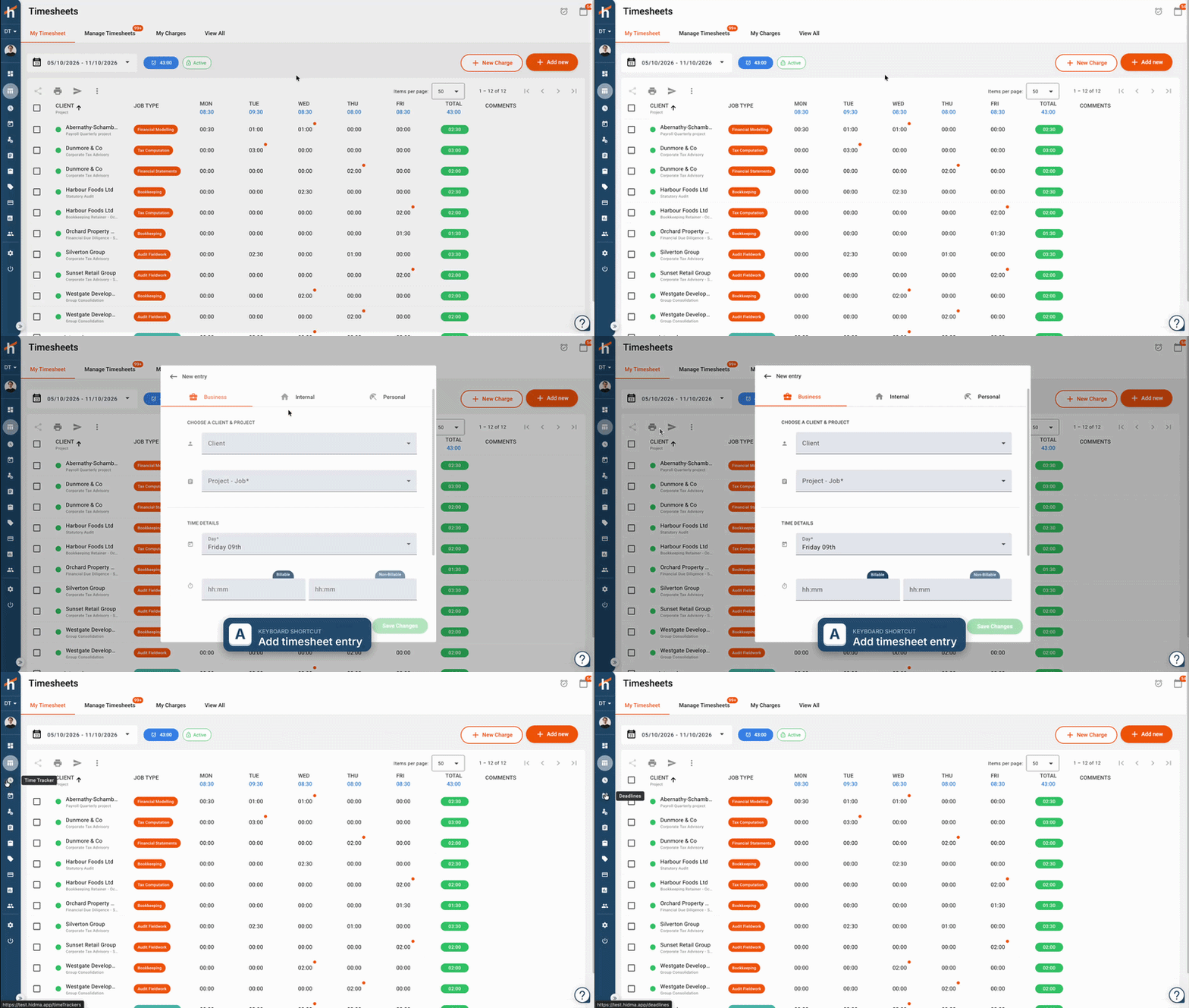
| Screen | What A does |
|---|---|
| Timesheets | Opens Add New Row |
| Time Tracker | Starts a new timer (if no timer is running) |
| Deadlines | Opens Add Deadline |
| Clients | Adds a new client |
| Projects | Adds a new project |
| Jobs | Adds a new job |
| Billing | Opens New Bill |
| Payments | Opens the choice of payment type |
| Teams | Adds a new user |
The shortcut only works when you are not typing in a box and no other window is open on top. It also follows your permissions: if you cannot create something on that screen, pressing A does nothing.
Mobile Interface
hidma is responsive and works on mobile devices:
- Touch-friendly buttons - Larger tap targets
- Swipe gestures - Swipe to reveal actions
- Simplified layout - Optimized for small screens
- Bottom navigation - Easy thumb access
Accessibility Features
hidma includes accessibility features:
- Keyboard navigation - Use Tab to navigate
- Screen reader support - ARIA labels
- High contrast mode - Better visibility
- Adjustable text size - Browser zoom supported
Tips for Efficient Navigation
Pro Tips
- Use search - Fastest way to find anything
- Bookmark pages - Save frequently-used URLs
- Learn shortcuts - Speed up repetitive tasks
- Customize views - Set up tables the way you like
- Use filters - Narrow down large datasets
Common Questions
Q: How do I get back to the main dashboard? A: Click the hidma logo in the top-left corner.
Q: Where are my notifications? A: Click the bell icon (🔔) in the top navigation bar.
Q: Can I change the theme to dark mode? A: Yes! Go to User Menu → Settings → Appearance.
Q: How do I collapse the sidebar? A: Click the hamburger menu icon (☰) next to the logo.